
User Guide
VERSION 4.6
Technical Assistance

Local call: 418-689-5060
Toll free: 1-833-689-5623
Email: support@jobel.ca

Foreword

Under section 61 of the Fisheries Act, commercial fishers are required to submit their catch information to Fisheries and Oceans Canada (DFO) using a logbook. In 2007, DFO began a long process to replace the paper logbook with an electronic version. An electronic logbook is a software program used on board vessels that collects information on catch, fishing effort, and other data.

What is JOBEL?

JOBEL is a web-based solution that allows commercial fishers to complete an electronic logbook at sea without the need for an internet connection*. Once on land, they can then transmit their fishing data to DFO via the web from a smartphone, tablet, or computer.

Designed by fishermen, for fishermen, JOBEL is software:

  • Simple and easy to use, ensuring reliable data.
  • Responsive design that works on a variety of smartphones, tablets and computers.
  • Works offline (not connected to the internet) when entering information* and requires a wireless (Wi-Fi), cellular, or satellite internet connection to send data.
  • The data is sent by the fisherman to the DFO without having to use a third party to enter it.

* Registering with JOBEL and subscribing to a fishing module requires an internet connection, as the software is internet-based. However, once you have registered and subscribed to a module and opened it on the web from your device (smartphone, tablet, or computer), you can access it from that same device in "offline" mode, without an internet connection.

Setting up your device

  • Geolocation access must be enabled on your device for JOBEL to function correctly. Refer to the Visual Guides section for step-by-step instructions for your device.
  • JOBEL must be used in standard browsing mode. Private or incognito browsing is not supported and may prevent the application from functioning properly or result in data loss.
  • Do not clear your browser history or cookies while fishing trips remain unsubmitted to DFO. Always verify your trip log before clearing browser data to avoid any loss of information.
  • The following web browsers are supported by JOBEL:
Safari Safari Default on iPhone, iPad & Mac
Chrome Chrome Default on Android; popular on all platforms
Firefox Firefox Not pre-installed, but fully compatible

Technical Requirements

JOBEL is compatible with smartphones, tablets, and desktop computers.

  • JOBEL is compatible with Safari, Chrome, and Firefox on any device running an actively supported operating system. Devices that no longer receive security updates are strongly discouraged, as they may expose your data to security vulnerabilities.
  • JOBEL is optimized for Apple (iOS, iPadOS, macOS) and Android devices.
  • Some devices — including desktop computers and certain tablets — do not have a built-in GPS chip. On these devices, automatic position capture is not available. A USB GPS receiver can be connected to compensate, or GPS coordinates can be entered manually. Please note that JOBEL technical support does not cover the configuration of USB GPS receivers.

Need Some Help?

Built-in help

  • Contextual help is available throughout JOBEL. Click the question mark icon to display an explanation for the corresponding field or section. Help button
  • A colour-coded system guides you through each step of the logbook entry process, making it easy to identify required fields and track your progress.

Additional resources

  • Visual guides: Step-by-step setup guides are available directly in this document on the Visual Guides page.
  • FAQ: Answers to frequently asked questions are available at jobel.ca/faq.
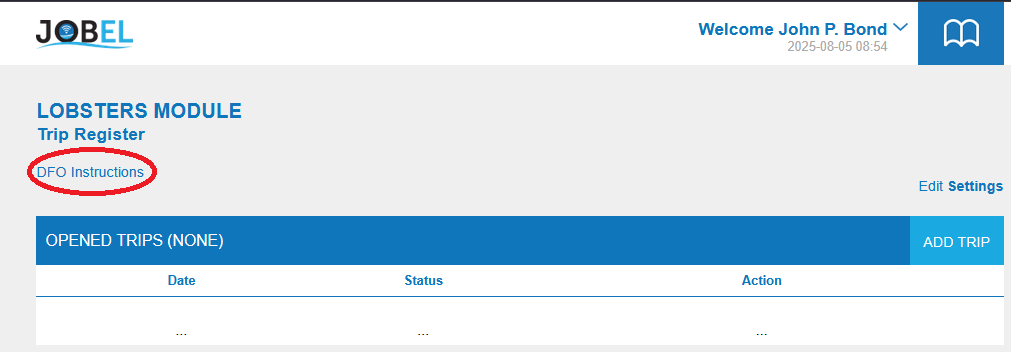
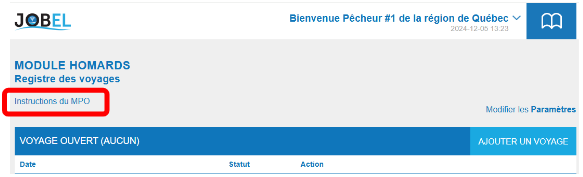
  • DFO instructions: In the trip log of each fishing module, you will find a direct link to the Department of Fisheries and Oceans' instructions for that module. Trip registry
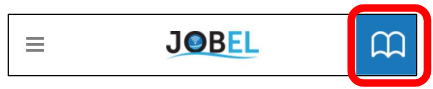
  • This user guide is accessible at any time within JOBEL by clicking the book icon in the top right corner of the application. Guide icon
  • Technical support: If none of the above resources resolve your issue, contact your nearest JOBEL technical support agent. Contact information is available on jobel.ca and in the JOBEL main menu under "Help and Contact."

Navigation tips

DROP-DOWN MENUS

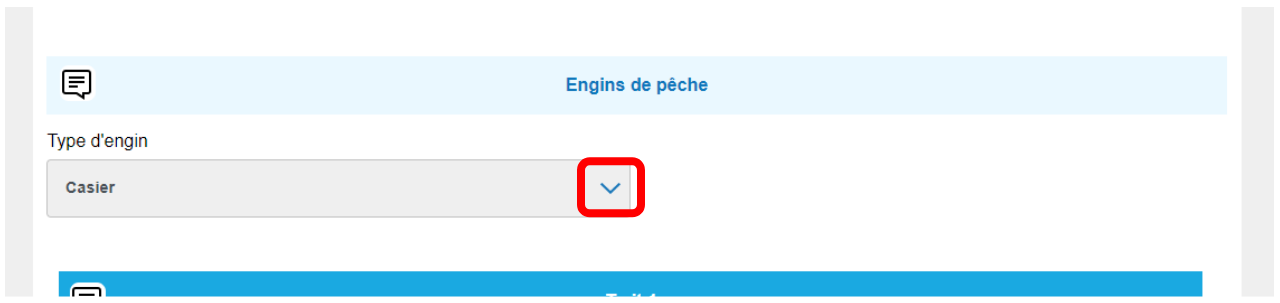
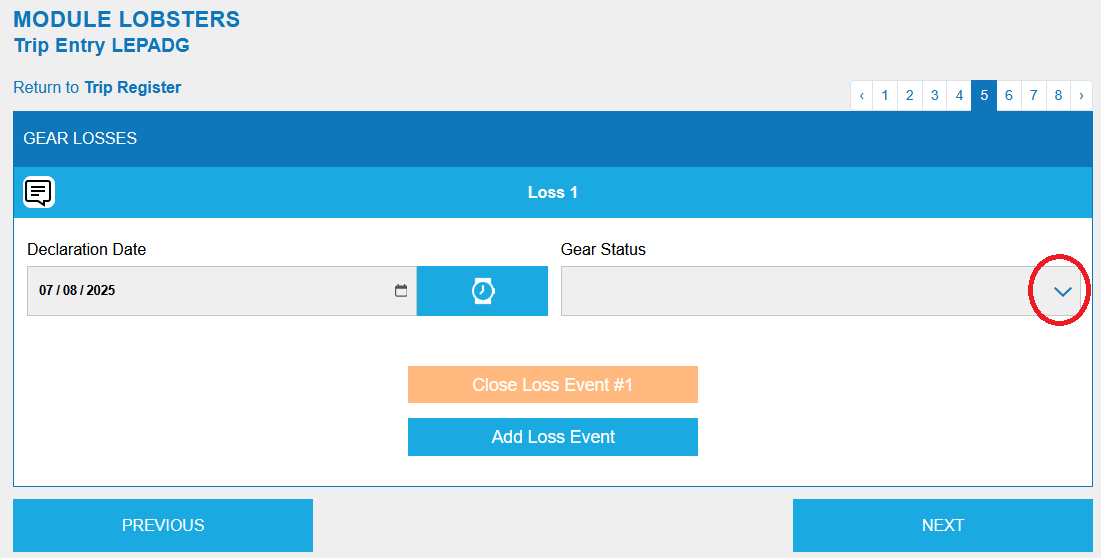
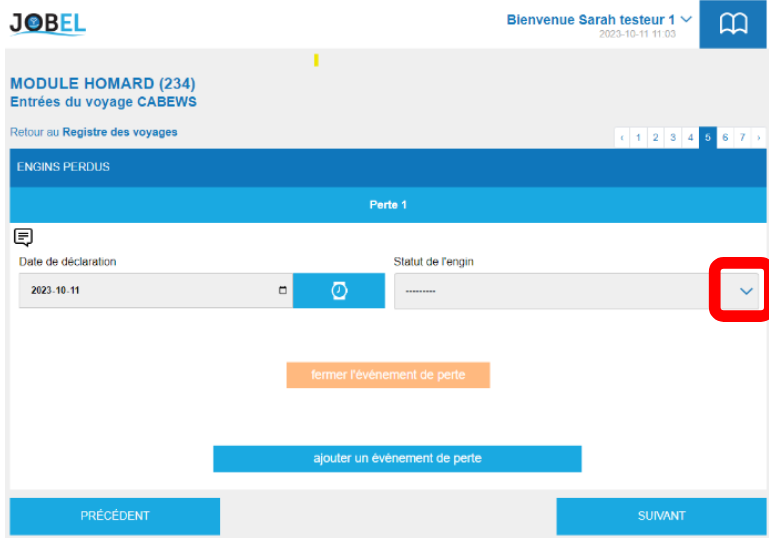
Some fields include a drop-down menu. Click the blue arrow on the right to expand the list and select the option that best applies to your situation.

Drop-down menu example FIELD VALIDATION

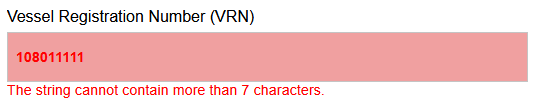
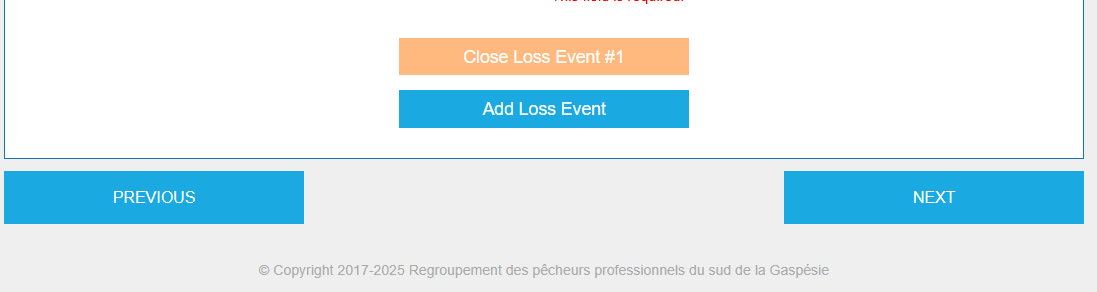
Required fields that are incomplete or incorrectly filled will turn red, along with an explanatory message. Click the field to correct the information before proceeding.

Field error example

Chapter 1 – Registration and Login to JOBEL

The JOBEL Registration section is intended for people who have never registered for an account before and who would like to discover a free demo version of JOBEL or subscribe to a commercial fishing module.

✓ You must be connected to the internet to register with JOBEL.

✓ If you have used JOBEL before, you do not need to register again. Simply click on Log in to access your account from the website www.jobel.ca.

Register to create an account

To register with JOBEL:

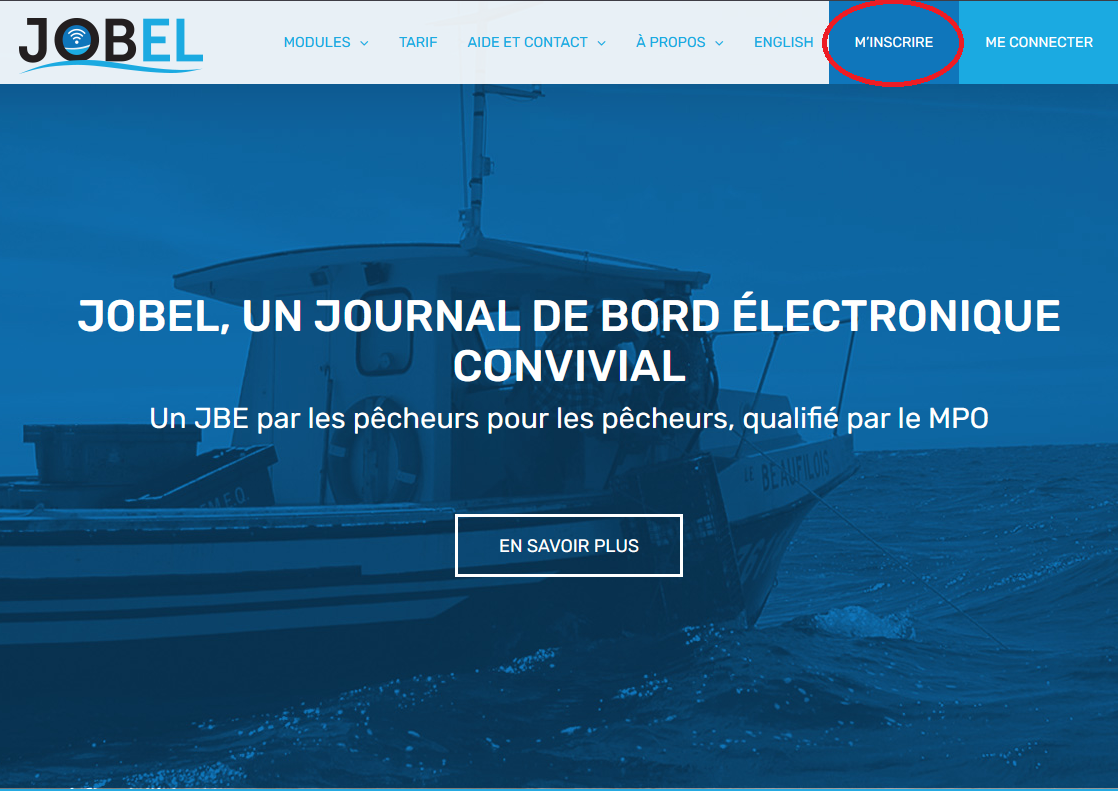
  • Go to the website www.jobel.ca
  • Choose your language by clicking on FR or EN
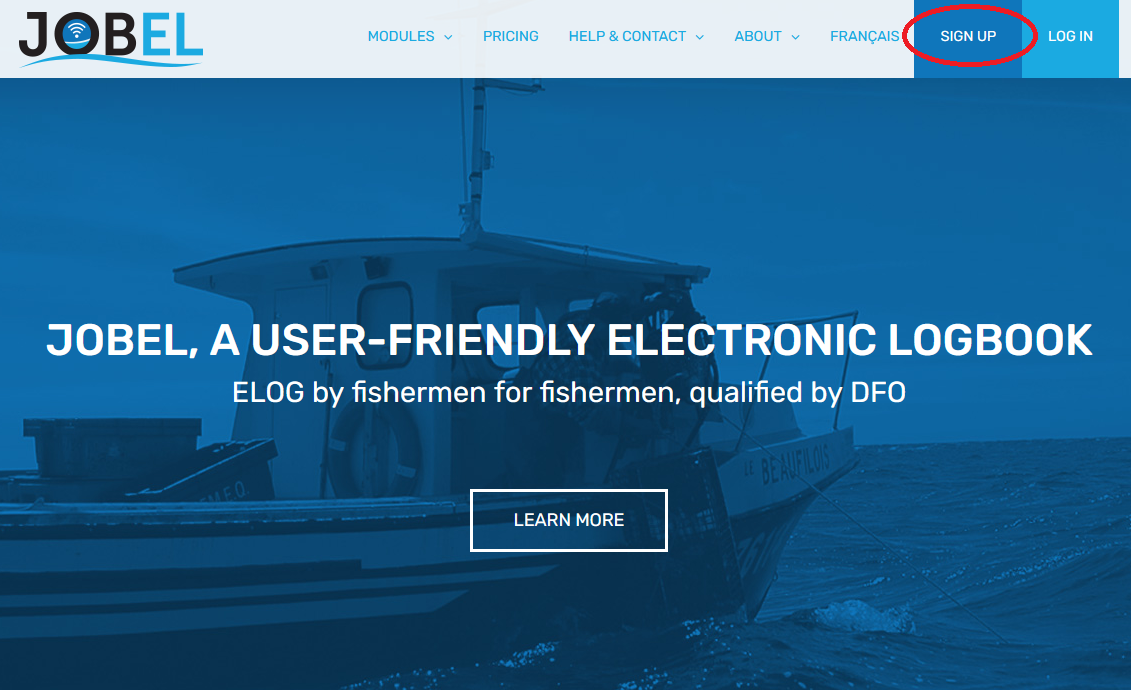
  • Click on the tab SIGN UP. You will be redirected to the JOBEL registration page.
  • Sign up button
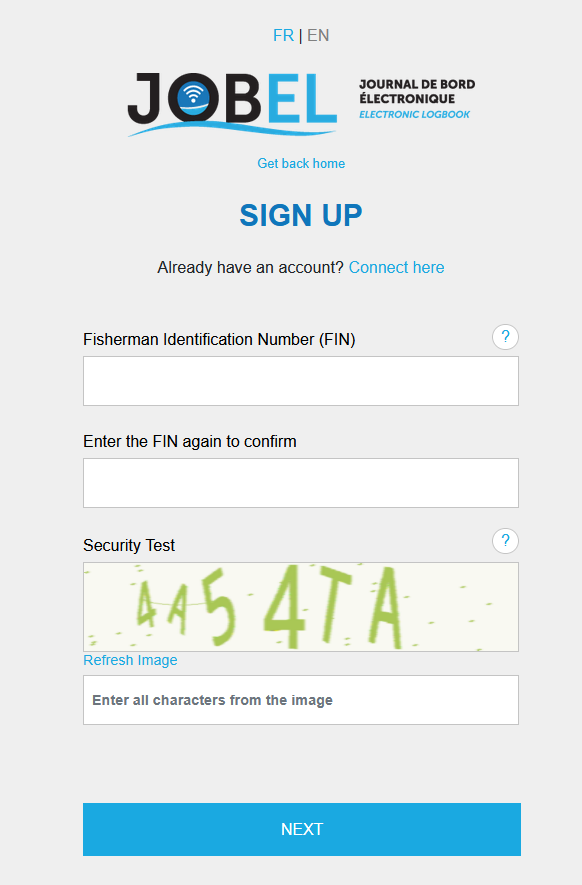
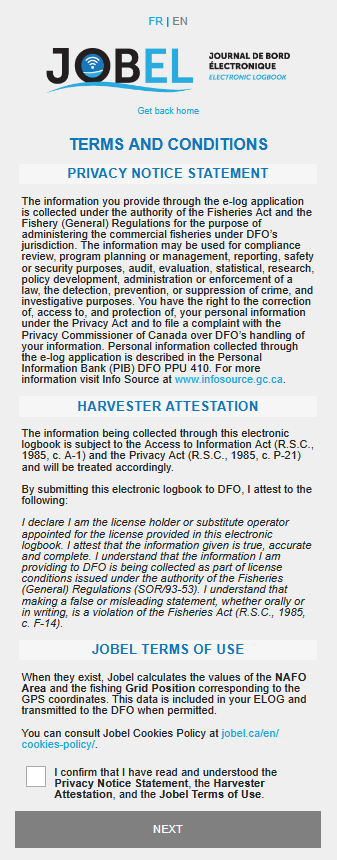
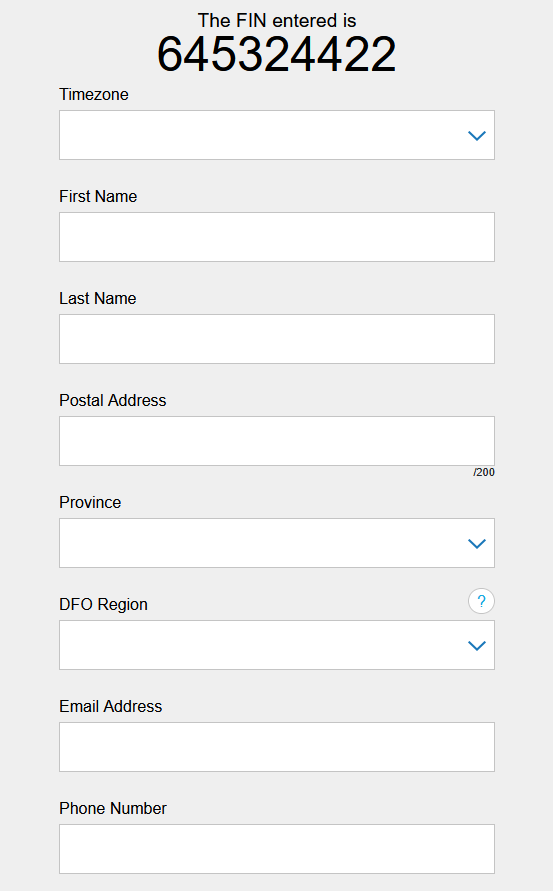
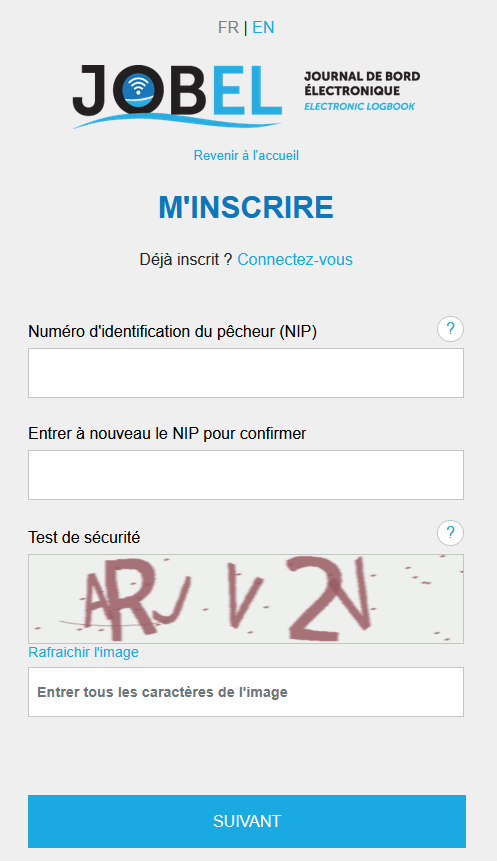
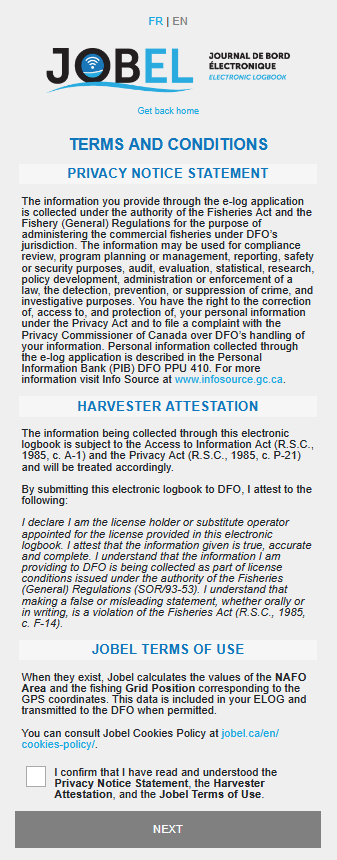
  • Enter your FIN (Fisher Identification Number) available on your fishing license and complete the security test characters, then click the blue button Next. You will be directed to the terms and conditions page. Please read them. At the bottom of the page, check the read confirmation box and click Next. You will be directed to the third page to finalize your registration.
  • Registration step 2 Terms and conditions
  • If you wish to return to the jobel.ca website, click on the JOBEL logo.
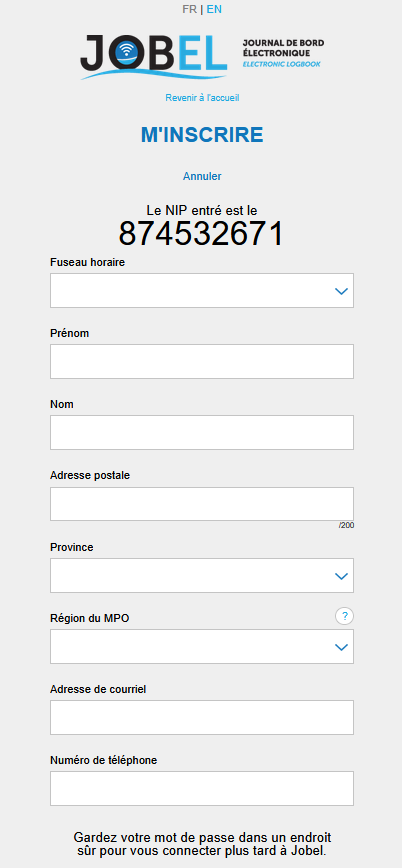
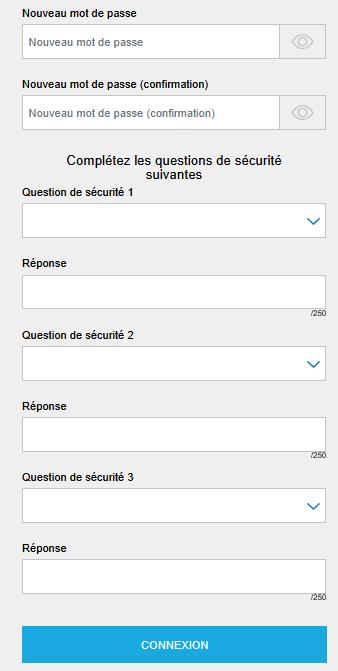
  • Complete the required fields.
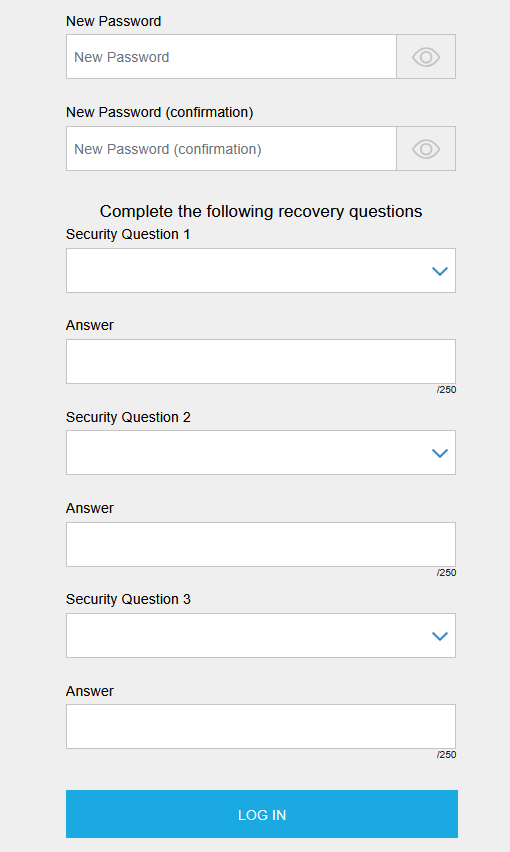
  • Scroll to the bottom of the page to complete all required fields.
  • Keep your password and the answers to your security questions in a safe place.
  • The email address you choose for your registration must be one that you have easy access to and, if possible, your personal email address.
  • Once you have completed the fields, click the blue Login button. You will be taken to the module selection page.
  • Registration step 3 Registration step 4

Did you enter an existing FIN?

  1. JOBEL will verify through the questions whether you have an existing account. Answer all questions by clicking on the appropriate blue squares.
  2. Once the account verification associated with your FIN is complete, you will be redirected to one of the following options:
    • To the login page. A password will be emailed to you if you forget it.
    • Towards JOBEL central technical support.
    • To the FIN entry page to register.

Sign in to your account

To log in to your account:

  • Enter your Fisher Identification Number.
  • Enter your password.
  • Click Login.

Forgotten password

You are logged out of JOBEL and have forgotten your password to access your account.

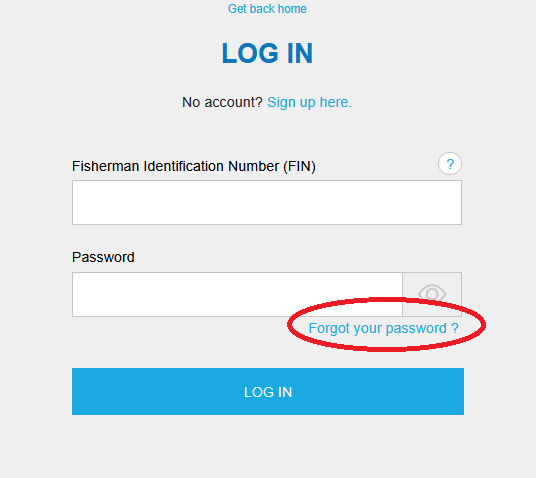
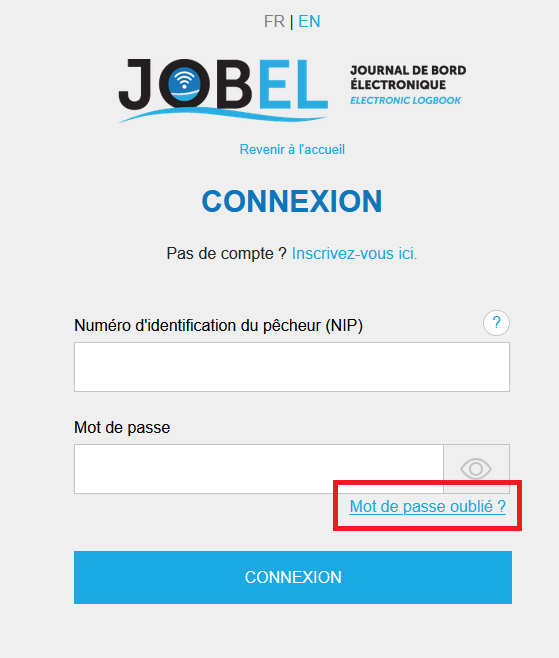
  1. Click on the blue text Forgot your password? at the bottom of the password field. You will be redirected to the password reset page.
  2. Forgot password
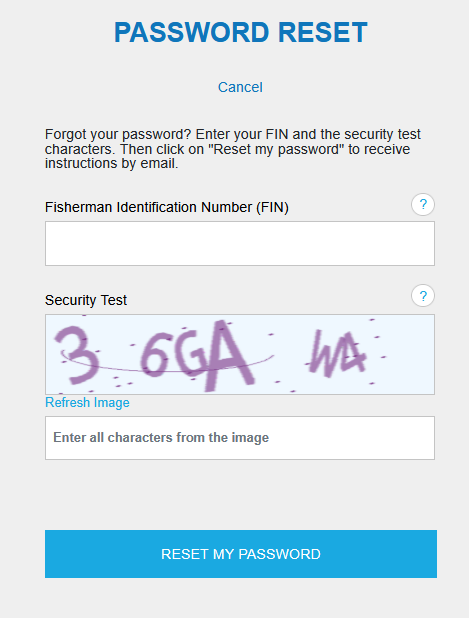
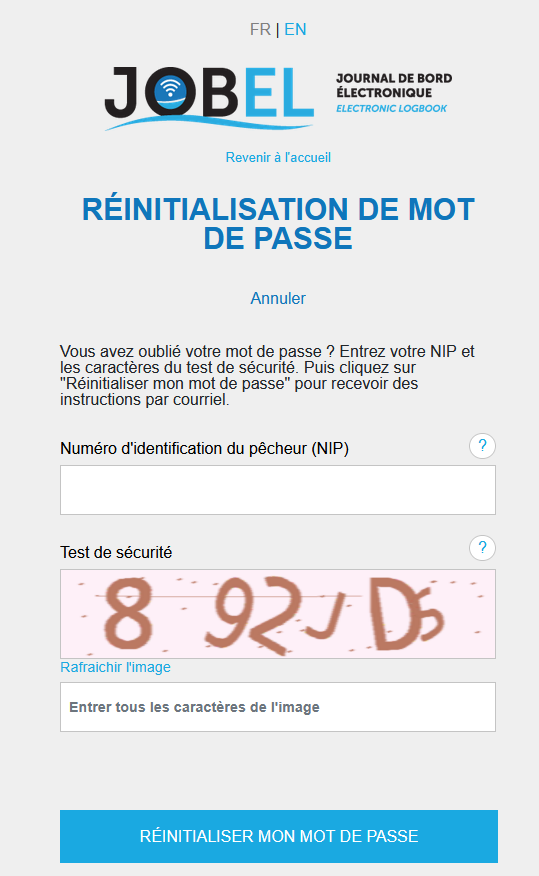
  3. Enter your FIN and security text then click Reset my password. A message will appear informing you that an email has been sent to you. Go to the inbox of the email address you used when registering on JOBEL.
  4. Password reset
  5. Then follow the instructions in the email received.

Chapter 2 – JOBEL's Functionalities

The main menu

How to access the JOBEL menu

Once in the application, you will always have access to the JOBEL MENU, which allows you to easily navigate through JOBEL's various features.

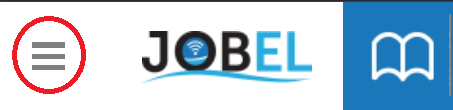
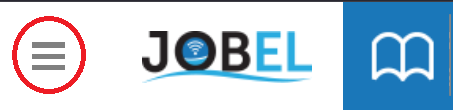
ON SMARTPHONE

Use the three gray bars in the top left corner of the app header.

Smartphone menu ON TABLET OR COMPUTER

Use the arrow located immediately to the right of your name in the application header.

Tablet/computer menu

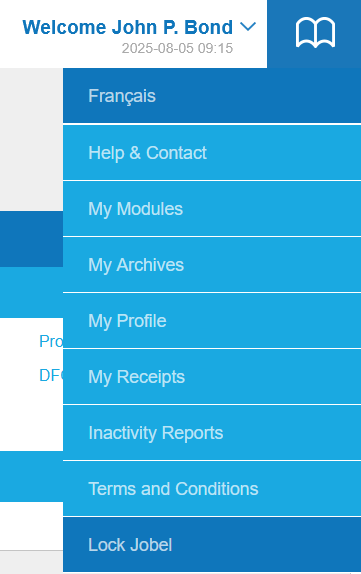
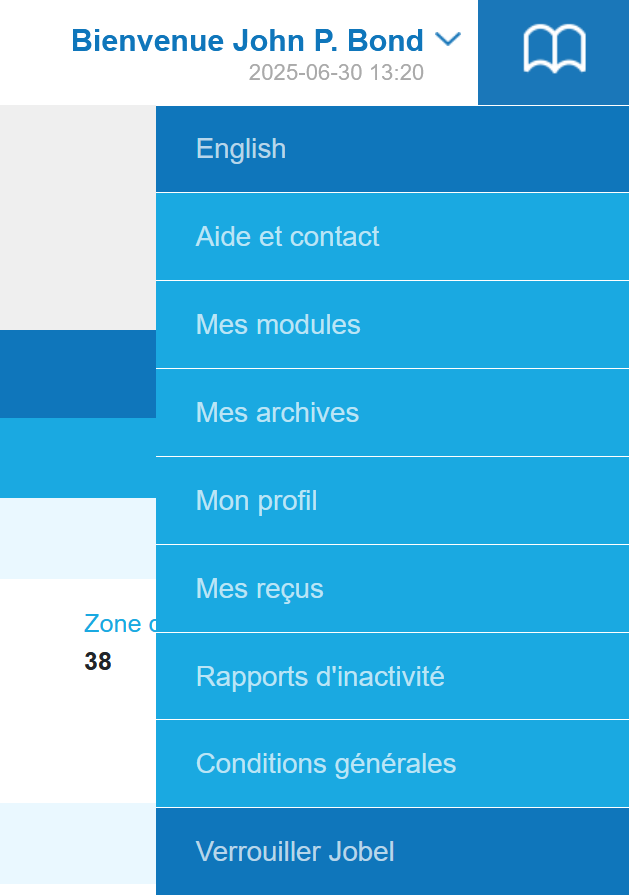
The menu in detail

JOBEL menu Français

This tab allows you to choose the language of JOBEL.

Help and contact

There you will find JOBEL's technical support phone numbers.

My modules

Allows you to display the modules to which you are subscribed.

My archives

You can access all your trips from previous years. The archive also includes a personalized trip search function.

My profile

Click on "My Profile" to access your account details, your GPS test, and your JBE key. You can change the information in your profile at any time without affecting other JOBEL features.

Subscription receipts

To access your payment invoices made during your subscriptions to JOBEL modules.

Inactivity Report

Refer to your license conditions to find out if you need to file a non-fishing trip inactivity report.

General conditions

This displays the privacy statement, the fisherman's certificate, and the JOBEL terms of use that you accepted during registration.

Lock JOBEL

Click the "Lock JOBEL" button to close your electronic logbook and keep your data secure between uses.

The next time you use the app, enter your password and click the blue "Unlock JOBEL" button.

You don't need an internet connection to unlock JOBEL and enter a new trip.

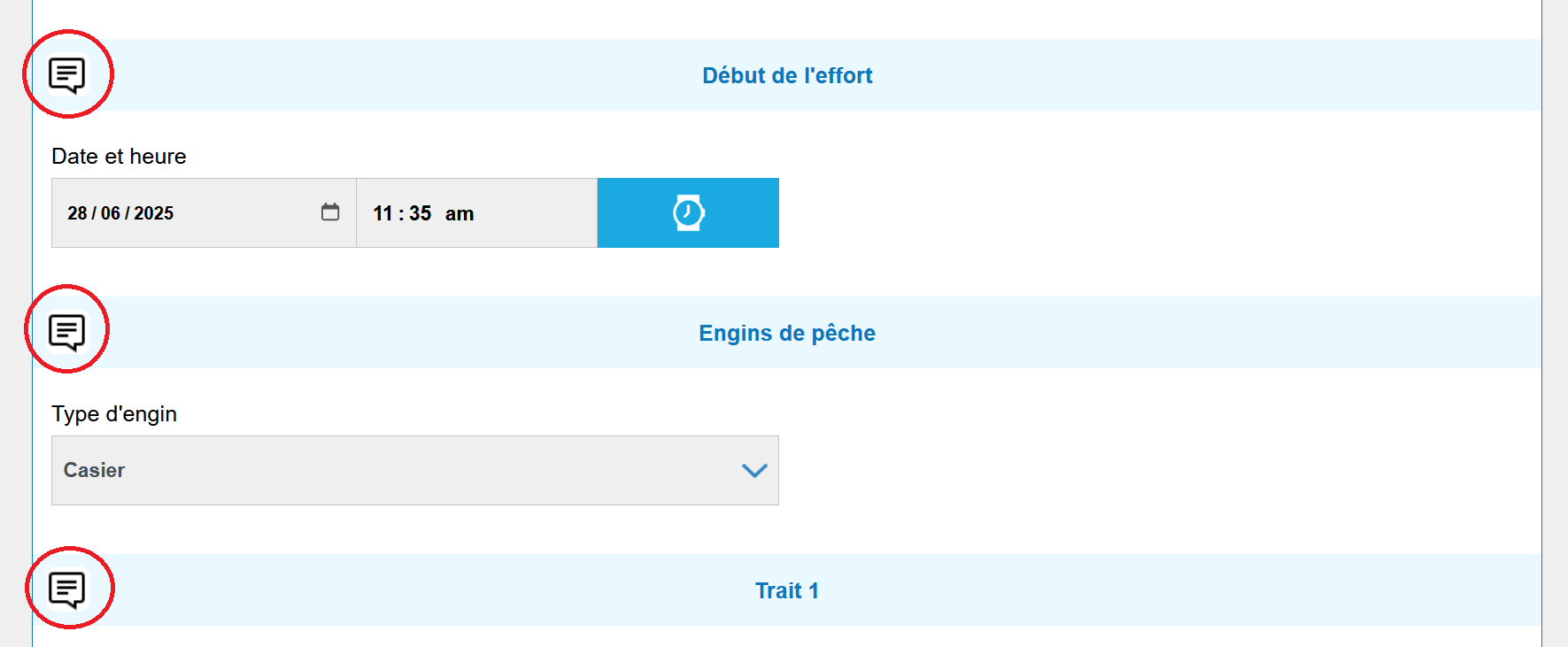
Comments

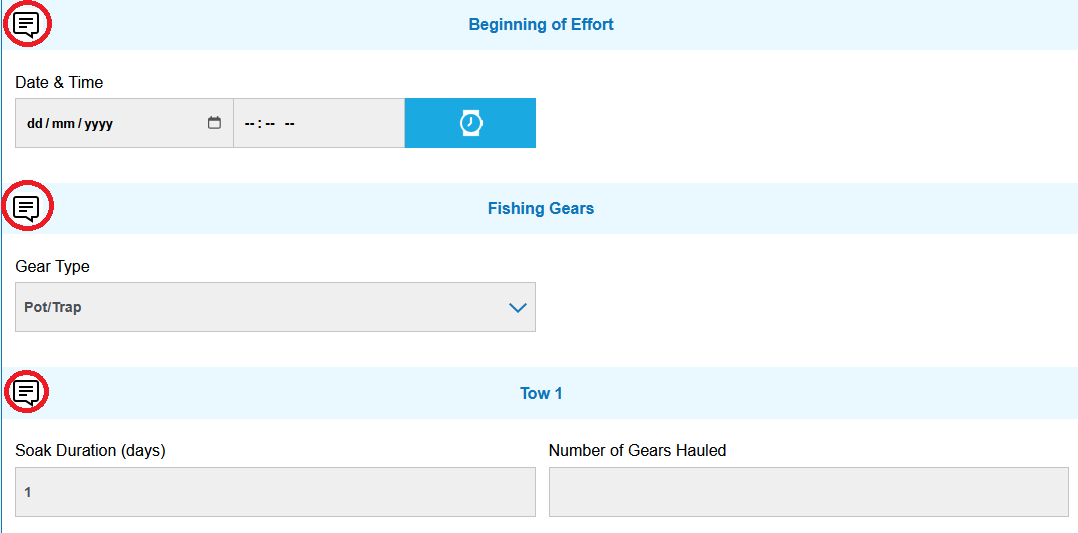
Click on the small bubble to add a comment regarding the data entered in this section. This message will be sent to the DFO when you submit your trip.

Comments

The automatic clock

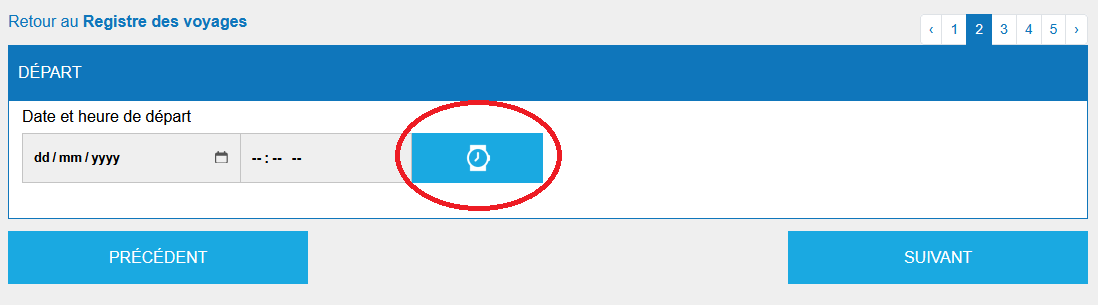
As you enter your trip data, you can use the button with the clock icon to automatically fill in the date and time fields. By pressing the button, the current date and time will be instantly displayed in the appropriate fields. You can always manually change the date and time later.

Automatic clock

Automatic GPS reading

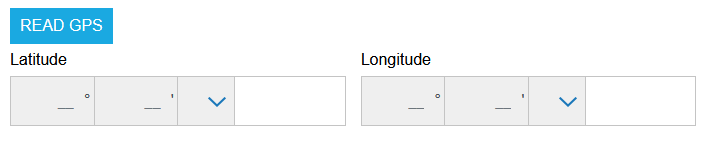
  • Automatic GPS reading is done offline and off-grid if your device is a phone or tablet with a GPS chip.
  • By clicking the "Read GPS" button in your trip, your current position will be automatically captured, including the NAFO zone and the quadrilateral.
  • You can also manually enter latitude and longitude, in degrees, minutes, and seconds format.
  • Check out our visual guide on how to enable GPS on your device at jobel.ca/guide.
GPS reading

The crew register

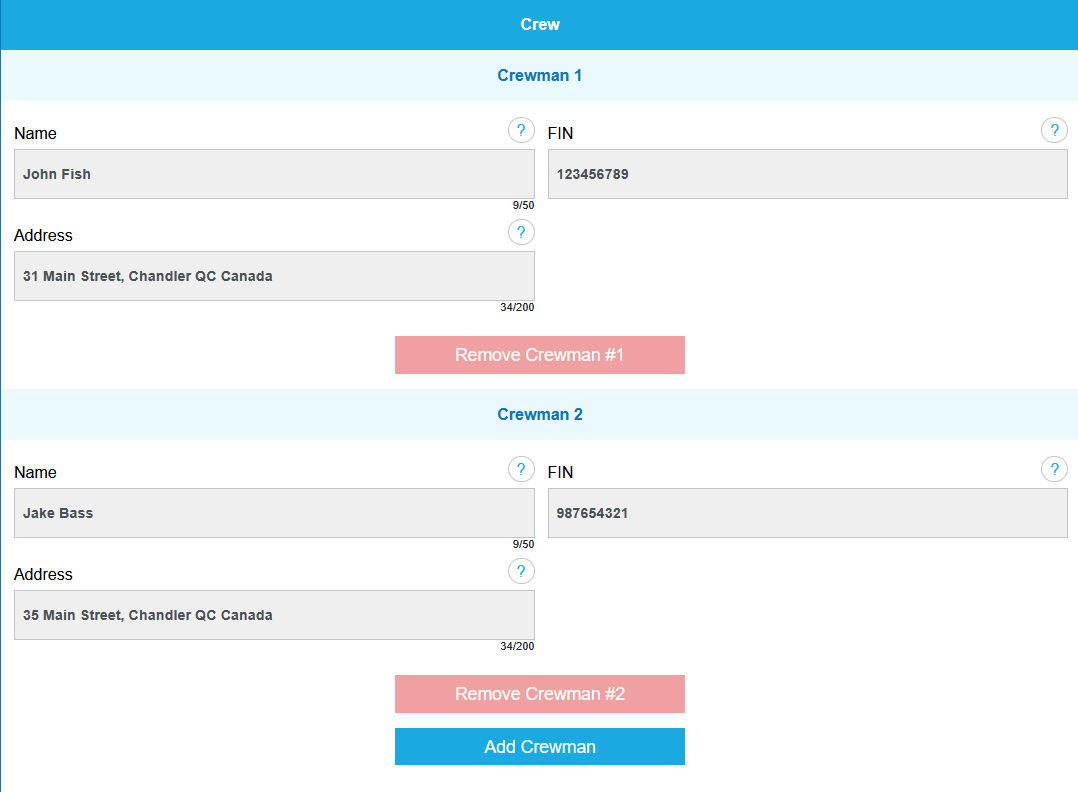
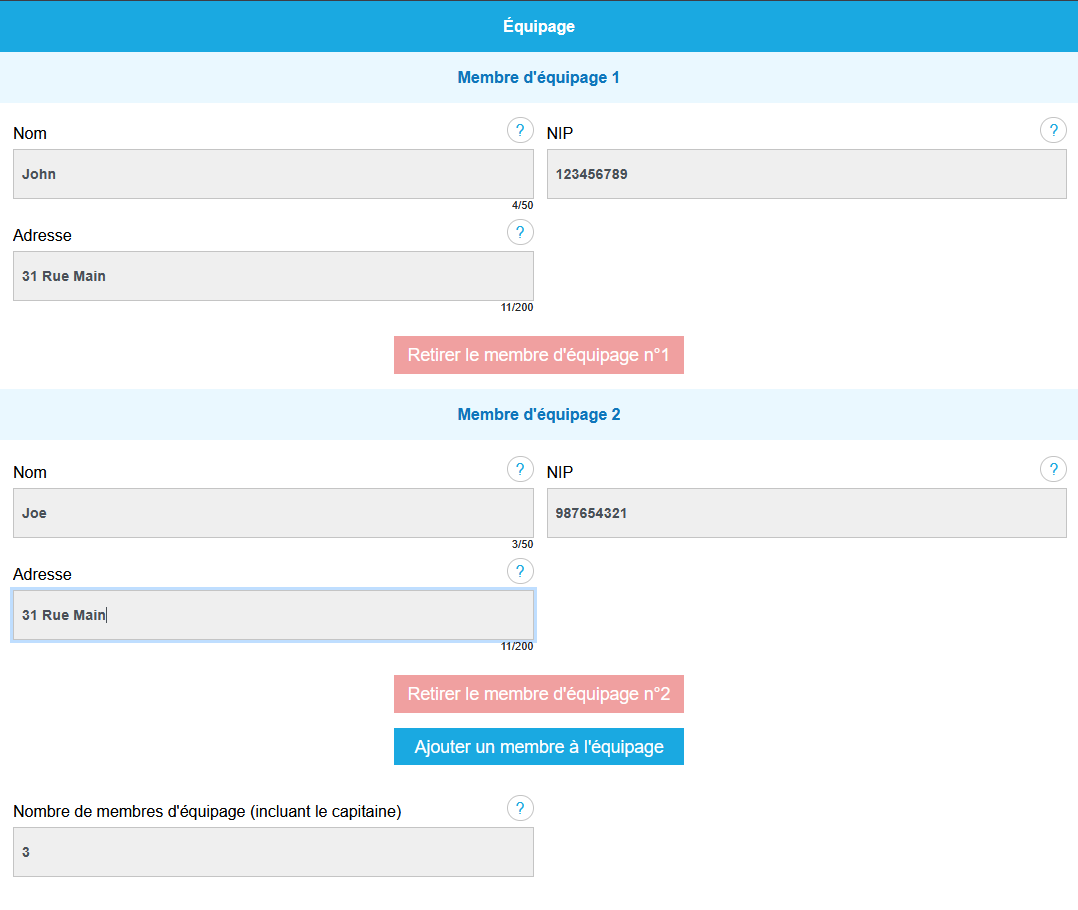
For each module, you have the option to enter your crew log.

  • At the start of the season, complete your crew log in your module settings in the Crew Log section.
  • Add all the information for each crew member by clicking "Add Crew Member."
Crew register
  • Your crew will appear for each of your fishing trips.
  • You can change crews for each of your fishing trips.
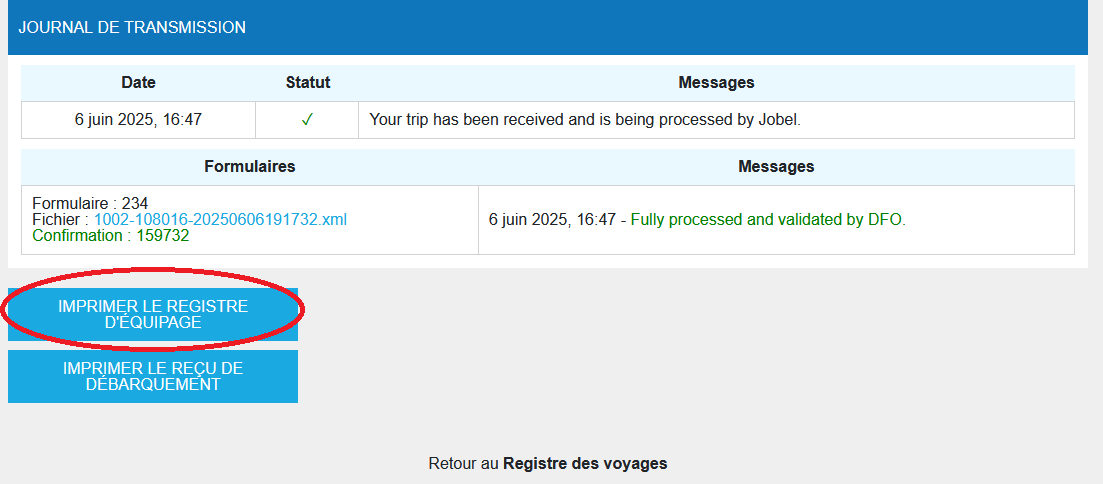
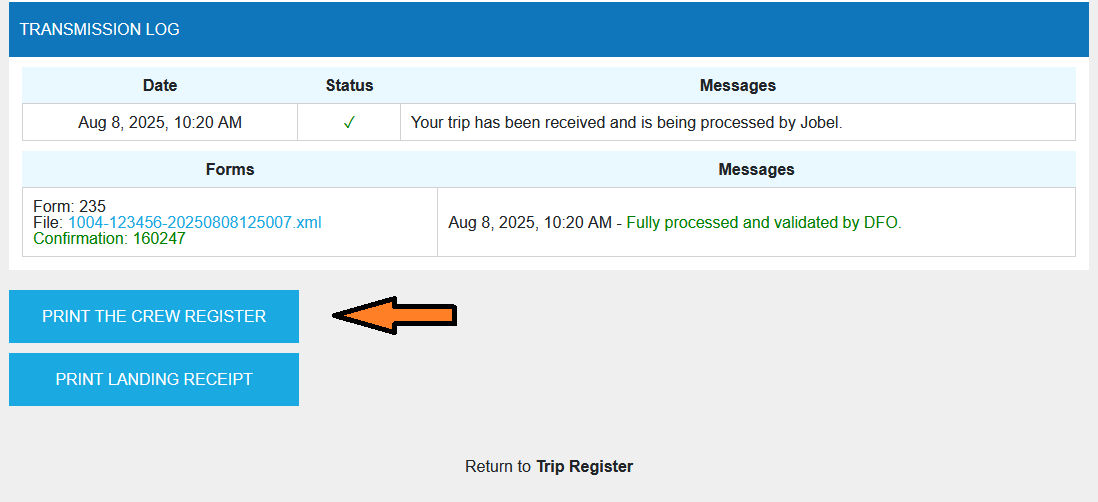
  • You can print the crew log for each voyage sent by clicking the blue "Print Crew Log" button at the bottom left of the voyage data page.
Print crew registry

The quota indicator

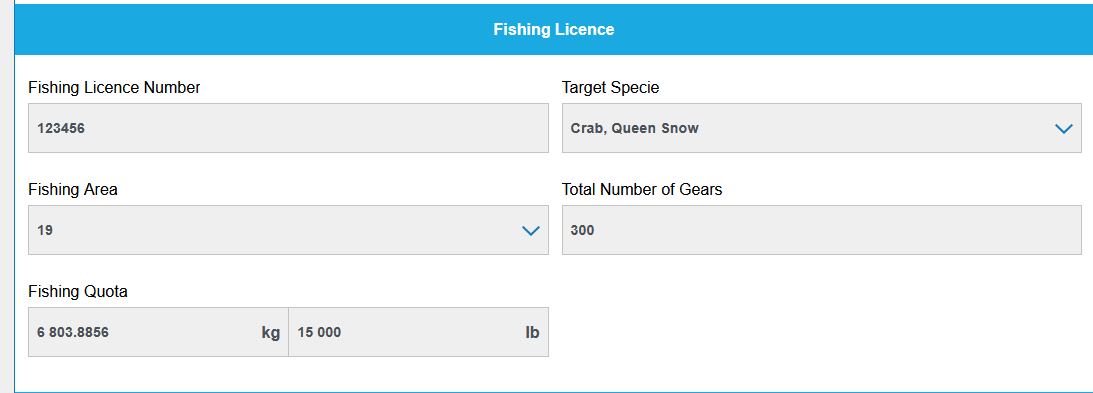
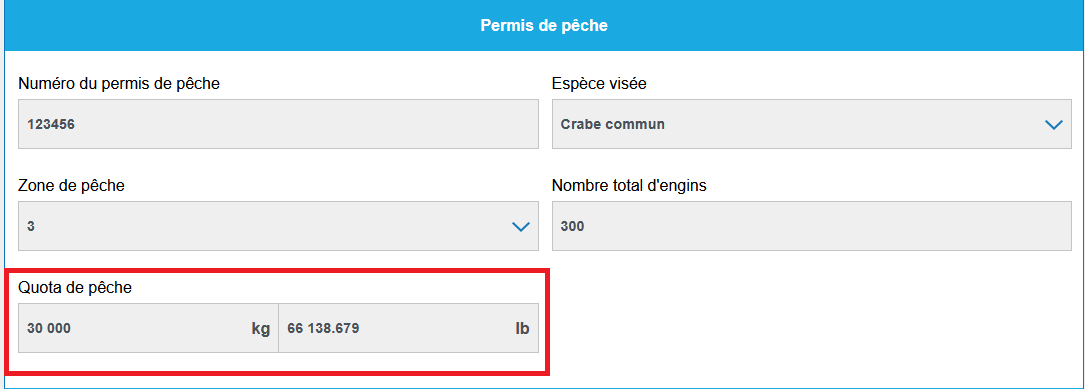
For competitive fishing such as snow crab, you can enter your quota in the settings.

  • At the start of the season, fill in your allocated quota in your module settings in the permits section. Enter it in kilograms or pounds; JOBEL will convert it.
  • Quota settings
  • When your settings are saved, the quota indicator will appear on the travel log page.
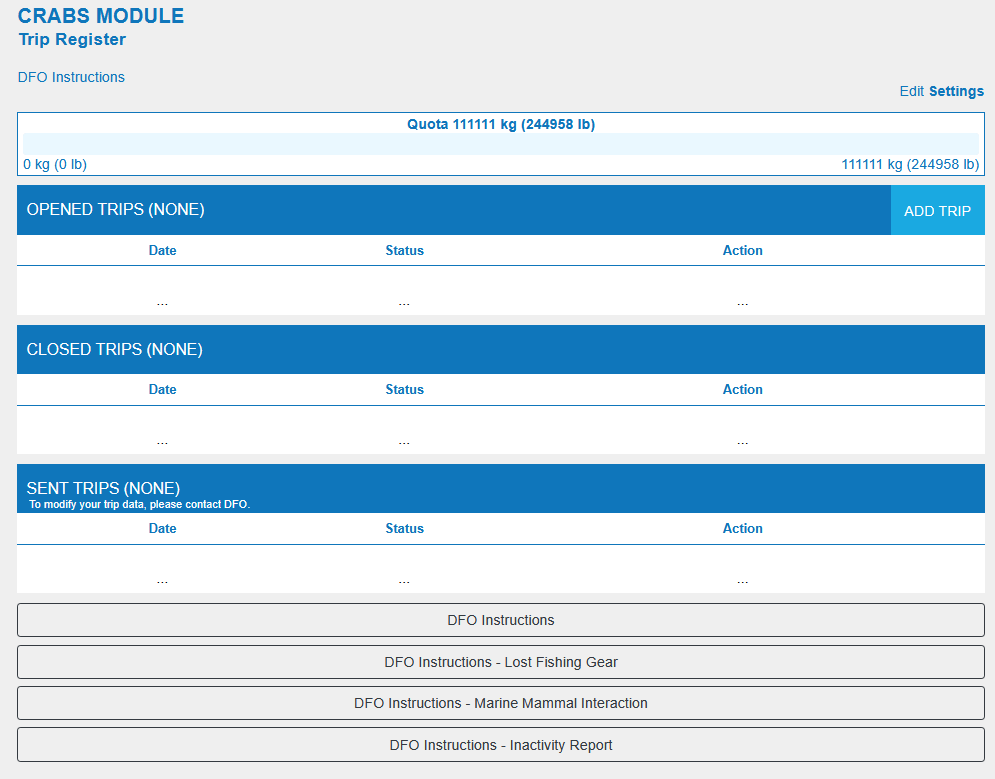
  • Quota indicator
  • After each dockside weigh-in, your indicator will change, allowing you to track your progress. This information is for informational purposes only and is not sent to the DFO.

Non-fishing trip inactivity report

This is for fishermen who are unable to fish during all or part of the fishing season. (Refer to your license conditions).

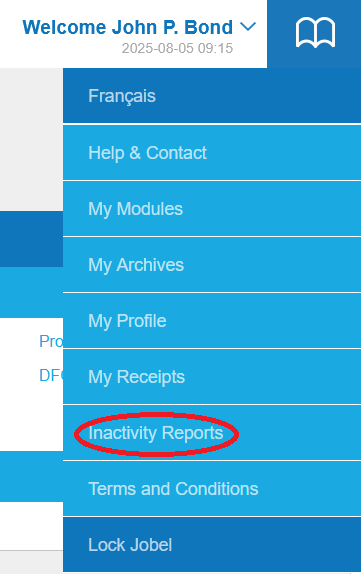
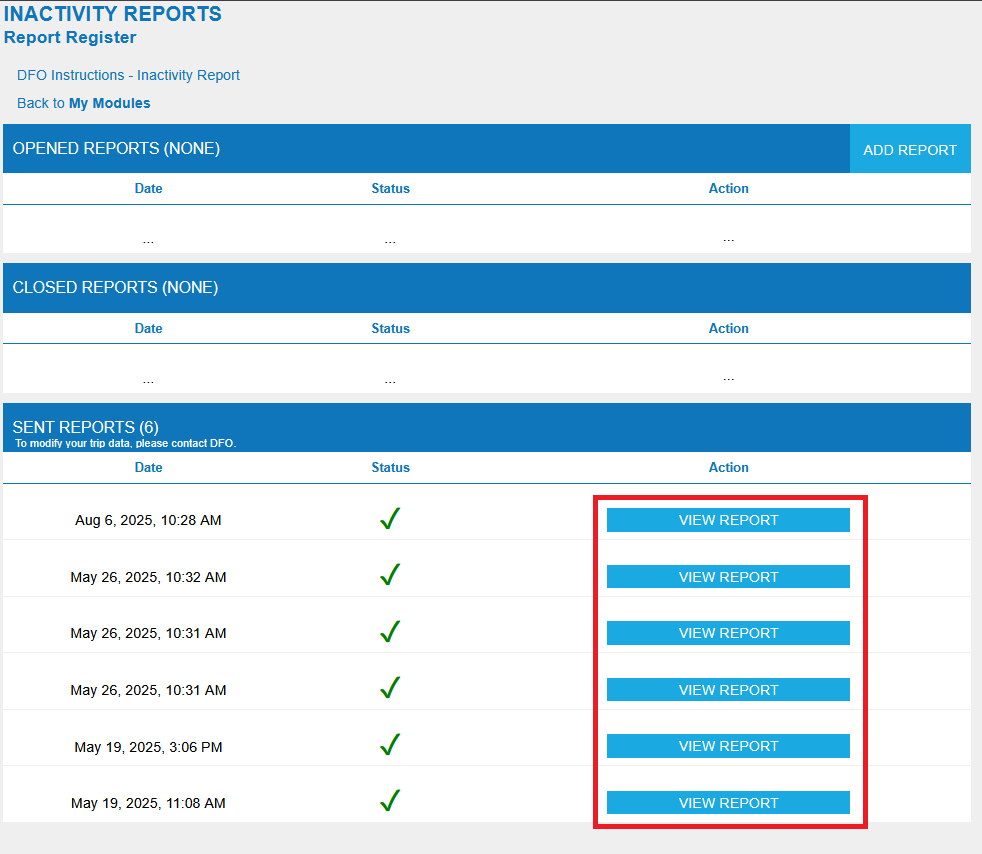
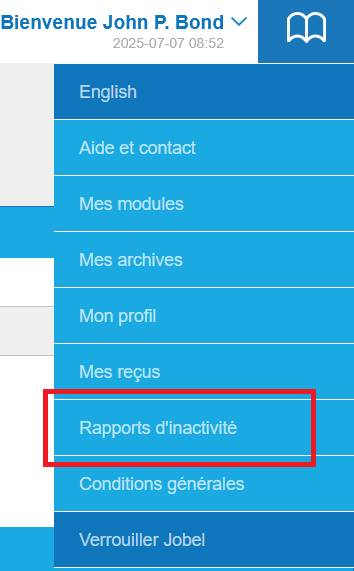
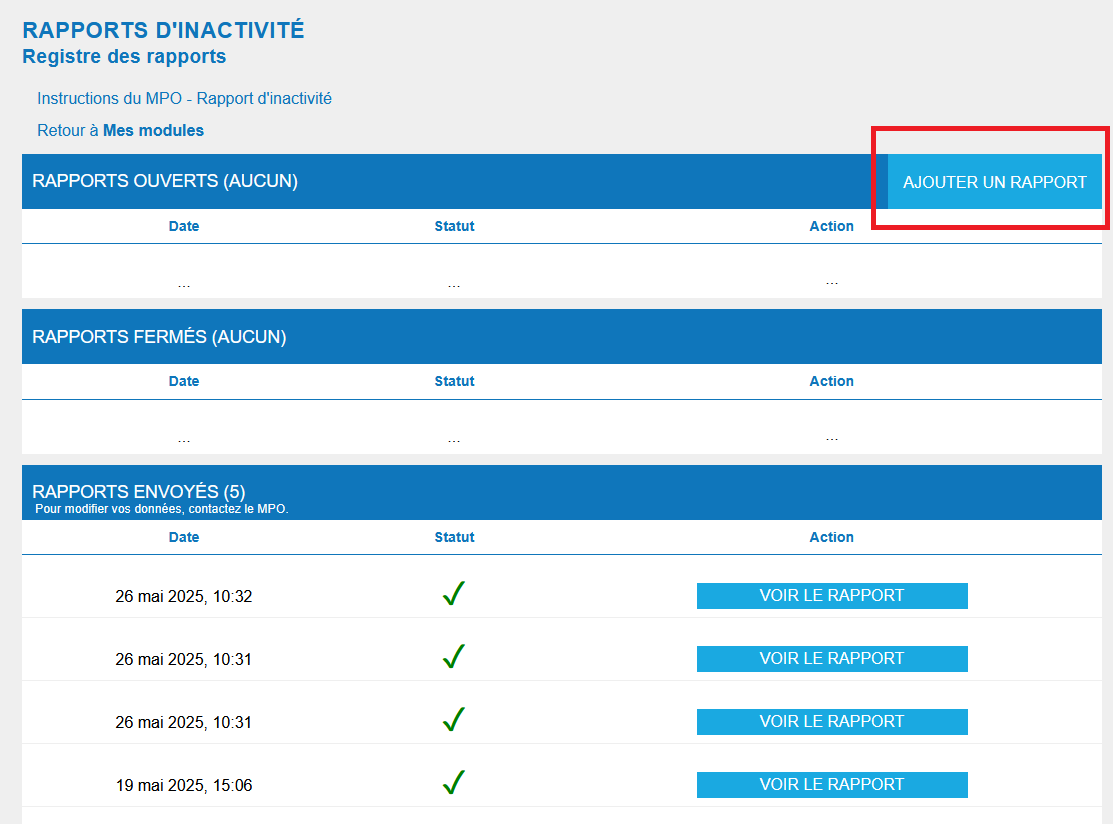
To access the inactivity report, click "Welcome" in the top right corner of your modules page to bring up the main menu. Then, click "Inactivity Report" to access the report log.

Menu inactivity

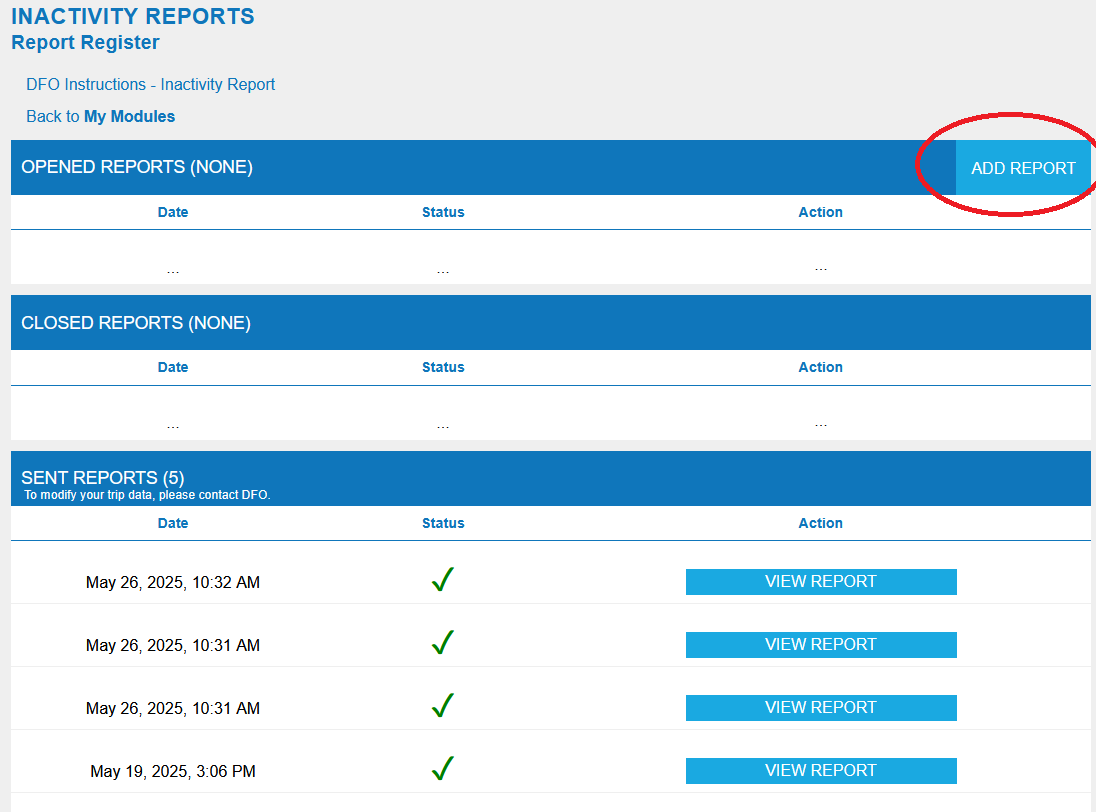
Click "Back to my modules" if you wish to return to your modules page.

Click on "Add Report" to access the data entry page.

Add inactivity report

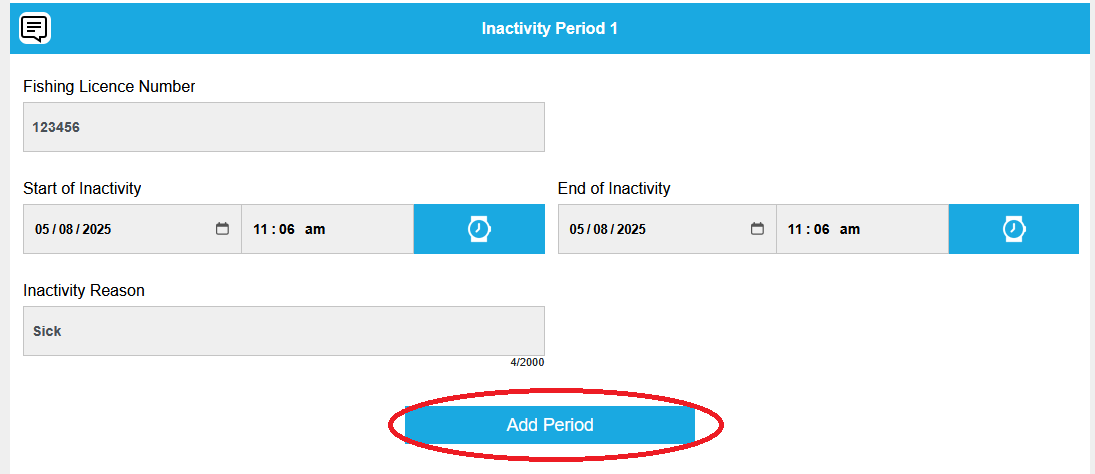
Click on "Add an inactive period".

Add inactive period

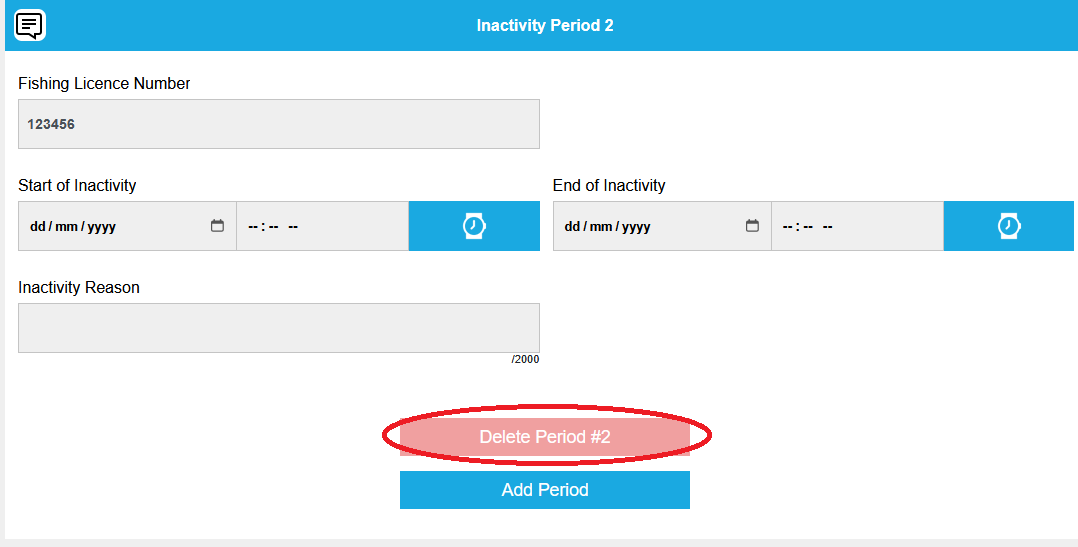
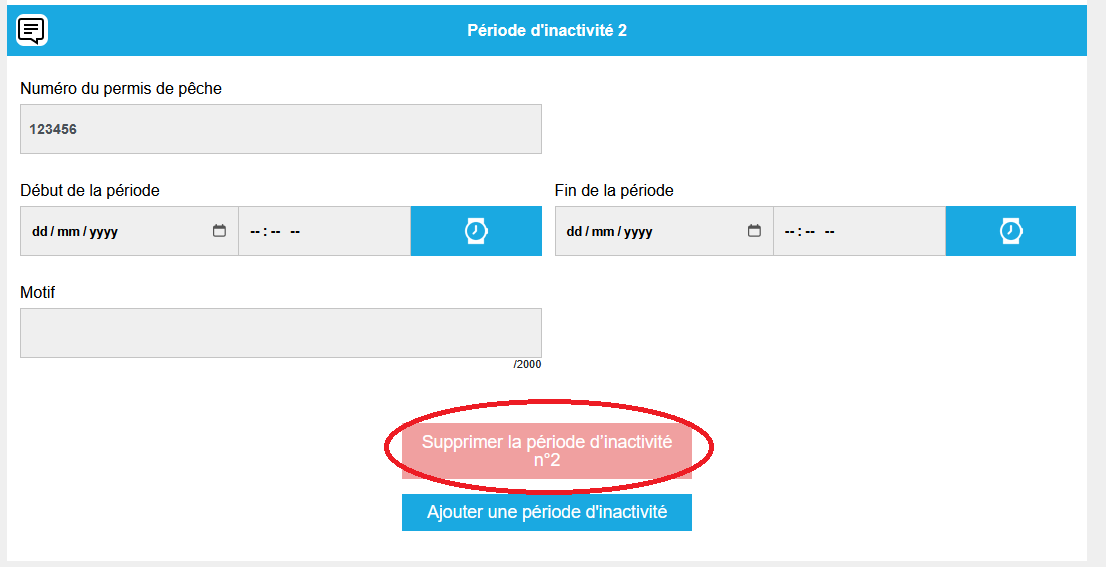
You can delete the last period of inactivity by clicking the red "Delete last period" button, or add a new period by clicking the blue "Add a period of inactivity" button.

Manage inactivity periods

The report consists of a data entry page and a review page.

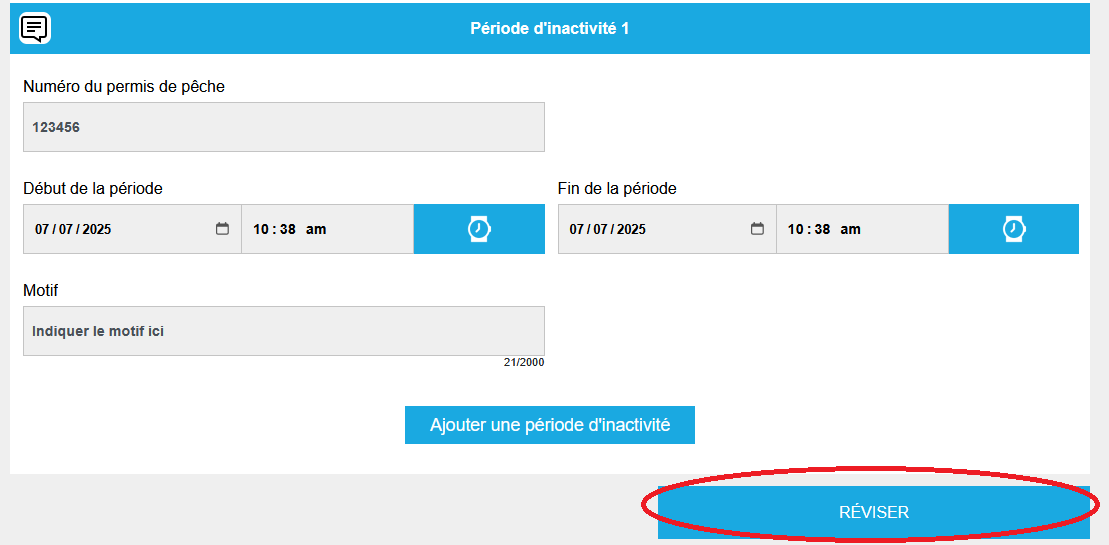
Data entry page

This page is dedicated to information that you absolutely must complete.

  1. Report Identification — Automatic information that identifies the trip (version, software vendor, unique report identifier, date and time the inactivity report was created).
  2. General Information — Information related to the fishing license affected by the inactivity that you must complete (DFO region, operator name, license holder FIN, vessel name, and vessel registration number).
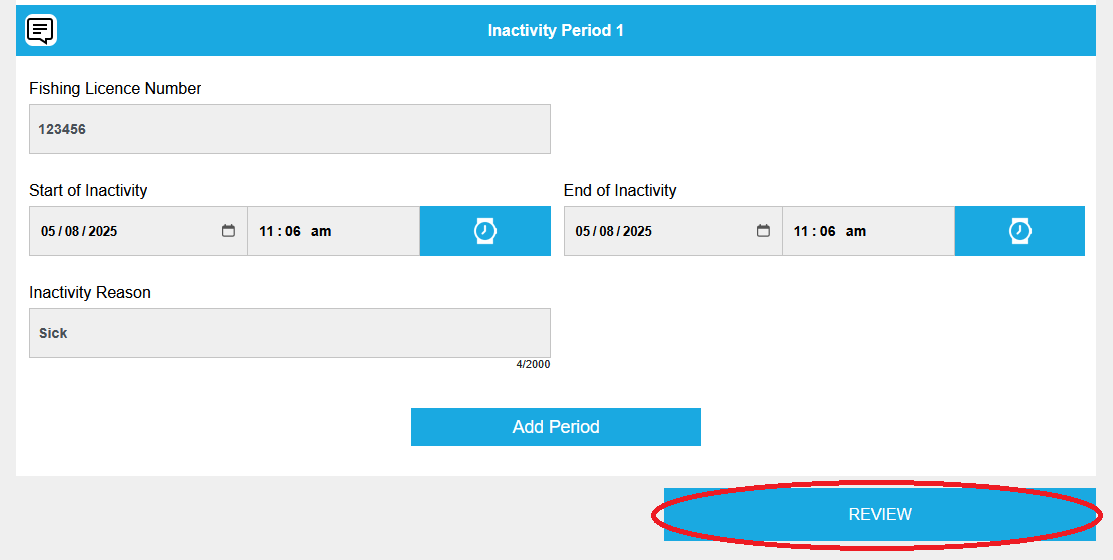
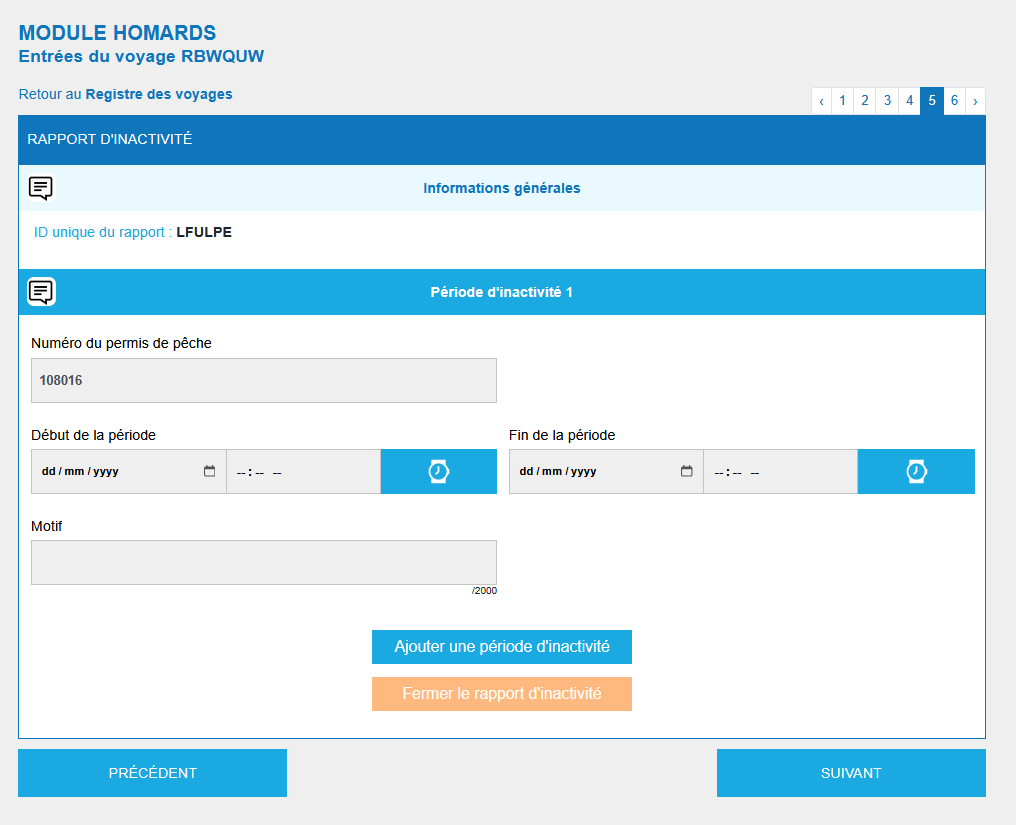
  3. Inactivity Period 1 — Information related to inactivity that you must complete (fishing license number, start and end of inactivity, and reason for inactivity). Click the blue "Review" button to verify the information before sending your report to DFO.
Review page The review page

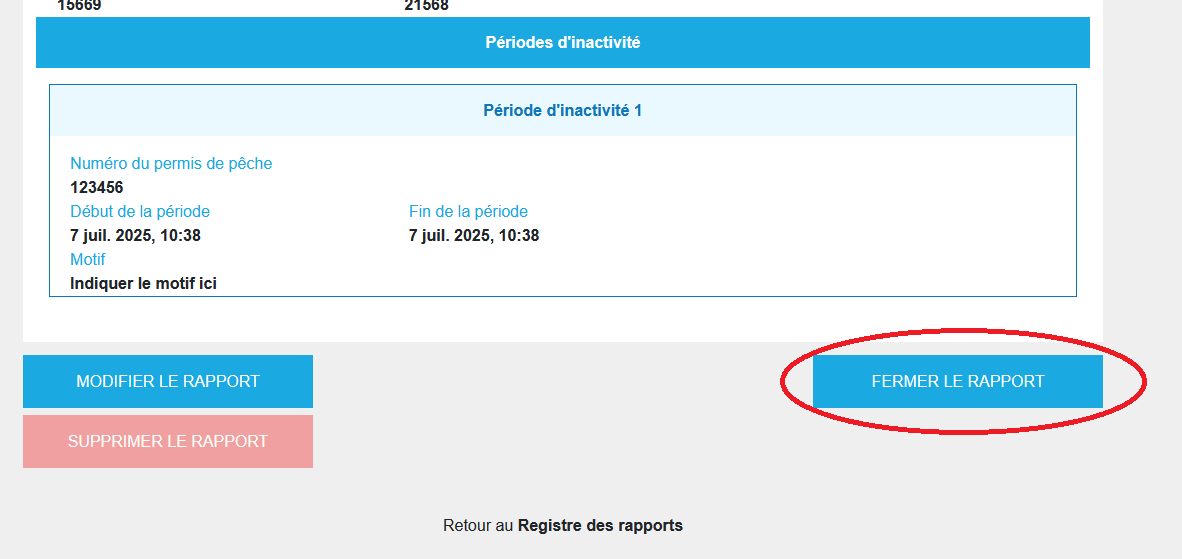
The review page presents all the data entered in your JOBEL inactivity report and which will be or has been transmitted to the DFO.
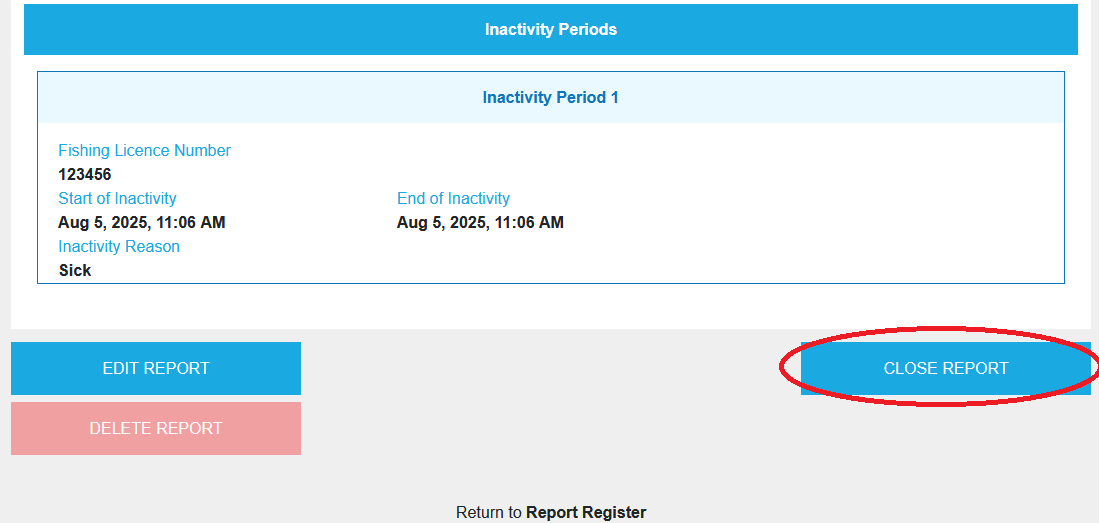
It is the fisherman's responsibility to verify that all data entered is correct. Once you have reviewed the data in your report, you have four options:

  • If you notice an omission or error, click "Edit Report" to return to page 1 of the report, correct the error, then click the blue "Review" button.
  • Delete Report — Cancels the entire report. A confirmation message will appear. Click "Cancel" if you wish to keep the data.
  • Close the report — If the information is correct, click the blue "Close Report" button.
  • Once your report is closed, you will be returned to your report log.
Review options Sending the report to the DFO

⚠️ Make sure you have a good internet connection to send your data to the DFO.

Send report

Click the blue "Send Report" button.

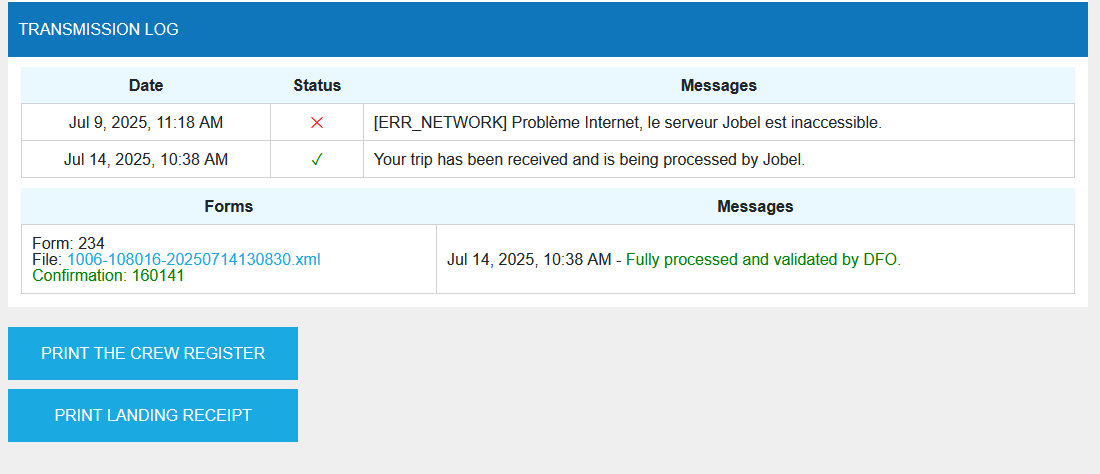
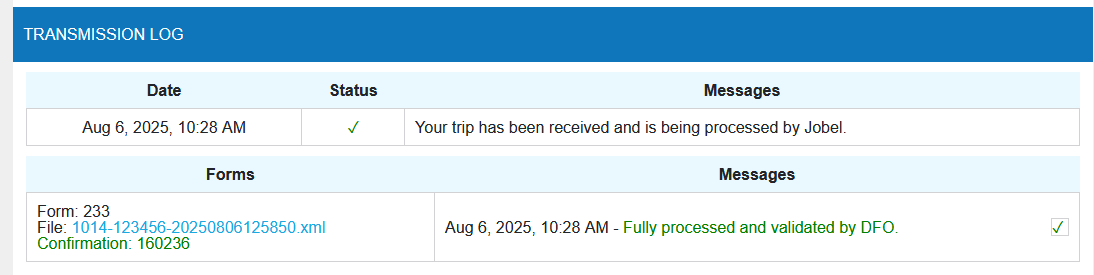
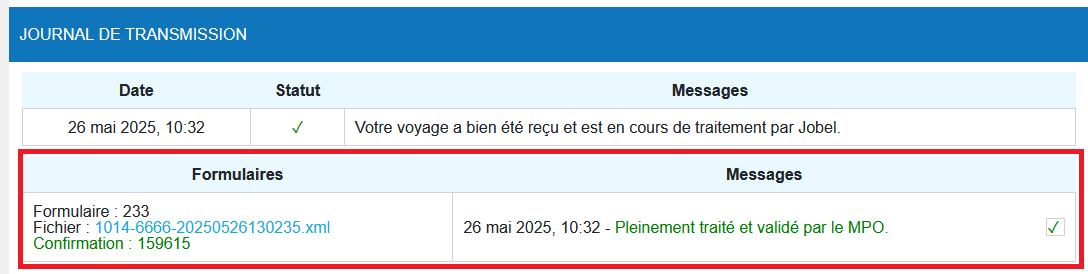
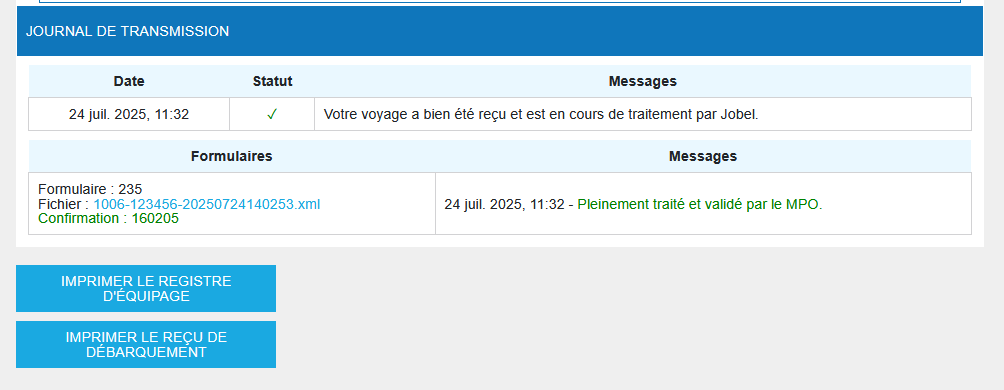
If your report has been successfully sent, the message "Fully processed and validated by DFO" will appear in the transmissions table.

DFO validation

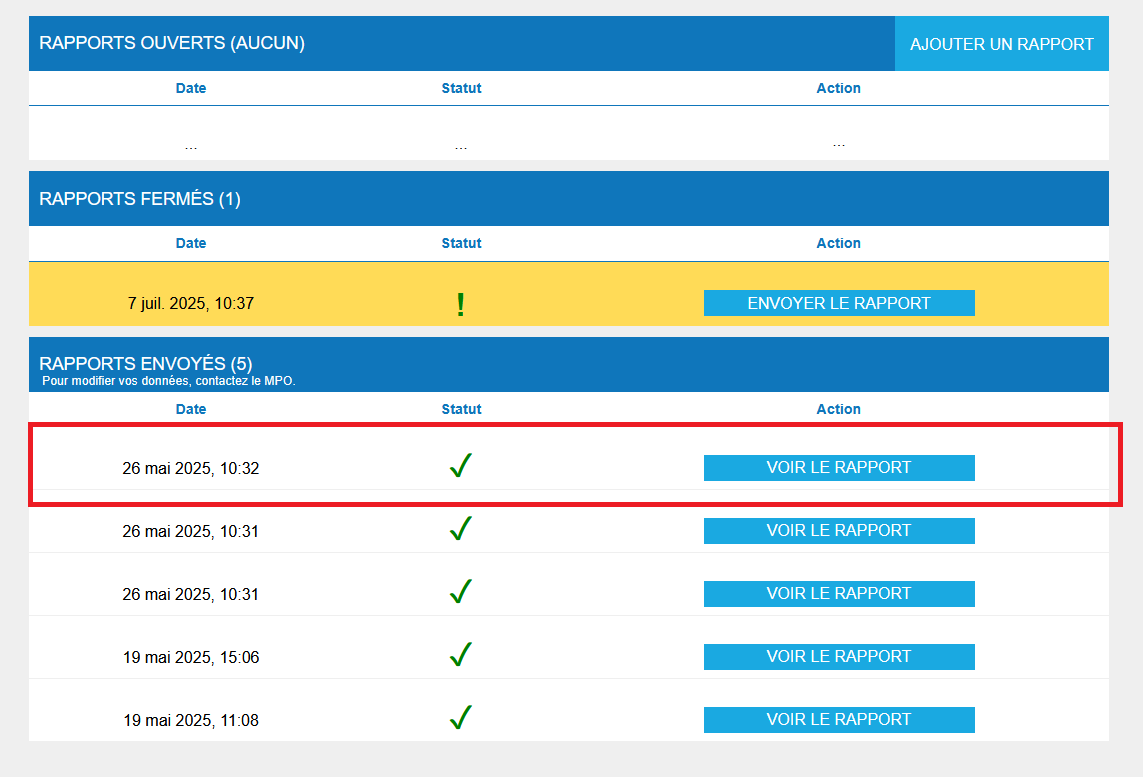
Once submitted, your report will appear in the submitted reports section.

View submitted report

Check out our visual guide to submit a non-travel inactivity report at jobel.ca/guide.

Chapter 3 – Module Subscription

✓ You must be connected to the internet to subscribe to a module.


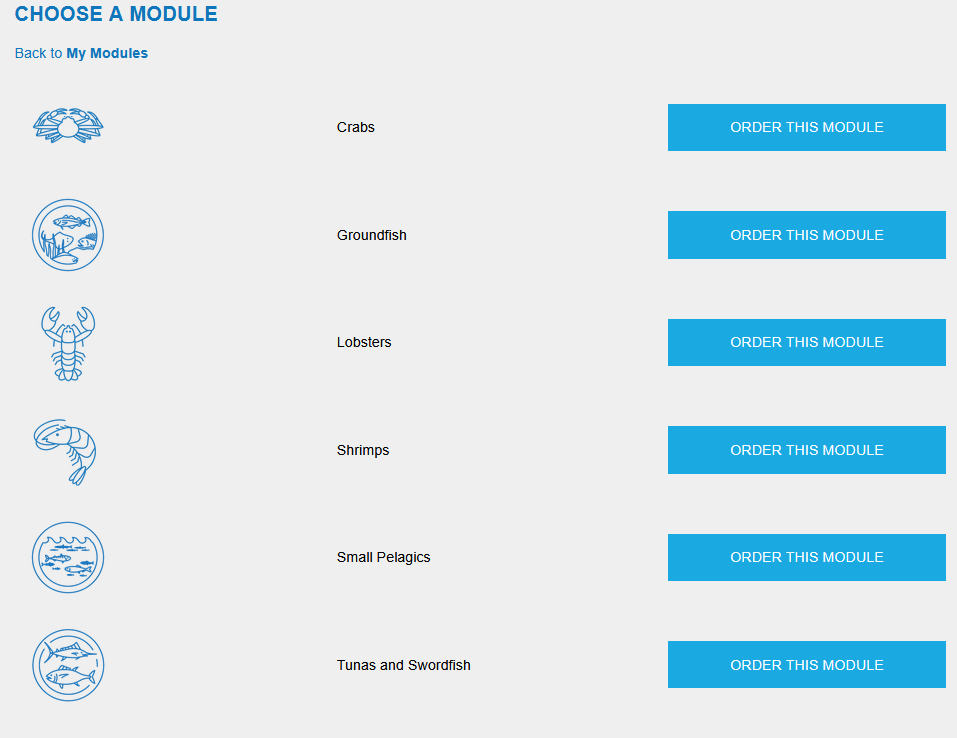
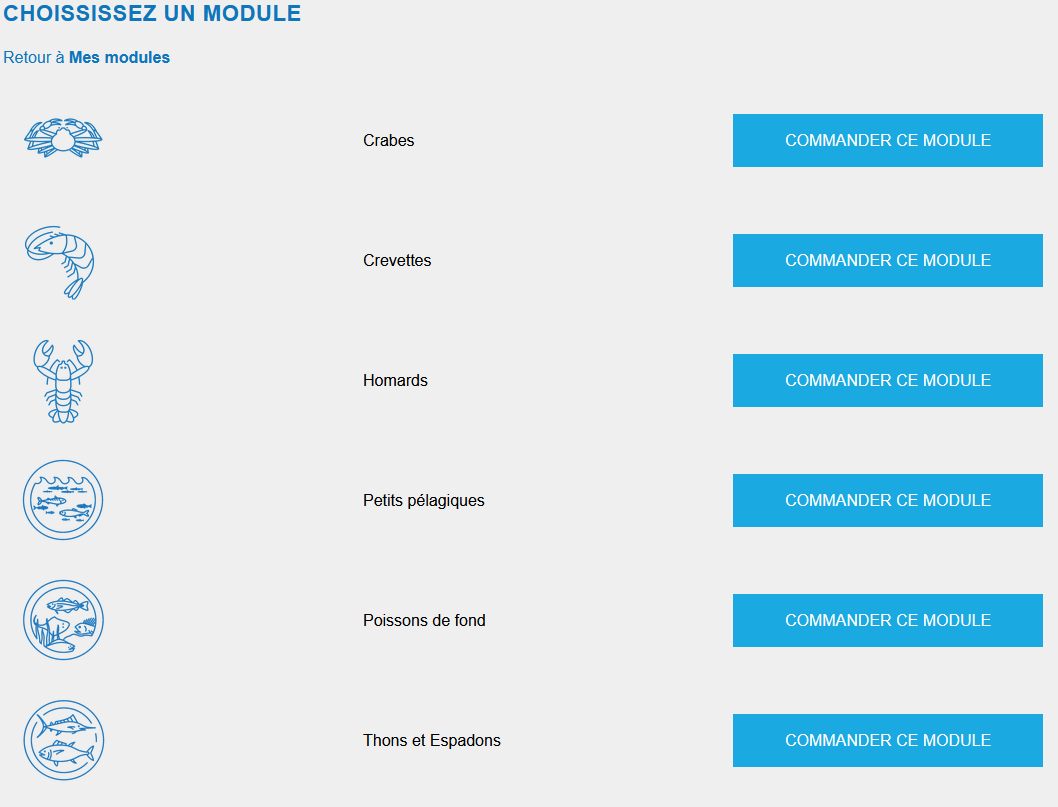
Choosing a module

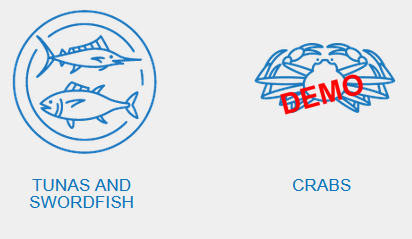
Choose a commercial or demo module by clicking the "ORDER THIS MODULE FOR ONE YEAR" button for the selected module.

Module selection

Free demo module

Free demo modules are still available, even if you don't subscribe to a commercial module.

A demo module is available per species and has the same functionality as the commercial module available for that species. A demo module allows you to familiarize yourself with how JOBEL works and later add the desired commercial module.

✓ By choosing a demo module, your data will not be sent to DFO. You must use a commercial module to submit your fishing reports to the government.


To subscribe to the demo module:
  • Select the demo version for the chosen species.
  • Click the blue button "ORDER THIS MODULE FOR ONE YEAR."
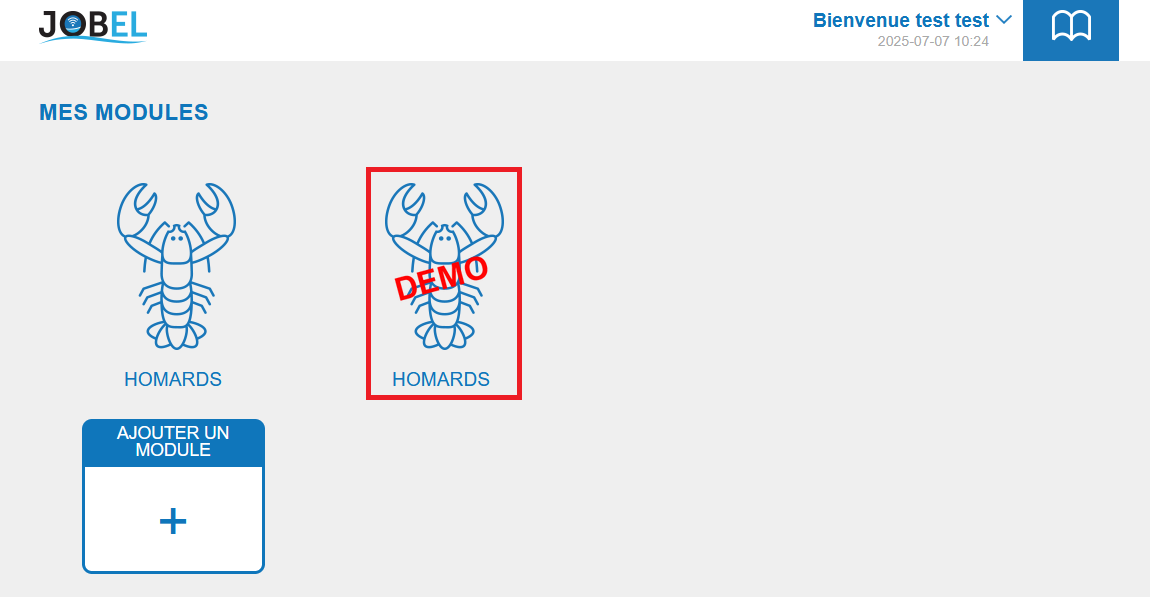
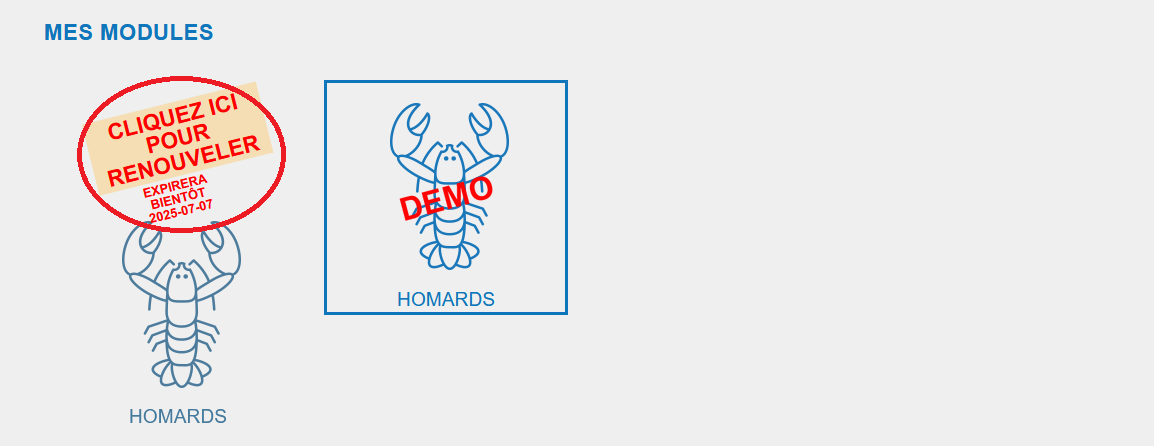
  • Once ordered, the free demo module is identified by the word DEMO in its center.
Demo module
  • Once in the demo module, it is distinguished from the commercial module by a background on which DEMO is written in red.

Subscribing to a commercial module

A commercial module allows you to submit your fishing reports in accordance with DFO requirements and send your data directly to the government.

To subscribe to a commercial module:

  • Choose the name of the desired module and then click the "ORDER THIS MODULE FOR ONE YEAR" button.

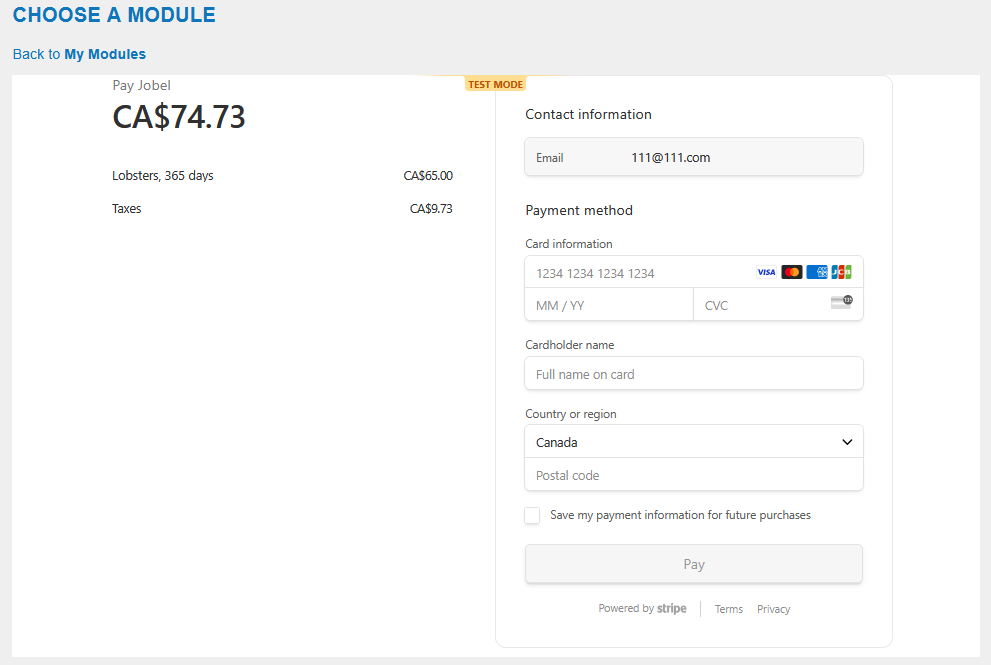
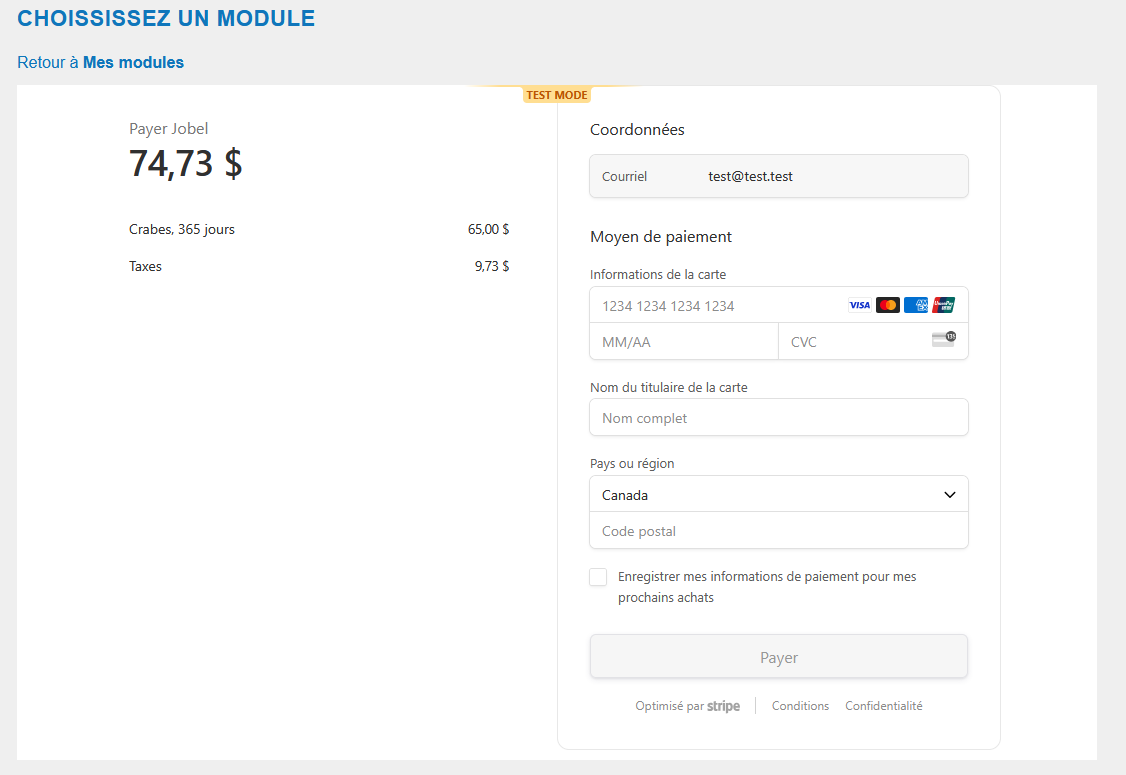
You will be redirected to the order page.

Order module

In the new window that appears, enter your payment information:

  • Your credit card number
  • Your card expiration date (MM/YY)
  • CVV code (3 digits on the back of your card)
  • Zip code

Once completed, press the blue "Pay CA$74.73" button and wait a few moments. The transaction will be completed and your account will be updated to add your new module.

You will be automatically redirected to the "TRAVEL LOG" page of the module to which you are subscribed.

Subscribing to multiple commercial modules
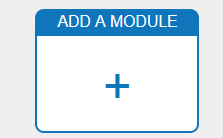
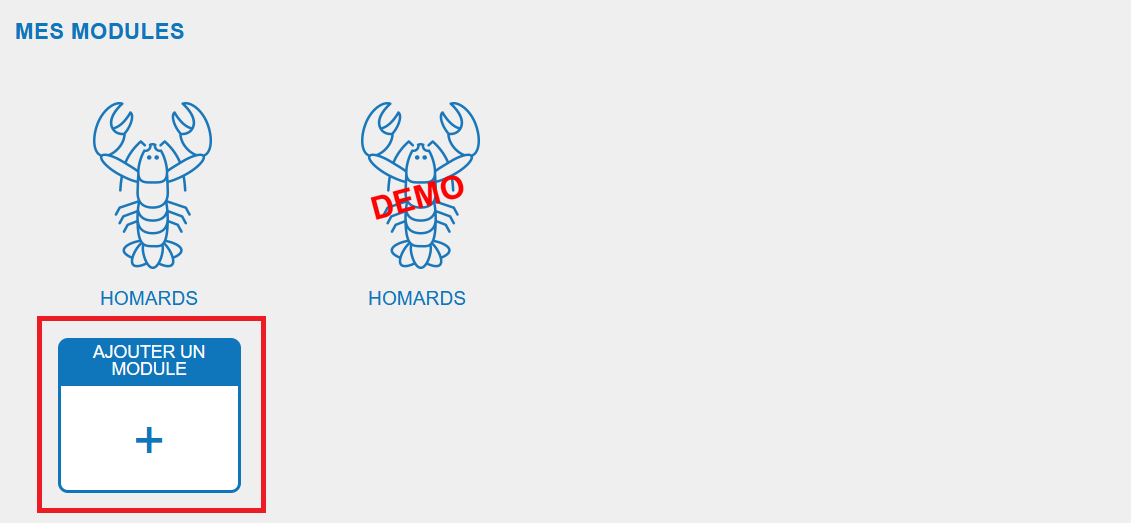
  • From the MY MODULES screen, click the "Add a module" icon. You will be redirected to the module selection page.
Add module
  • Choose the name of the desired module then click on the button "ORDER THIS MODULE FOR ONE YEAR".

You will be redirected to the order page. Once you have reviewed your information, press the "PAY WITH CARD" button.

Consult our visual guide to learn how to subscribe to a module at jobel.ca/guide.

Renewal of a commercial module

PLEASE NOTE! We will never ask you to renew your fishing module by sending you an email. The fishing module renewal message is visible only on your JOBEL account.


  • You can renew your fishing module subscription one month before the expiration of your previous year's subscription.
  • Before the start of the fishing season, log in to your JOBEL account. You will be redirected to your homepage with your modules from the previous year.
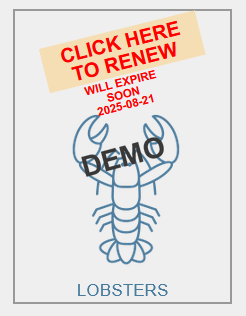
  • Modules requiring renewal appear in gray with a message inviting you to renew your subscription. Click "CLICK HERE TO RENEW" to renew your subscription.
Expired module
  • If you are renewing a demo module, it appears in blue without you having to take any further steps.
  • If you are renewing a commercial module subscription, you will be redirected to the credit card payment page. Once the payment is complete, you will be automatically returned to your home page. Renewed modules appear in blue.

Chapter 4 – ELOG Key

✓ You must have a good internet connection to obtain and register your ELOG key. A red message will appear if your ELOG key is not properly registered. In this case, check the quality of your internet connection, then re-enter your ELOG key and click "Register Key."

Get your ELOG key and register it in JOBEL

The ELOG key is your unique identifier with the DFO as an electronic logbook user. To access your ELOG key page, click on "ELOG Key" in the main menu.

  • When you subscribe to a commercial module for the first time, you will be taken directly to the ELOG key page.
  • Follow the instructions to obtain your ELOG key from the DFO. To obtain your ELOG key, log in to the DFO website by following the link provided: https://www.dfo-mpo.gc.ca/fisheries-peches/sdc-cps/index-eng.html
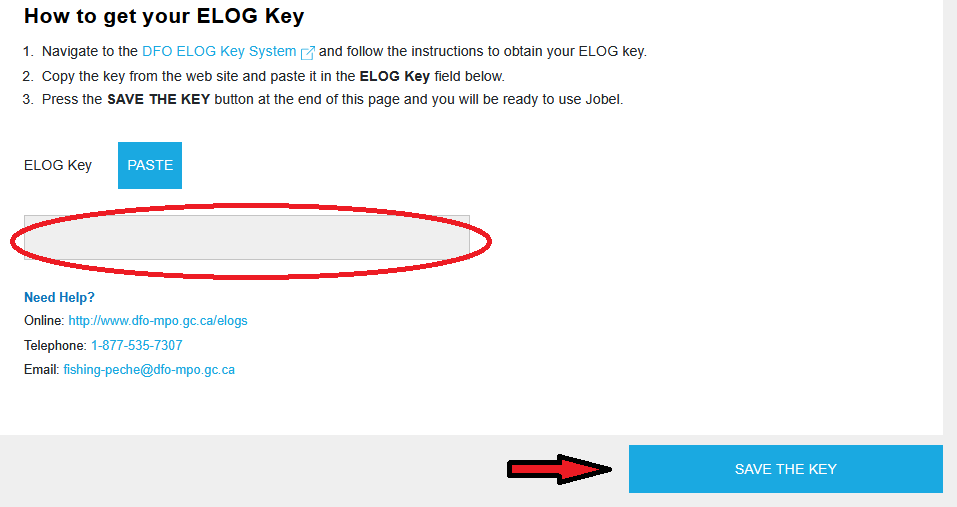
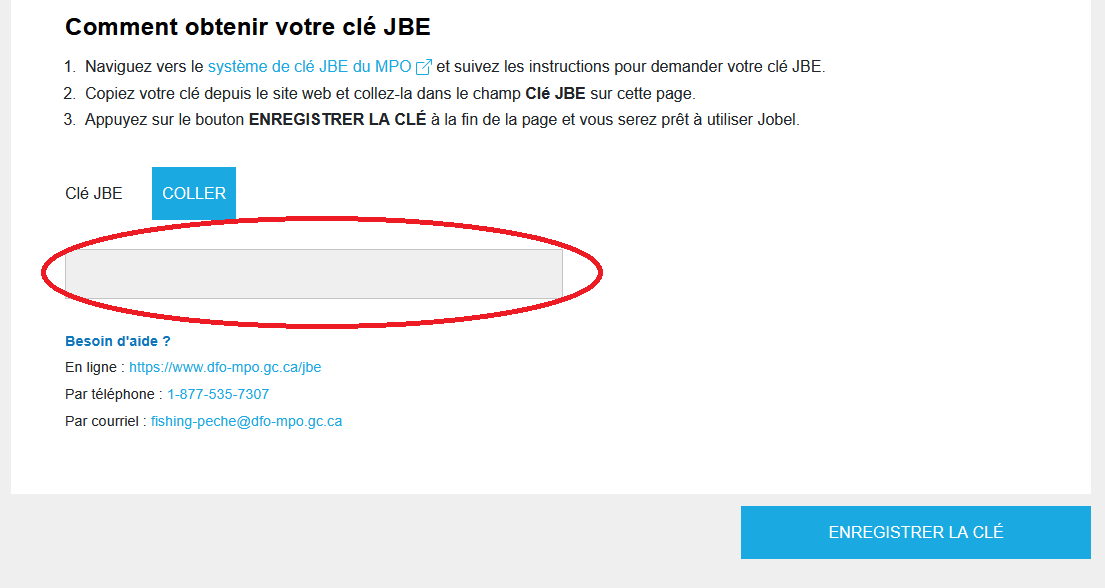
  • Once you have obtained your key, enter it in the ELOG key field of your JOBEL account, then click on the blue square labeled "SAVE KEY."
Save ELOG key
  • A message will appear on the screen indicating that the ELOG key has been successfully registered. Click "OK" to close the message. You will be returned to the JOBEL home screen.
  • Check out our visual guide on how to get an ELOG key at jobel.ca/guide.

✓ Once entered, your ELOG key will no longer be visible.

Modify your ELOG key

  • In your main menu, click on "My Profile" and choose the "ELOG Key" tab.
  • Follow the steps to obtain a new ELOG key.
  • Click on the blue "REGISTER KEY" square. A message will appear to confirm that your key is registered. Click "OK".
  • Consult our visual guide to learn how to obtain an ELOG key at jobel.ca/guide.

Chapter 5 – Functions of a Fishing Module

✓ You don't need an internet connection to open, fill out, and close a fishing trip.

Trip register

Regardless of the species you fish, the trip log for each module looks the same.

The name of the module you are using is at the top of your page.

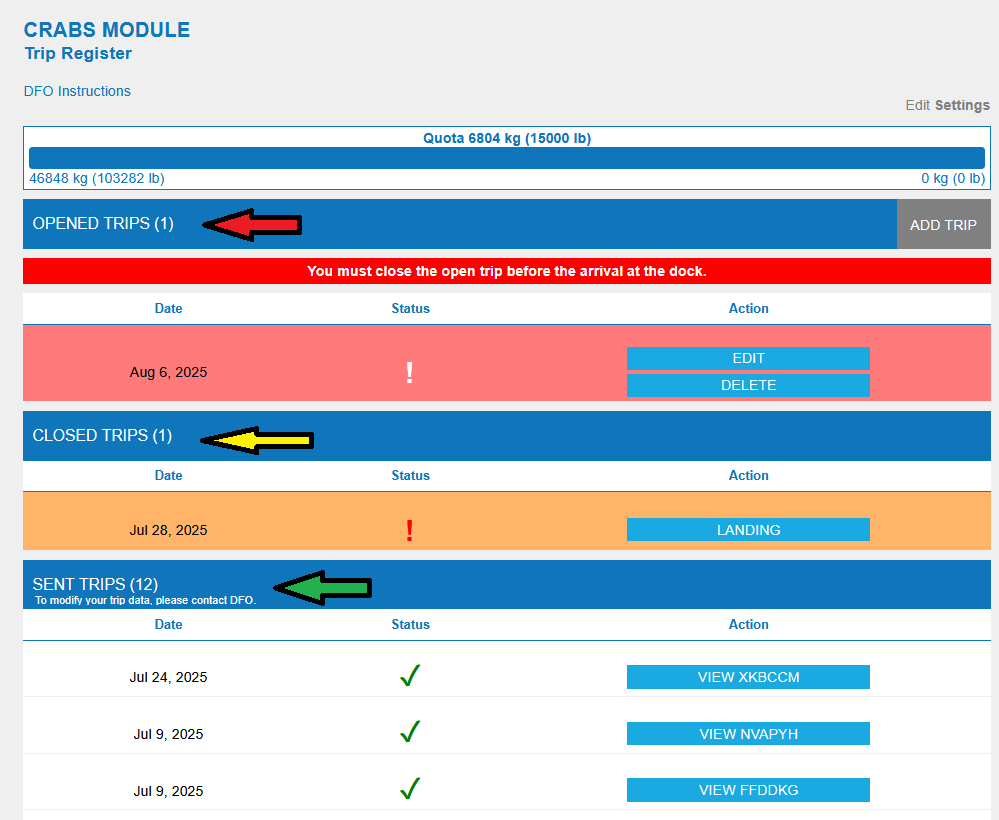
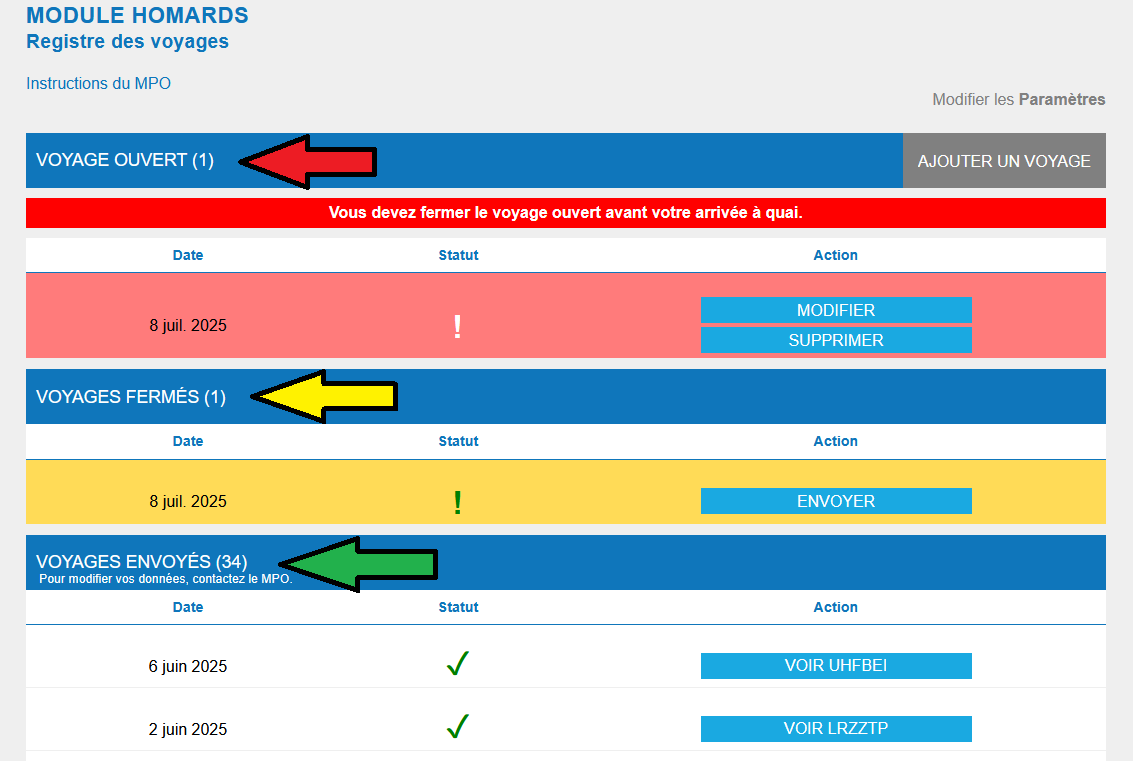
Each fishing trip you make is considered a "trip" in the JOBEL electronic logbook. A trip can have three statuses. It will be listed in one of the following tables depending on its status.

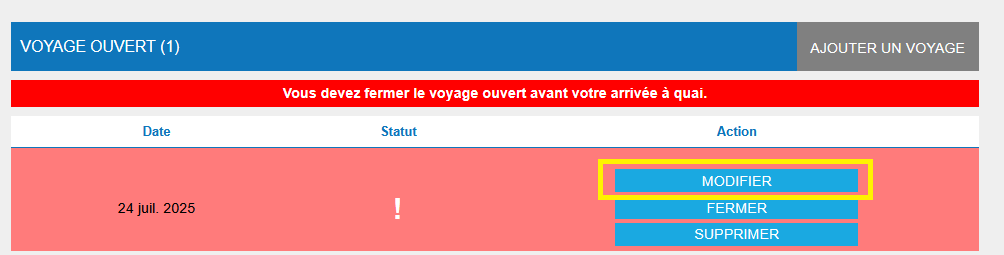
One Open Trip – The trip in this table has not been closed or sent to the DFO.

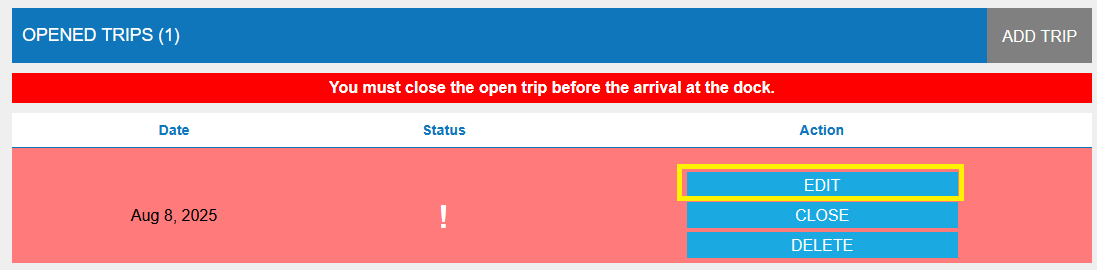
  • There can only be one open, unsent trip in this table. This is the trip you have started but have not yet completed.
  • It is displayed in red.
  • By clicking the blue buttons on the right, you can "Edit" or "Delete" the trip.
  • By clicking the exclamation point, the open status of your trip is displayed.
  • You must either edit, complete, and then close this trip, or delete it.
  • You will not be able to open a new trip while a trip is open.

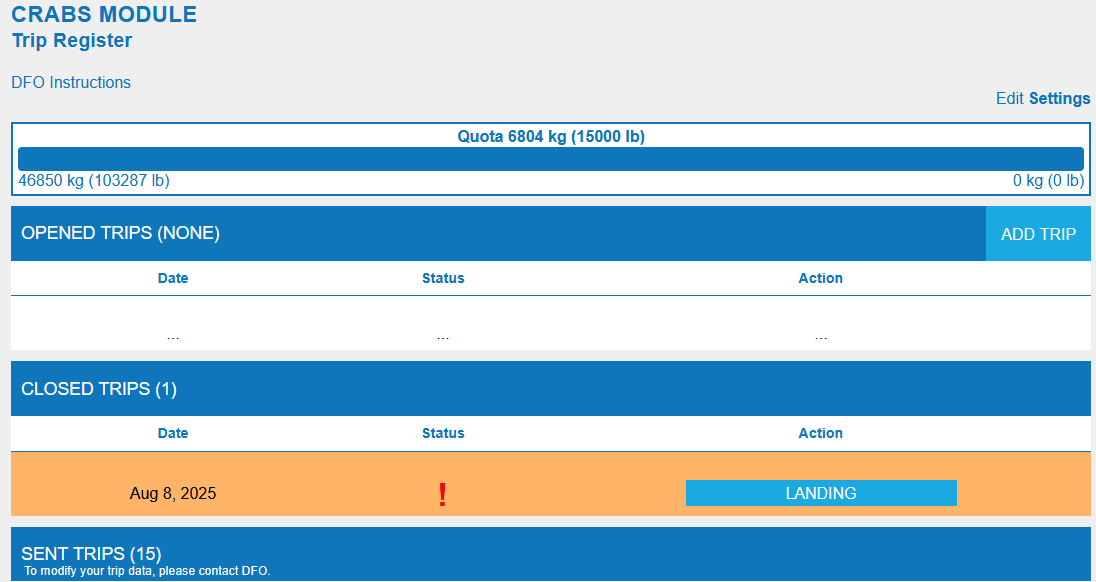
Closed Trips – The trips listed in this table have not been sent to DFO.

  • This is the data for fishing trips that you have closed but have not yet sent to DFO.
  • This trip data can no longer be edited. However, you can enter your dockside weigh-in data, if applicable, by clicking the "Landing" button.
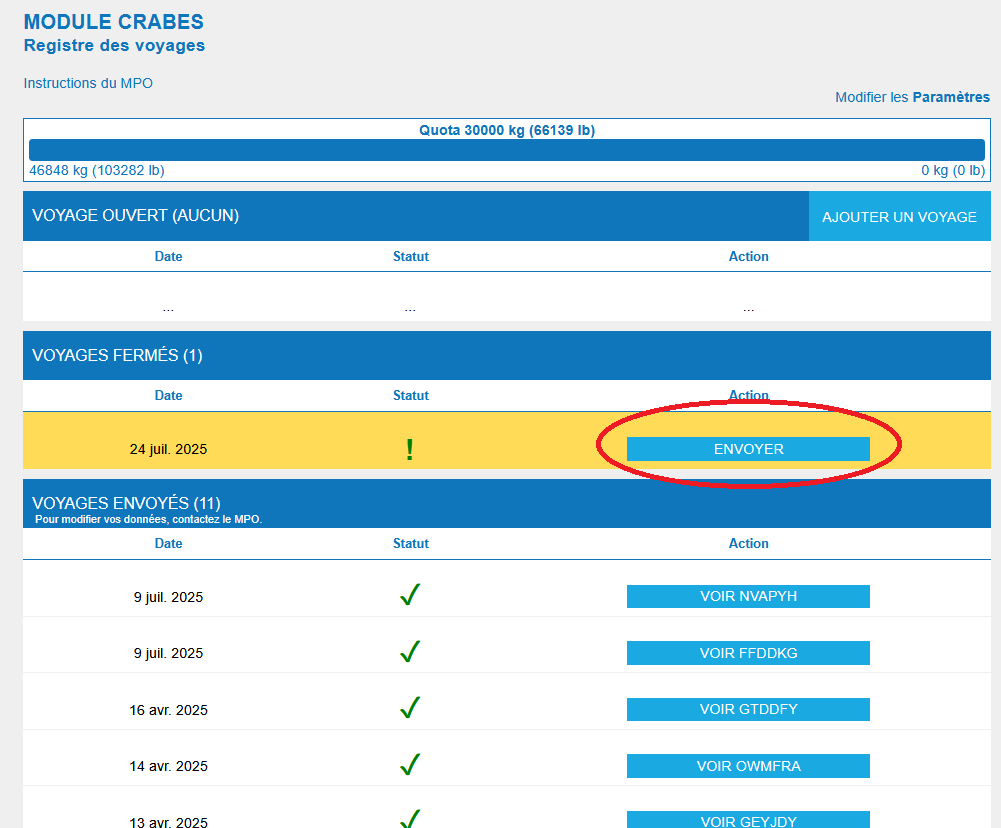
  • Closed trips are displayed in yellow to remind you to send them to DFO.
  • You can view and send them by clicking the blue button on the right "View Trip" and then clicking "Send to DFO" at the bottom of the review page.
  • Clicking the exclamation point displays the closed and uneditable status of your trip.

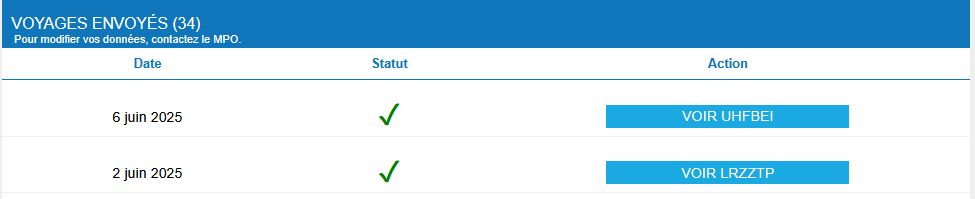
Sent Trips – The trips in this table have been closed and sent to DFO.

  • This is the data for fishing trips that you have closed and sent to DFO. This data can no longer be edited.
  • You can view it by clicking the "View Trip" link.
  • The green check mark confirms that the voyage has been received by DFO.
  • If an "X" appears, check your "Transmission Log" to find out the reason by clicking on "View Voyage".

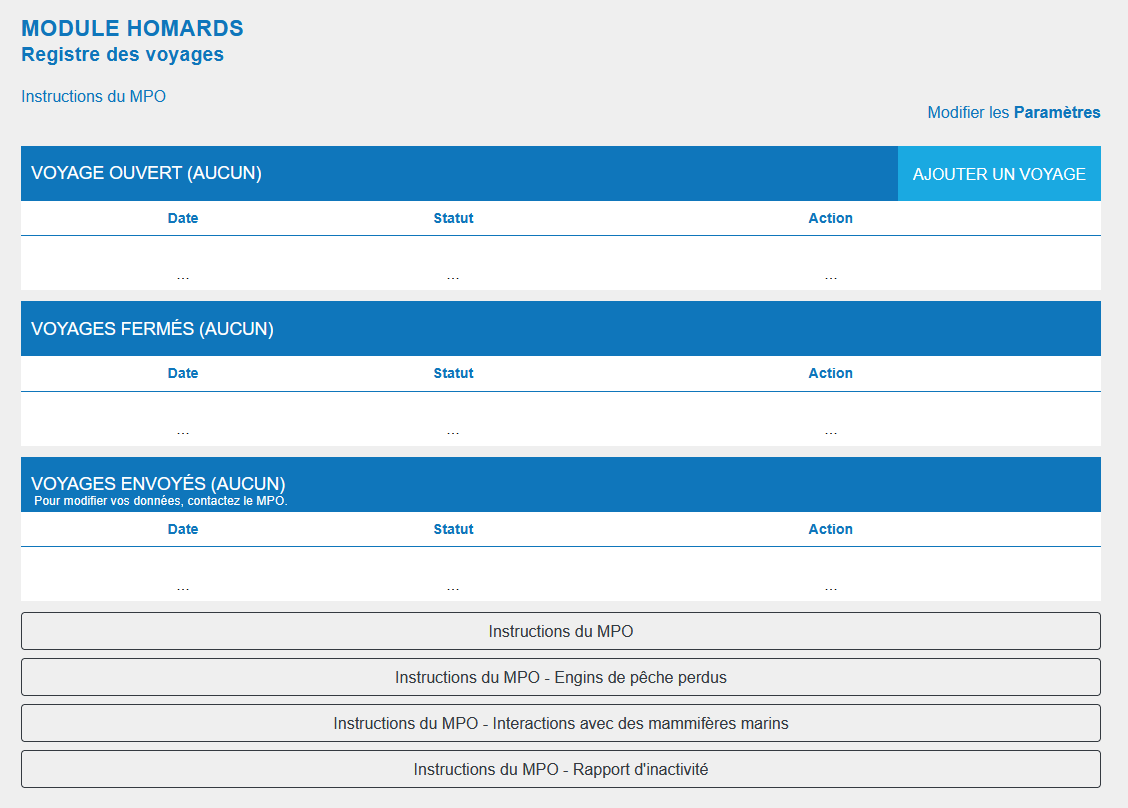
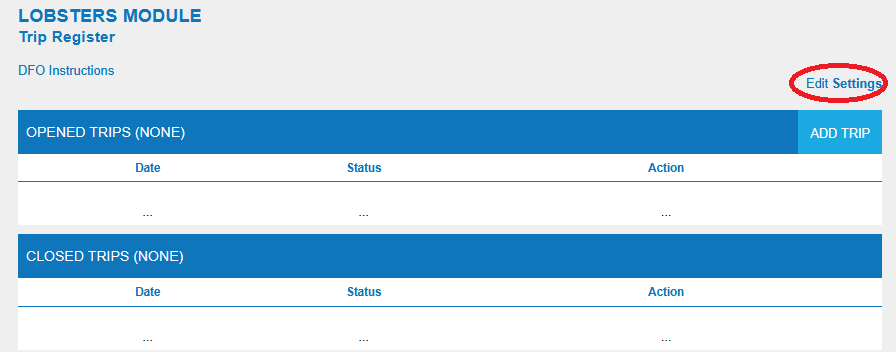
When you use your module for the first time, the travel log will be empty

Completing a trip

Fishing forms vary depending on the species being fished. Please refer to the specific species for more information. However, the points below are common to all fishing modules.

  • Regardless of the module used, you must complete all mandatory fields before moving on to the next page of your logbook.
  • Some fields may not be mandatory in your fishing area. However, by completing these fields, you enable the acquisition of essential data for better fisheries management.

Data group closure

The JOBEL application allows the individual closure of each occurrence of the following data groups if they are used:

  • Hail Out
  • Hail In
  • Interaction with an Endangered Species
  • Interaction with a Marine Mammal
  • Lost or Found Gear
  • Personal Consumption
  • Bait Used
  • Bait Caught
  • Label
  • Fishing Effort
  • Inactivity Report
  • Landings
  • Transferring Fish from a Livewell or Boat

Closing data locks the data and prevents further modification.

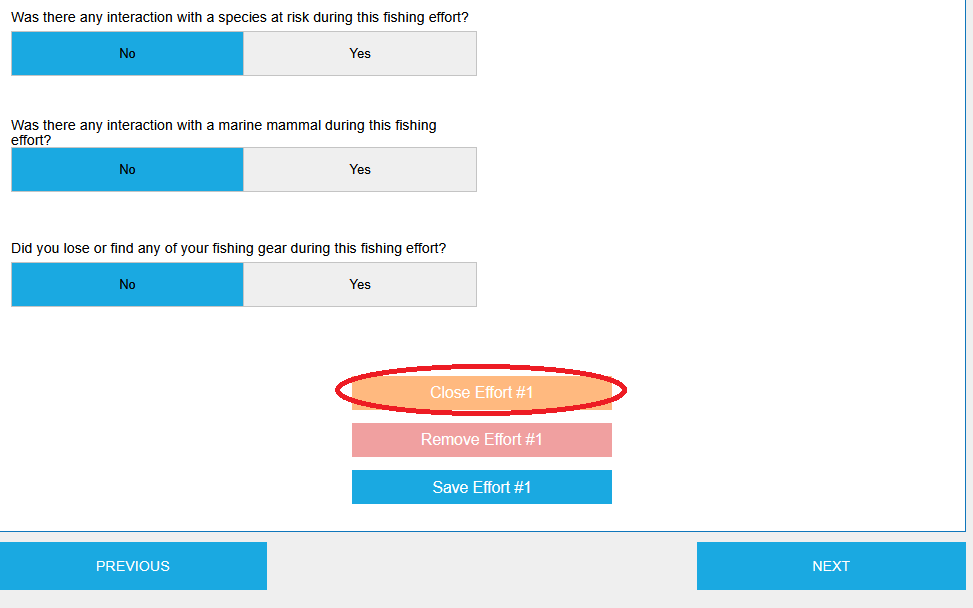
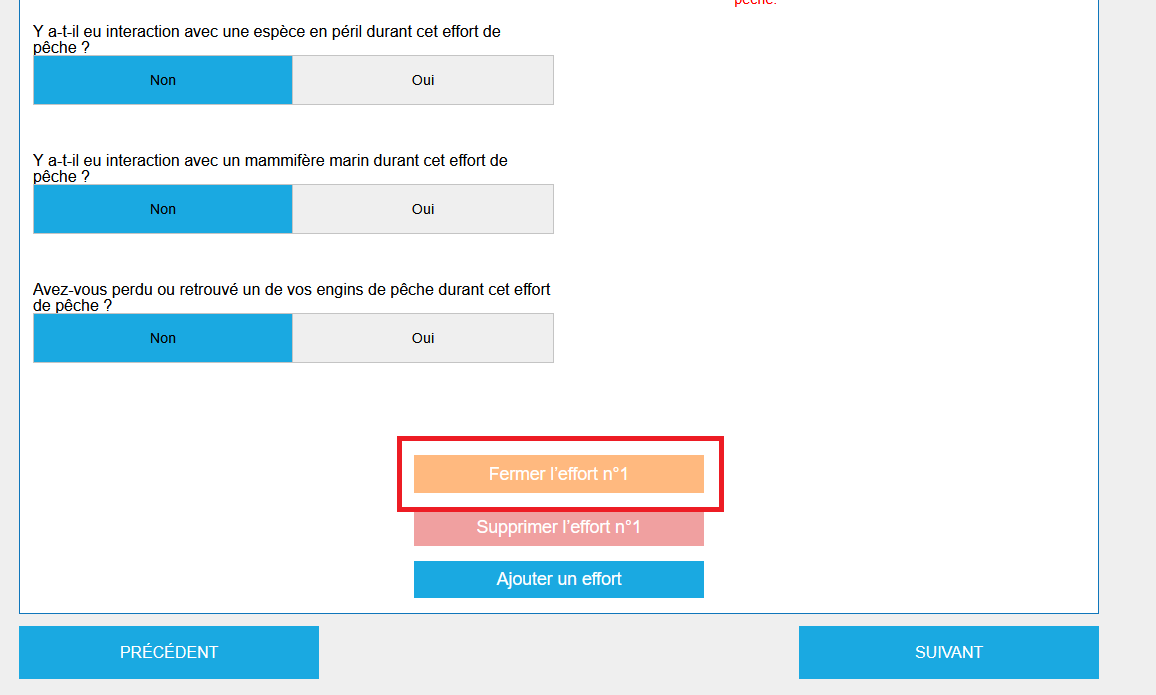
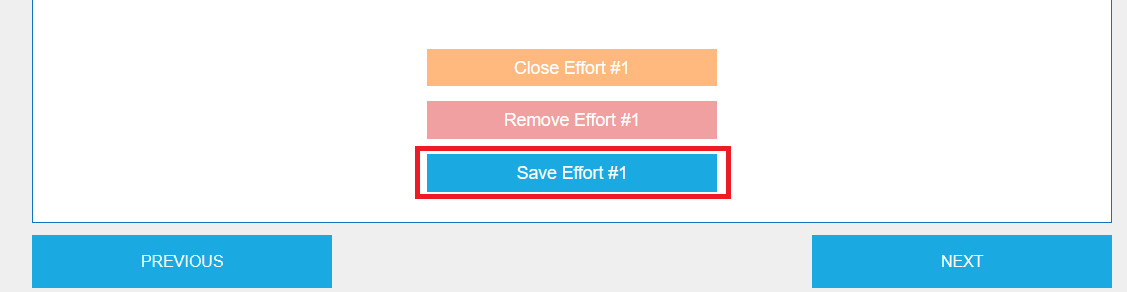
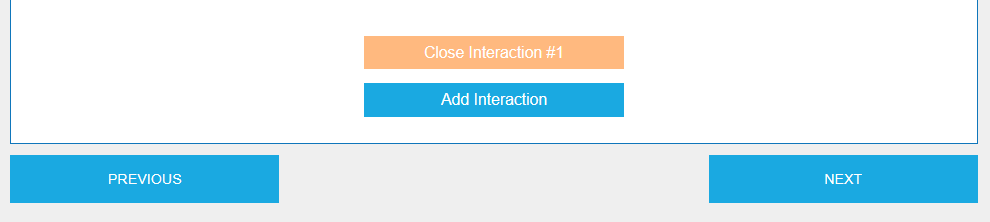
  1. To lock a group, simply press the close button at the end of the section. In the example, we are in the Effort section, so the button displays "Close Effort."
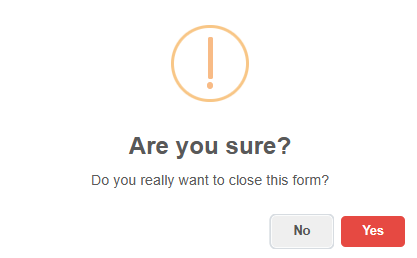
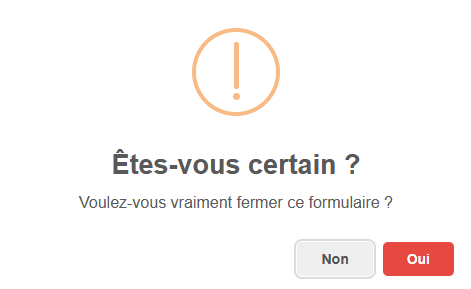
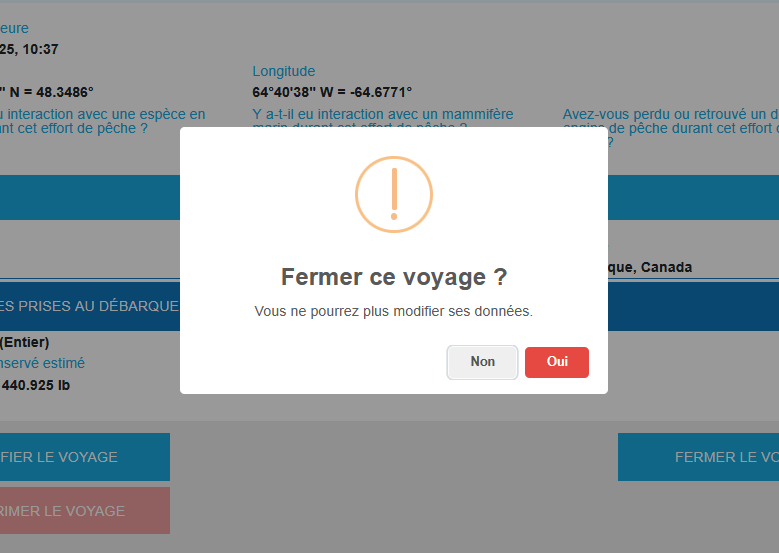
  2. After clicking the close button, you will be prompted to confirm your action. Remember that it is not possible to edit the data once it is closed.
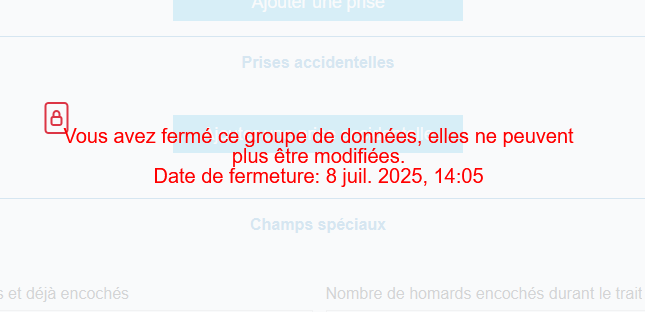
  3. Once closed, the section will display the date and time of closure.

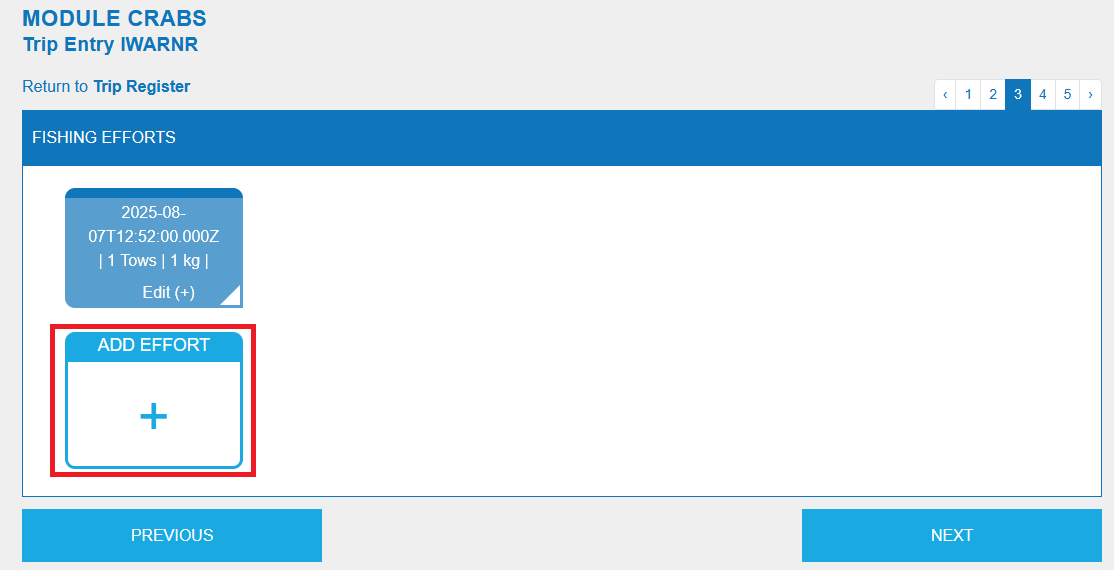
You cannot delete or edit a closed section, but you can still add an occurrence to the dataset by clicking the add button. In our example, this is the "Add Effort" button.

Fishing effort

Add/delete hauls and efforts.

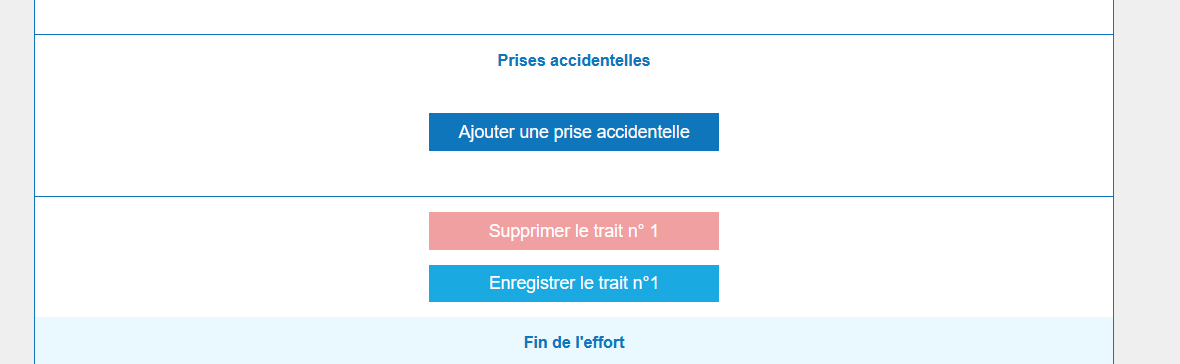
  • Within a single effort, you can add all the necessary features by clicking the blue "Add a feature" button at the end of the feature table. If you have added a feature by mistake, you can delete it by clicking the red "Delete last feature" button.
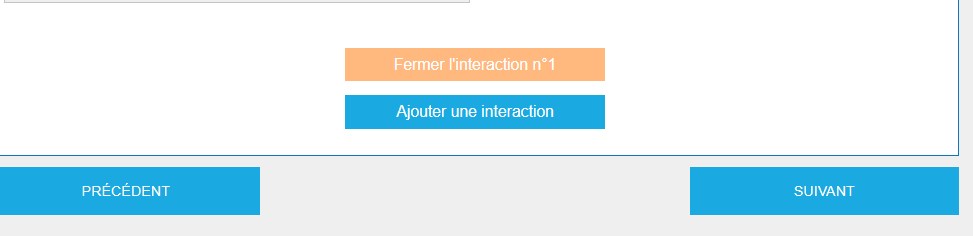
  • You can add all the efforts made by clicking the blue "Add an effort" button at the bottom of the page. If you have added an effort by mistake, you can delete it by clicking the red "Delete last effort" button.

Modifying default information: Some information is entered by default based on your module settings. You can modify this information at any time during your trip by clicking on the field with the information you wish to modify.

Bycatch

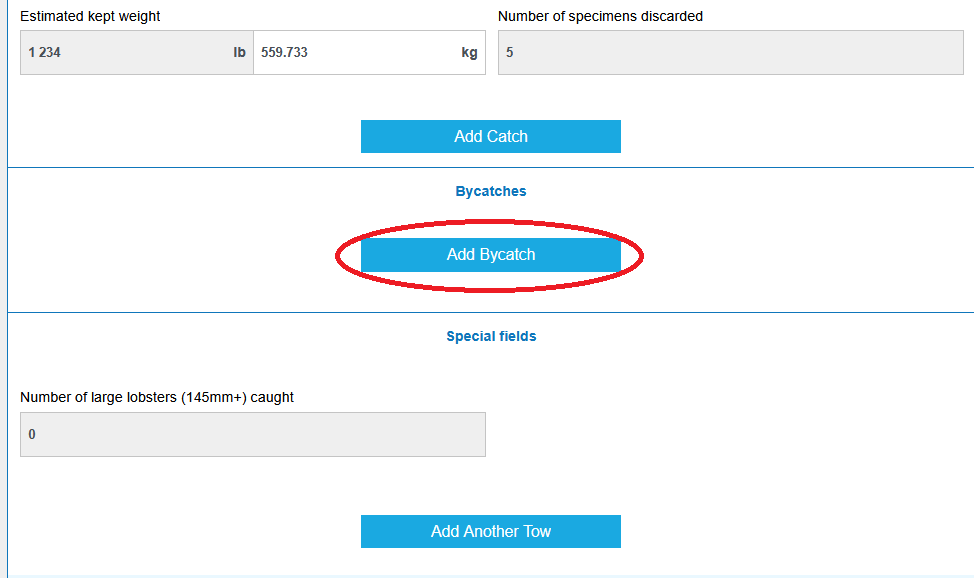
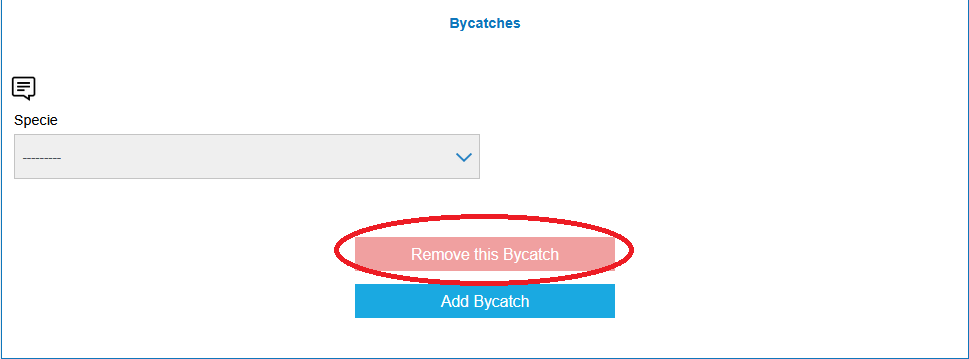
Add/Remove Bycatch – Bycatch is reported in each haul.

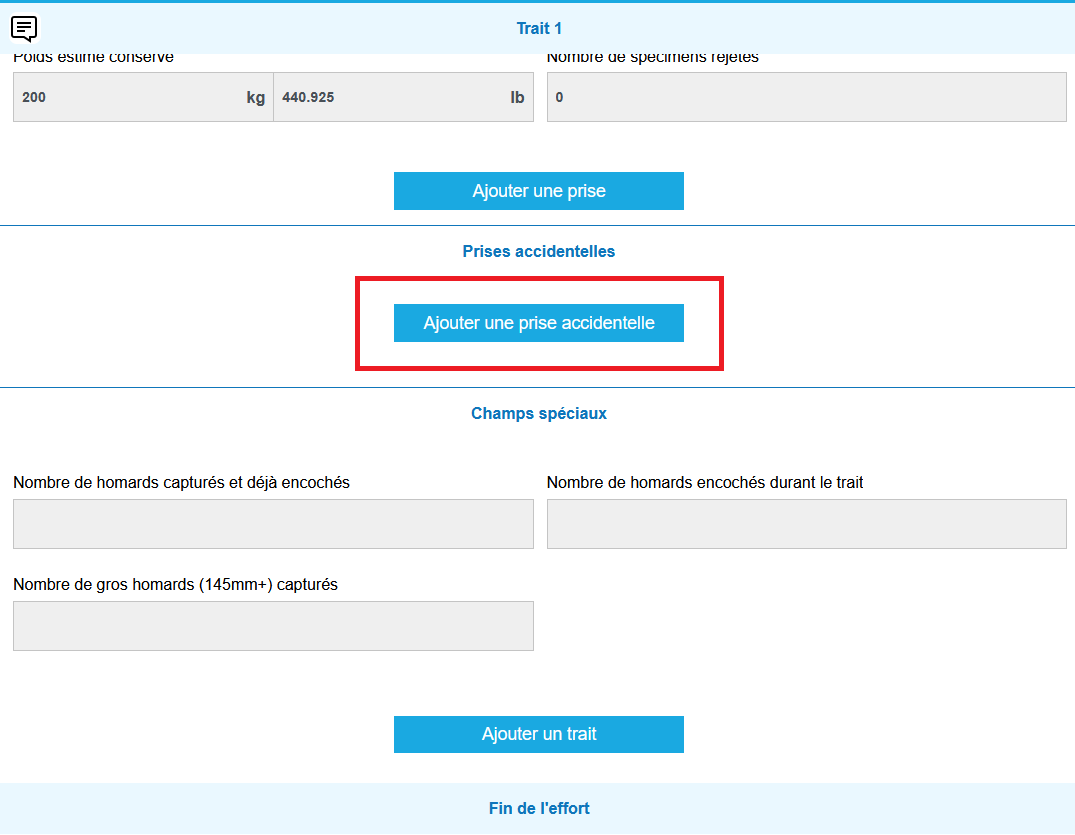
  • To add a bycatch, click "Add Bycatch" and complete the required fields. Fields may vary depending on your fishing module.
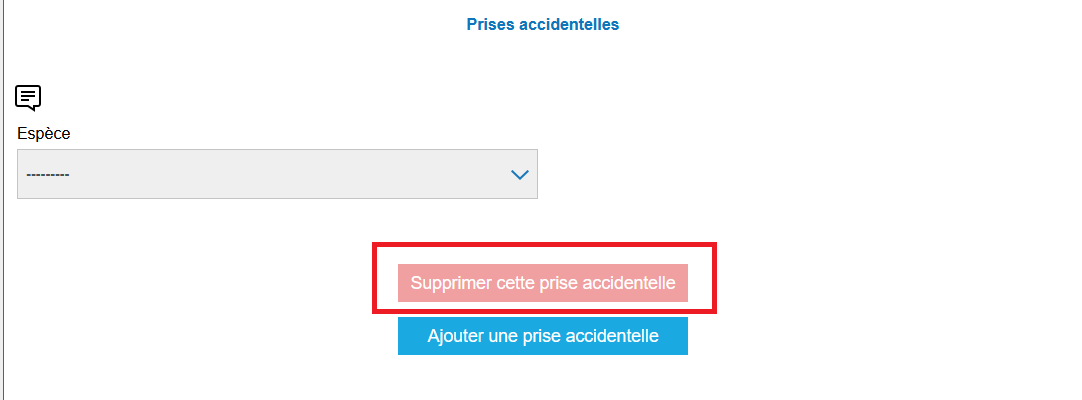
  • To delete an incidental catch, click the red "Delete this incidental catch" button.

Lost gear

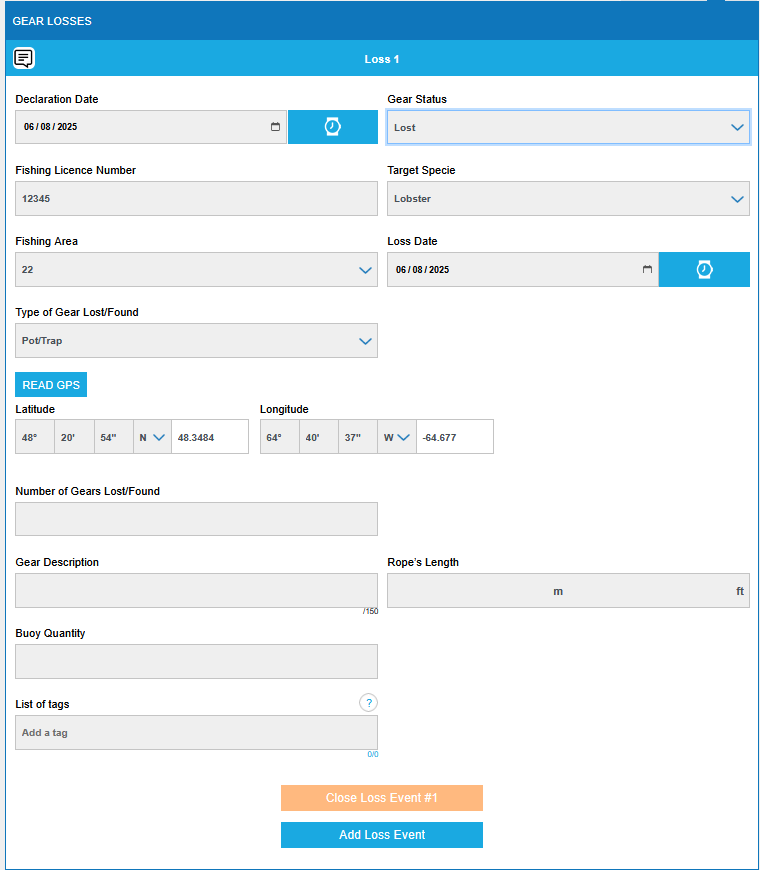
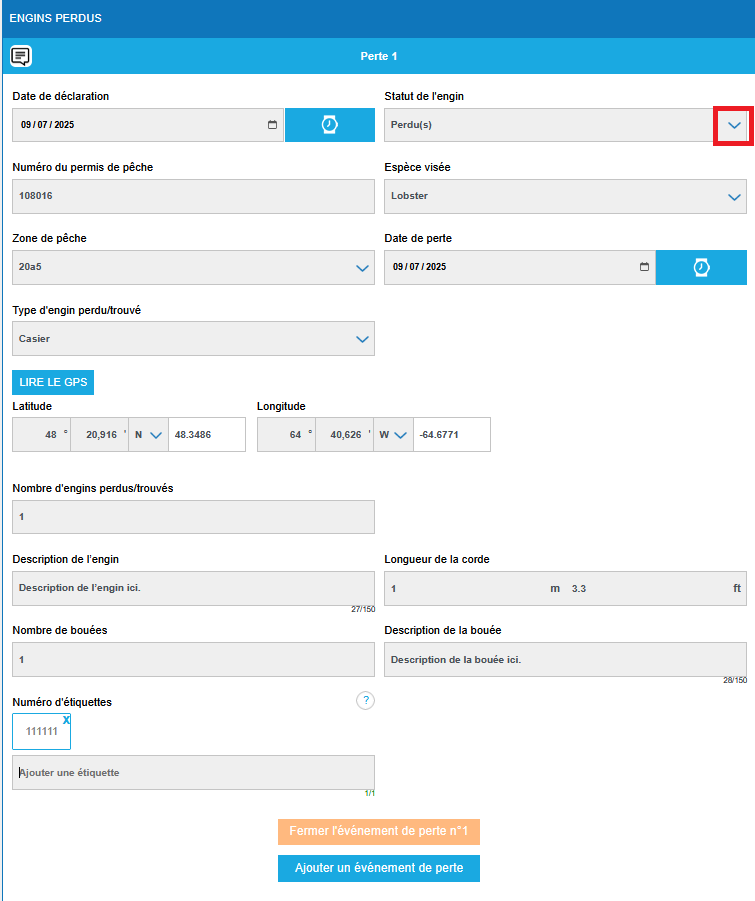
The Lost Gear page contains information about fishing gear that you lost at sea or found during your trip.

  • Select the gear status. The GPS coordinates will be automatically populated based on your fishing effort data and the type of fishing gear you are using.
  • Complete the other fields.
  • If you have multiple trap tags to report, click in the field and enter the tag numbers separated by a semicolon.
  • You can add or delete gear lost in other areas where you fish.
  • Consult our visual guide to learn how to submit a lost/found gear report by going to jobel.ca/guides.

Species at risk

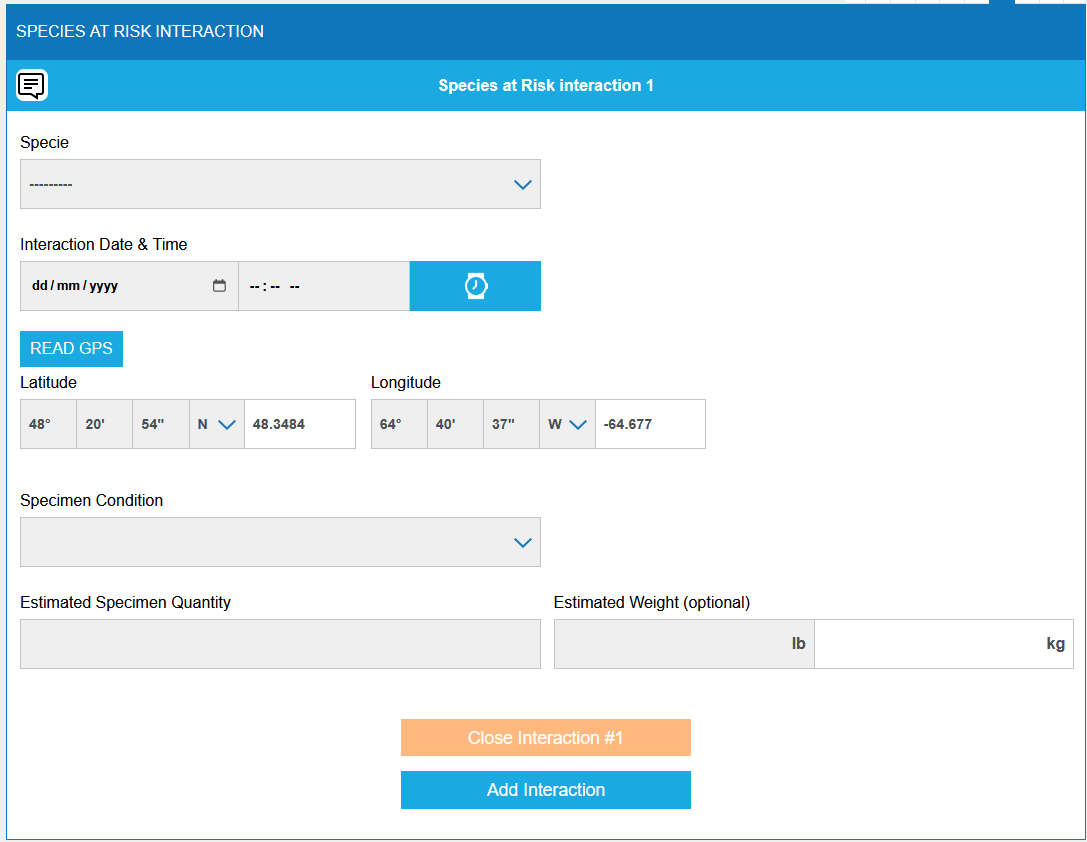
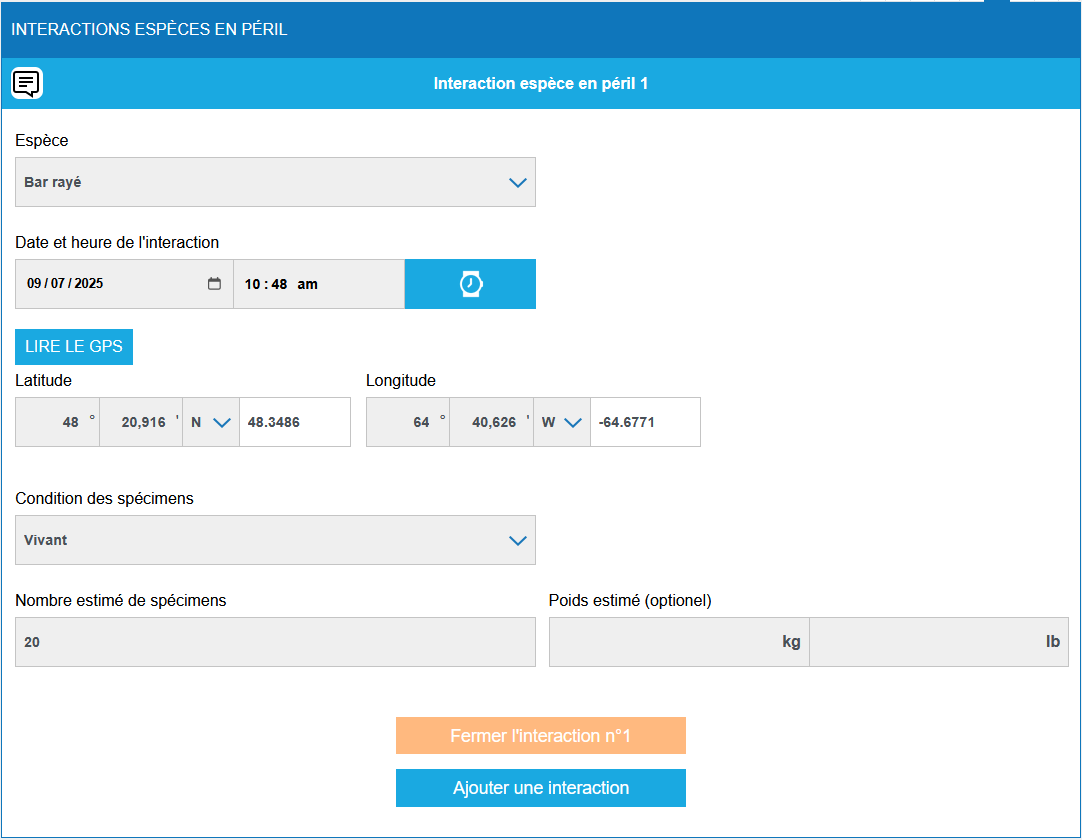
JOBEL's "Species at Risk" page is dedicated to interactions with species at risk.

  • Information on species at risk is mandatory if you have an interaction.
  • Select the species and complete the required fields.
  • The GPS coordinates of the interaction will be automatically populated if your module has an interaction indicator during fishing effort.
  • Consult our visual guide to learn how to submit a species at risk interaction report by going to jobel.ca/guides.

Marine mammals

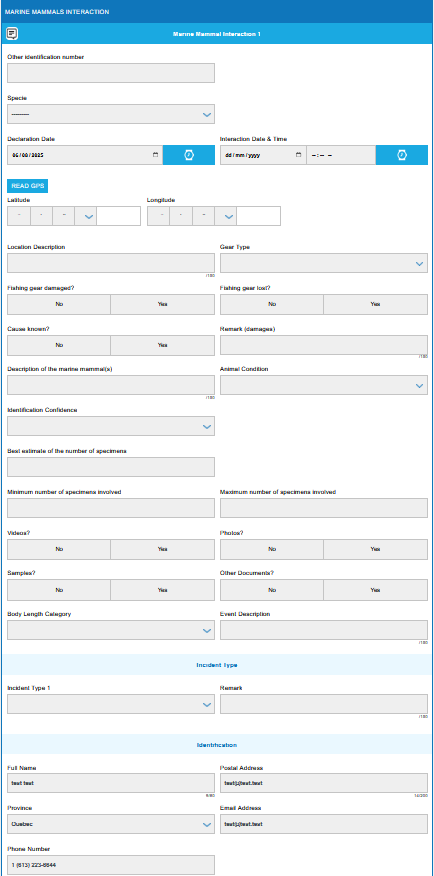
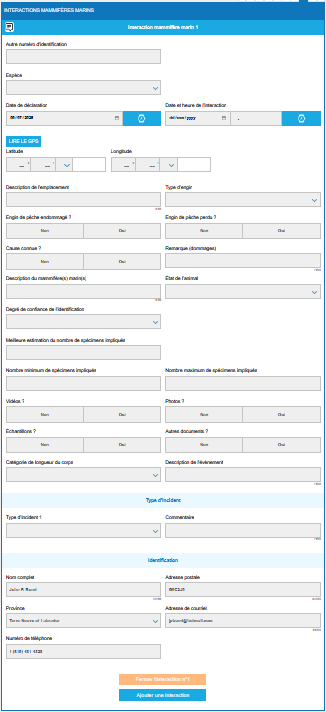
JOBEL's Marine Mammals page is dedicated to interactions with marine mammals.

  • Select the species and fill in the required fields.
  • The GPS coordinates of the interaction will be automatically populated if your module has an interaction indicator during fishing activity.
  • Consult our visual guide for submitting a marine mammal interaction report by going to jobel.ca/guides.

Trip data review page

The "Trip Data" page displays all the data entered in your JOBEL electronic logbook that will be or has been transmitted to DFO. It is the fisherman's responsibility to verify that all data entered is correct. Once you have reviewed your fishing trip data, you have four options:

  • Review the data pages successively to find and correct any error, then click the blue "Review" button.
  • Delete Trip: This option applies if you want to cancel the entire trip and all its data. A confirmation message will appear asking you to confirm the deletion of the data. If you want to keep the data, click "Cancel".
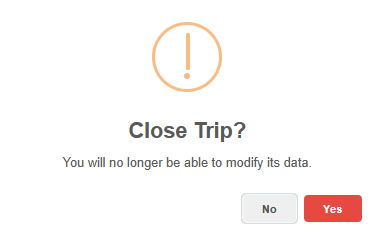
  • Close the trip: If the information on the "Trip Data" page is correct, you can click the blue "Close Trip" button.
    • Warning: The fishing trip will be permanently closed and you will no longer be able to change the trip data.
    • A message will appear asking you if you want to close your trip. Click "Yes" to close the trip or "No" to continue reviewing your data.
  • Return to Registry: This is the action to choose if you do not wish to close your trip. You will be returned to the trip registry.
    • Your trip is in the open trips area, meaning it has not been closed or sent to the DFO.
    • You can then continue to modify your trip or close it.
  • Once your trip is closed, you will be returned to the trip log. Your trip will be visible in the closed trips table so you can complete the necessary actions. The landing action is only available for fishing modules that require dockside weighing.

Disembarkation (for modules with dockside weighing)

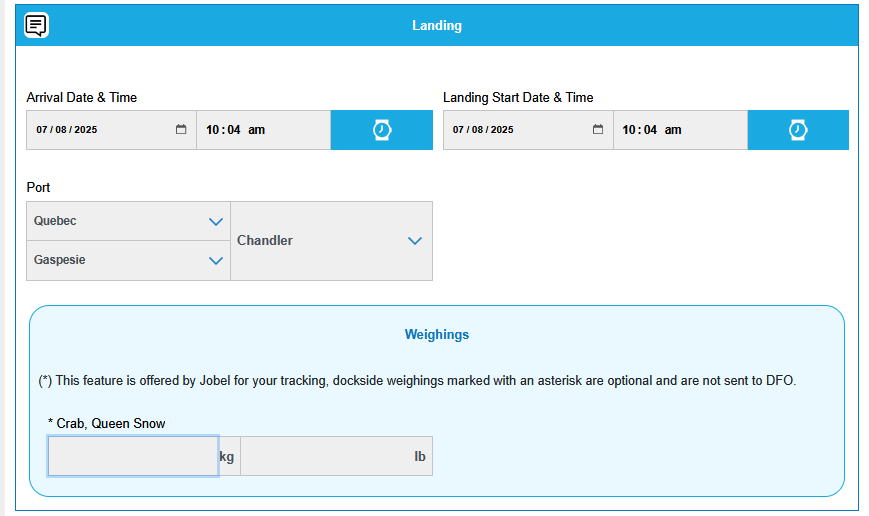
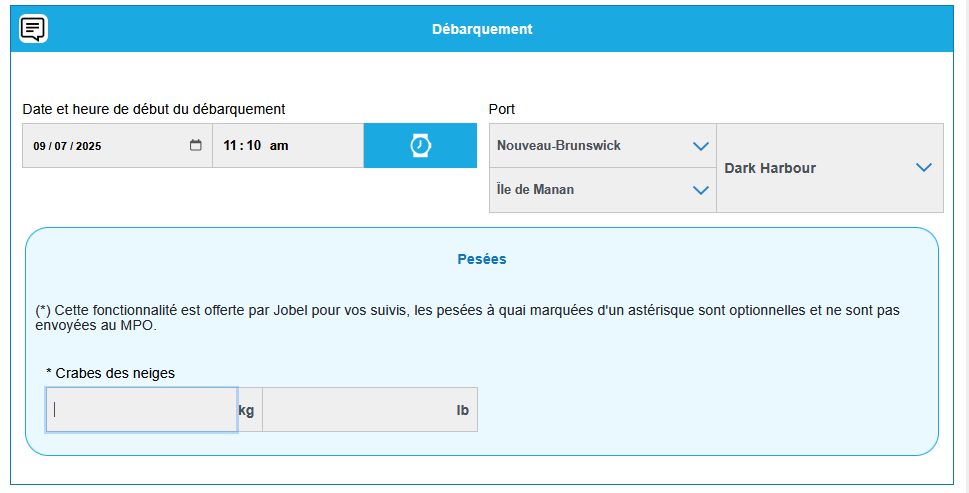
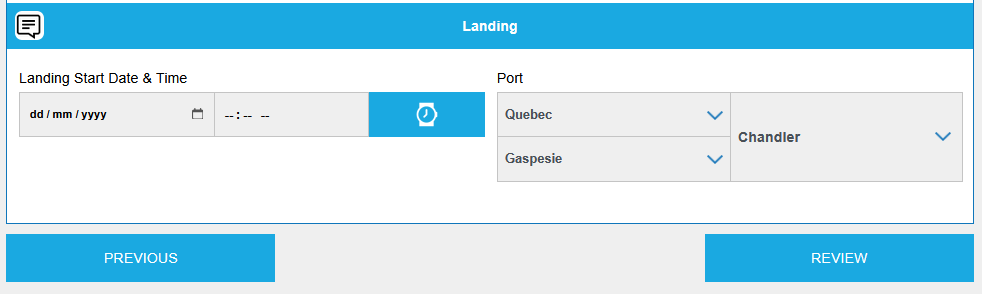
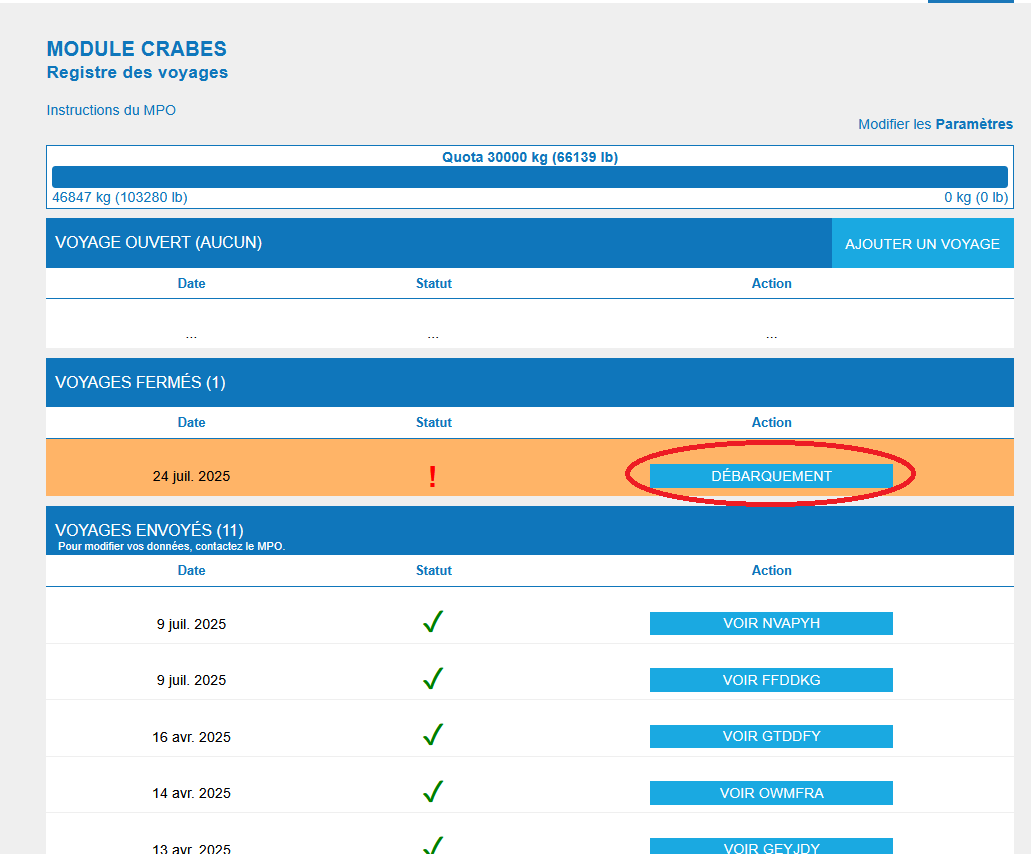
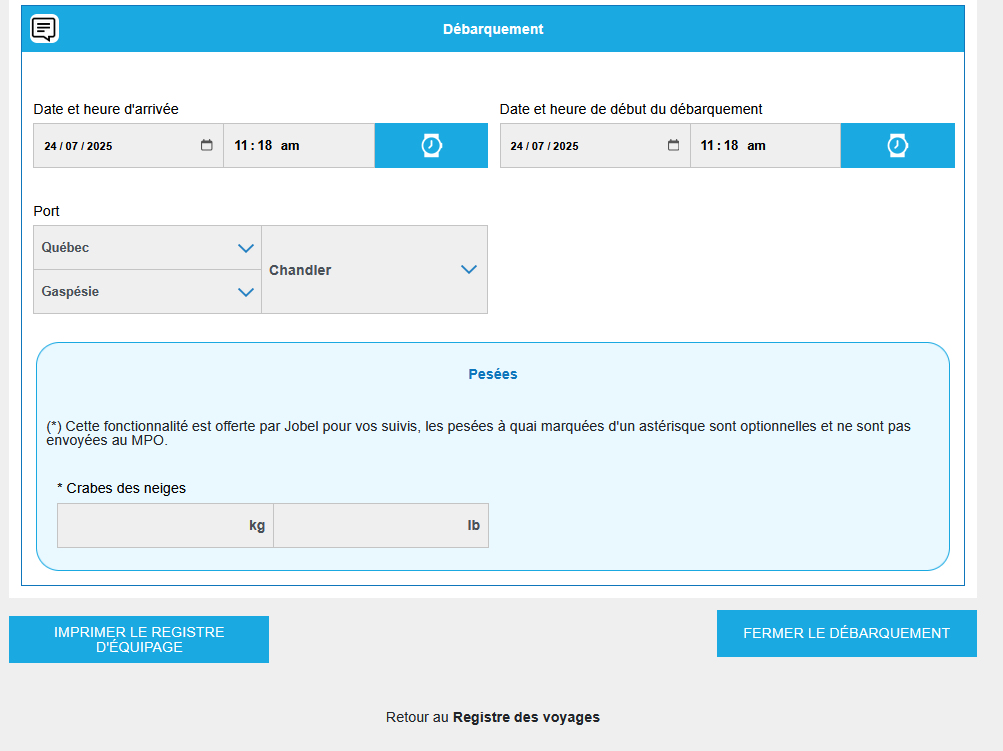
  • Click the blue "Disembarkation" button corresponding to the closed voyage for which you wish to add landing data. You will be guided to the details of your voyage.
  • At the bottom of the page of your already closed complete voyage, the "Disembarkation" table appears. You must enter all the requested information in this table. The requested information varies depending on the species.
    • Enter the arrival date and time.
    • Enter the date and time the landing began.
    • Dockside weighing allows for changes to the quota indicator; this information is not sent to DFO. The estimated retained weight is sent to DFO.
  • Once you have entered your disembarkation information, click "Close Disembarkation." Your disembarkation information can no longer be edited once closed. An alert message will inform you that you are about to close your disembarkation.

Sending a trip to DFO

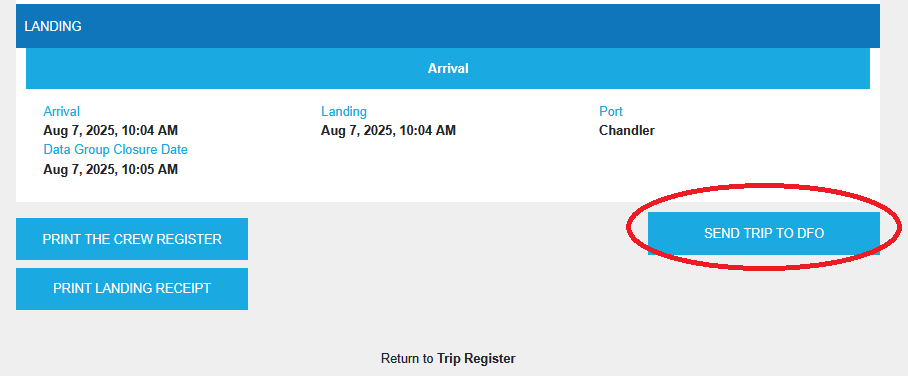
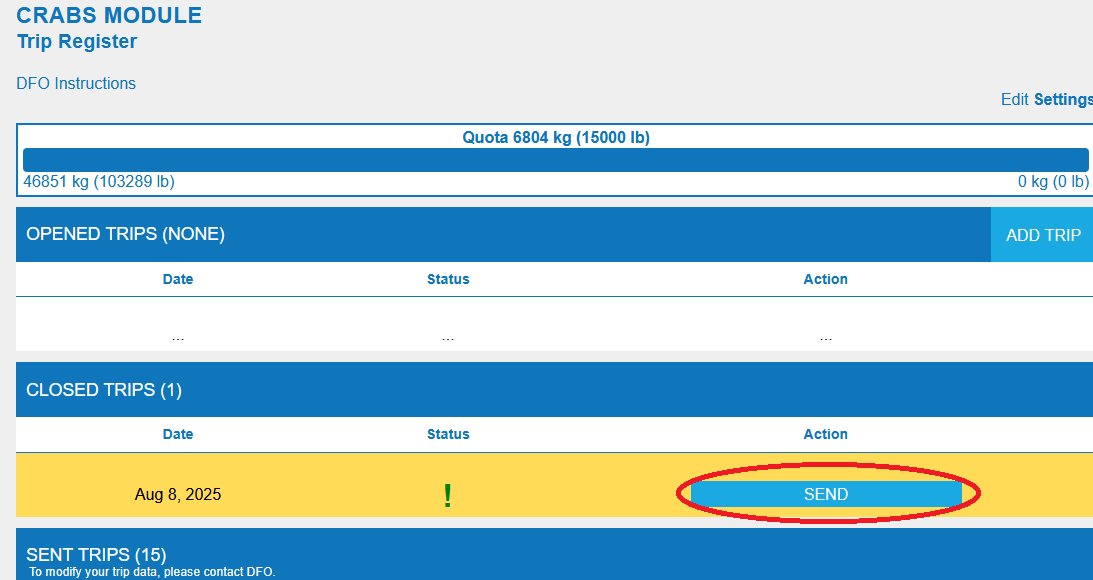
  • From your trip log, click "Send" to send a completed trip to DFO.
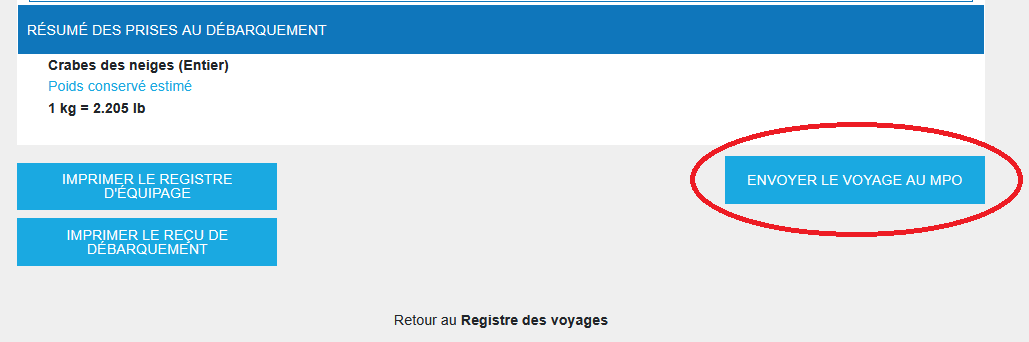
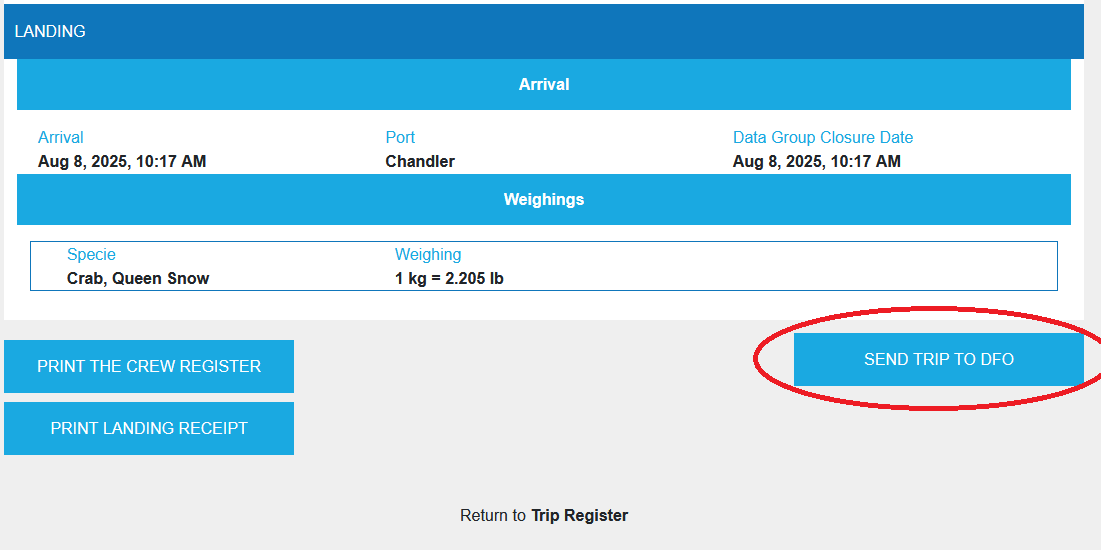
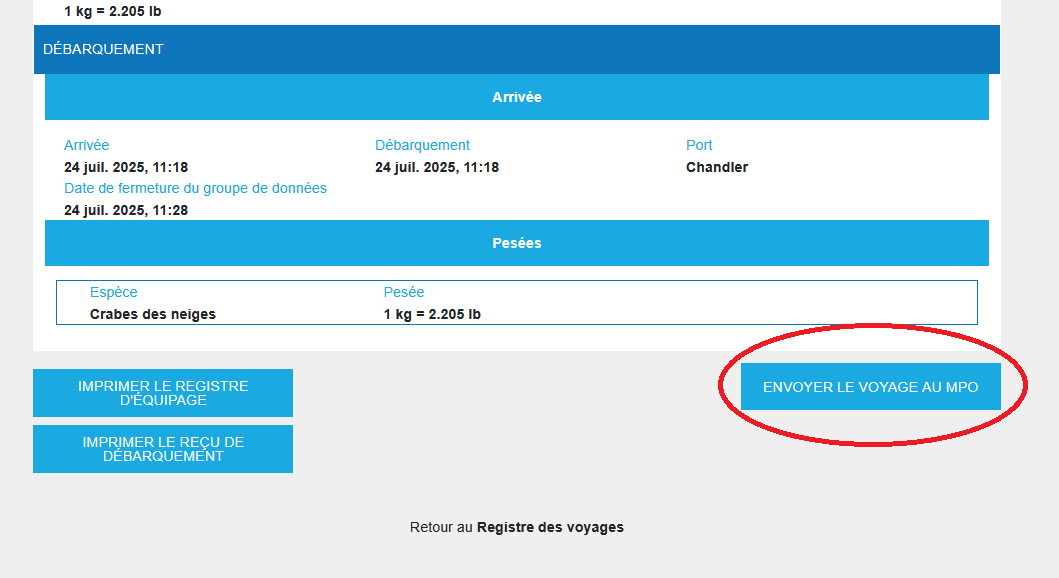
  • The trip data page opens. Click the blue "Send Trip to DFO" button at the bottom of the trip data page.
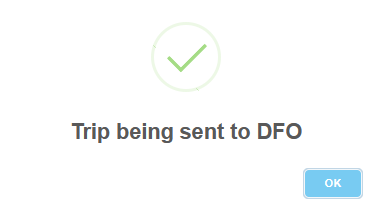
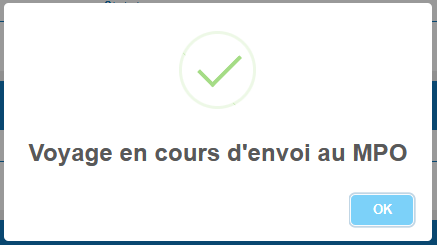
  • A message will inform you that your trip has been sent to the DFO.
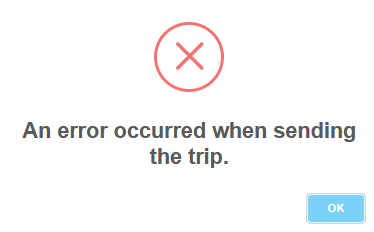
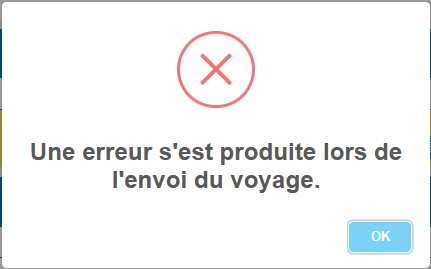
  • If your internet connection is not sufficient to send the trip, you will receive the following message: Your trip will still be visible in the Closed Trips table and you can resend it once the network is available.
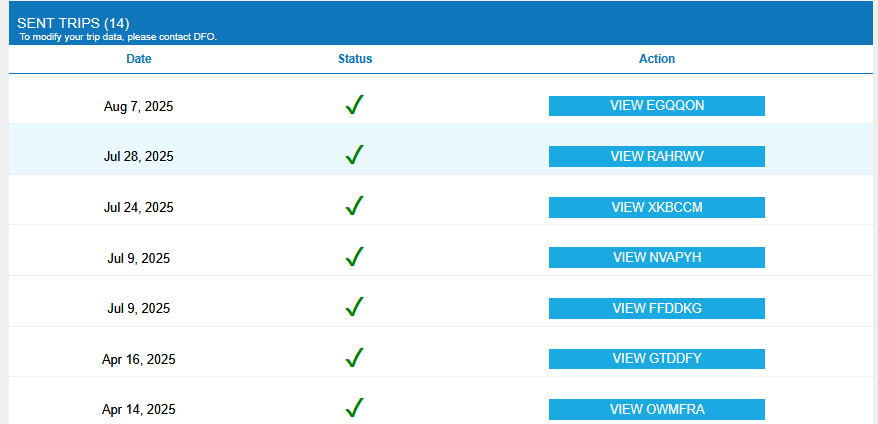
  • Once sent, your trip will be found in the "Sent Trips" table.
  • If the data has been sent to the DFO, a green check mark will appear next to your trip, which can be found in the table of submitted trips.
  • If an error was detected by JOBEL after your trip was sent to your JOBEL account, a black cross will appear. In this case, check your trip transmission log and contact JOBEL technical support as soon as possible at 1 (833) 689-5623.

Transmission log

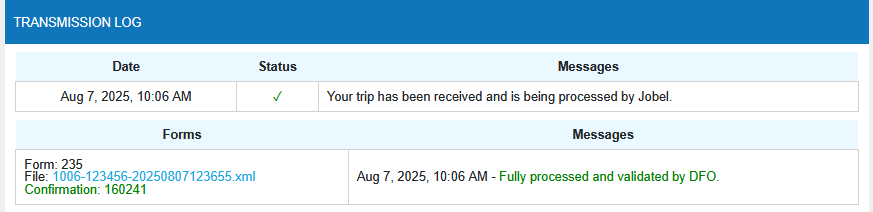
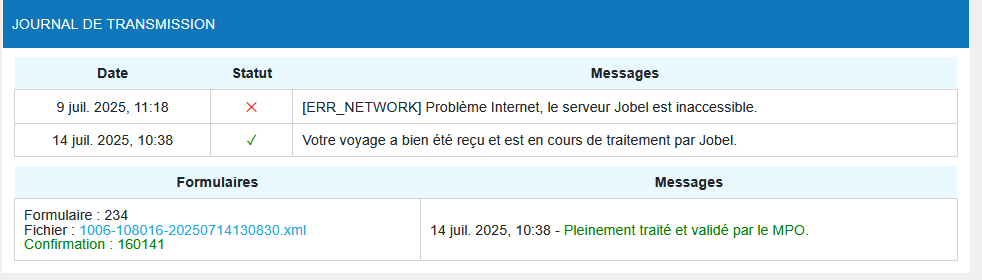
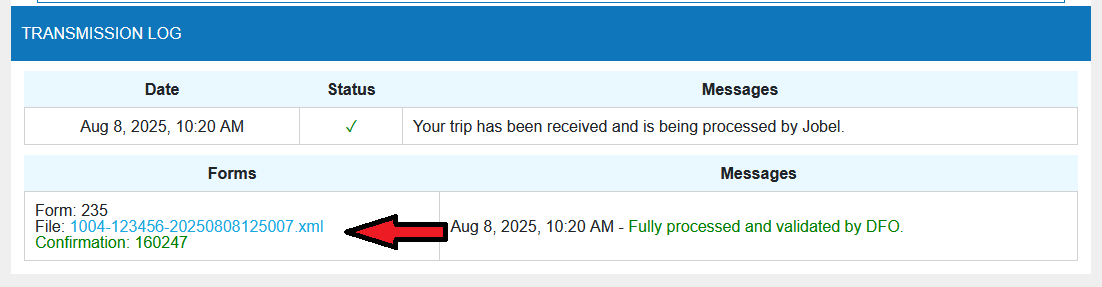
  • The transmission log for a trip allows you to review the details of a trip's transmission and the causes of any potential problems.
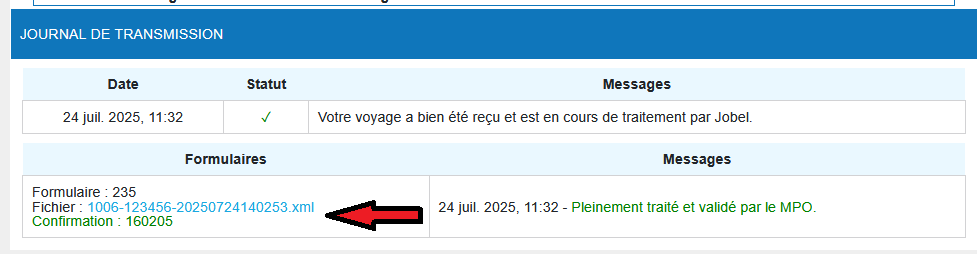
  • It is visible at the bottom of the trip data page after you first click the "Send Trip to DFO" button on the trip data page.
  • An entry in your transmission log is created each time you click the "Send Trip to DFO" button.
  • The details of the submissions are shown in the table: If, and only if, you have reported an Interaction with a Marine Mammal (form 222), or if you have reported a lost or found device (form 223), the submission table displays the XML files corresponding to your report.
  • Click on the blue text to download your trip's XML file.
  • If you encounter a network problem, the following message will appear in the trip's transmission log: "Internet connection issue, the Jobel server is unreachable."
  • Check out our visual guide to submit a trip by going to jobel.ca/guides.

Chapter 6 – Module Pages in Detail

Trip log

Regardless of the species you fish for, the trip log for each module looks the same. The name of the module you are using is at the top of your page. Each fishing trip you make is considered a "trip" in the JOBEL electronic logbook. A trip can have three statuses:
  • An Open Trip – These trips have not been completed or submitted to the DFO.
    • There can only be one open, unsubmitted trip in this table. This is the trip you have started but have not yet completed.
    • An open trip is displayed in red.
    • By clicking the blue buttons on the right, you can "EDIT" or "DELETE" the trip.
    • Clicking the exclamation point displays the open status of your trip.
    • You must either edit, complete, and then close this trip, or delete it.
    • You will not be able to open a new trip while a trip is open.
  • One or more closed trips – These trips have not been submitted to DFO.
    • This is the data for fishing trips that you have closed but have not yet submitted to DFO.
    • This trip data can no longer be modified. However, you can enter your dockside weigh-in data, if applicable, by clicking the "Landing" button.
    • You must submit your data no later than 72 hours after your trip, or according to the conditions of your license.
    • Closed trips are displayed in yellow to remind you to send them to DFO.
    • You can view and send them by clicking the blue button on the right "View Trip" and then clicking "Send to DFO" at the bottom of the review page.
    • Clicking the exclamation point displays the closed and uneditable status of your trip.
  • One or more trips sent – These trips have been closed and sent to DFO.
    • This is the data on fishing trips that you have closed and sent to DFO. This data can no longer be edited.
    • You can view it by clicking on "View Trip".
    • The green check mark confirms that the trip has been received by DFO.
    • If an "X" appears, check your "Transmission Log" to find out the reason by clicking on "View Trip".

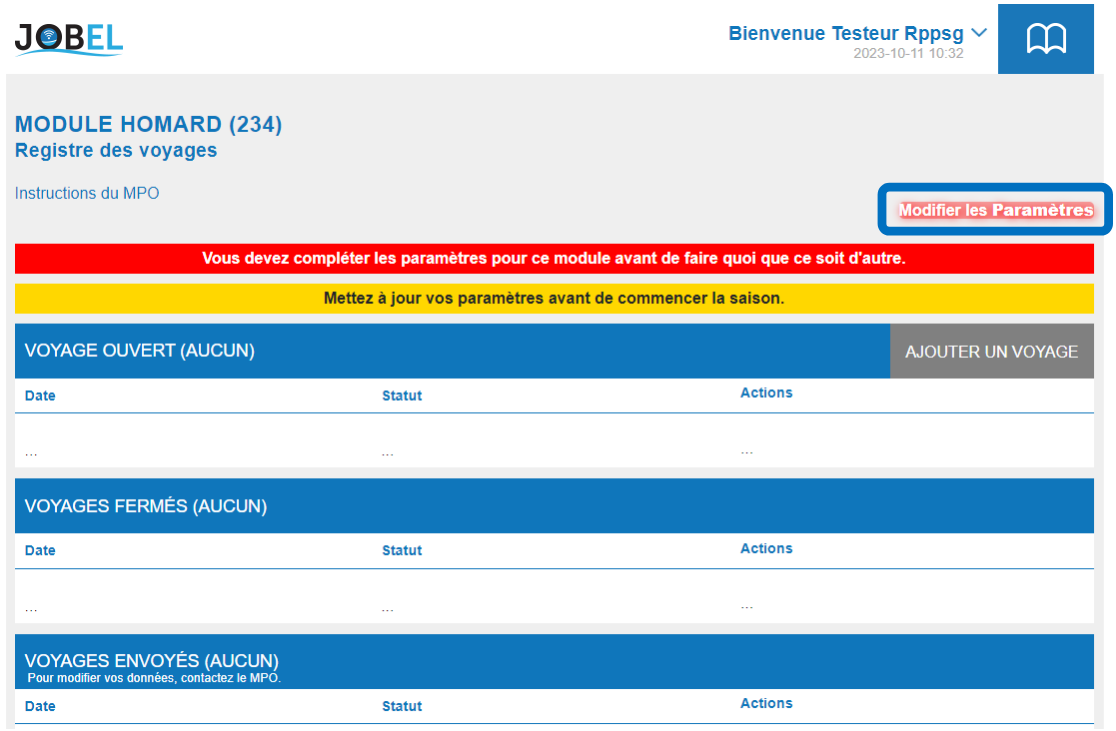
When you first use your module, the trip log will be empty and you will need to enter your settings before adding a trip. Once completed, your settings will automatically appear in the trips created in your module. These settings can be changed at any time, if no trips are open.

Settings

Before you can make a trip for the first time, you must enter your settings. Once completed, your settings will automatically appear in the trips created in your module. They can be modified at any time.

The "ADD A TRIP" button is gray until you have completed all required settings. If a field is not correctly completed, it will appear in red with a message indicating what to do next.

Enter the parameters

ATTENTION!
Complete all requested fields on your settings page — without exception. Only the crew log is optional. The information varies slightly depending on the fishing module, region, and fishing zone.

  • Subform selection – Enter the DFO region you report to.
  • Operator name – Enter the name of the person who normally operates the vessel (usually the license holder, or a substitute if applicable).
  • FIN – Enter the operator's fisherman's ID number.
  • Number of crew members (displayed by region) – Number of crew members, including the captain. Click "Add Crew Member" to register fishing assistants.
  • Vessel registration number (VRN) – Enter your vessel's registration number as registered with the DFO.
  • Partnership – Indicate whether you have a partnership agreement or not.
  • Fishing license number – Enter your fishing license number. If you fish with multiple licenses, click "Add License" to enter additional ones.
  • Target species – This field is automatically populated.
  • Fishing area – Select the fishing area for which the permit was issued.
  • Total number of gears – Indicate the number of fishing gears authorized for this license.
  • Fishing statistical area – Select the statistical area for which the license was issued (usually applies to Newfoundland and the Pacific region).
  • First type of bait – Indicate the type of bait you will primarily use.
  • Departure port – Choose the departure province, region, and port.
  • Arrival port – Select the arrival province, region, and port.
  • Company offering the outbound call service (displayed by region) – Select the company you would normally use.
  • Company offering the inbound calling service (displayed by area) – Select the company you would normally use.
  • Transfers – Indicate whether you make transfers, if applicable for your fishing area.
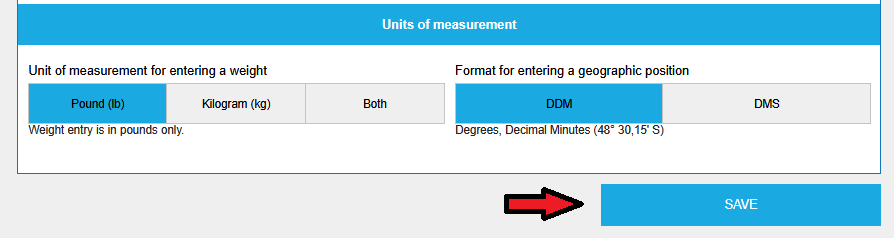
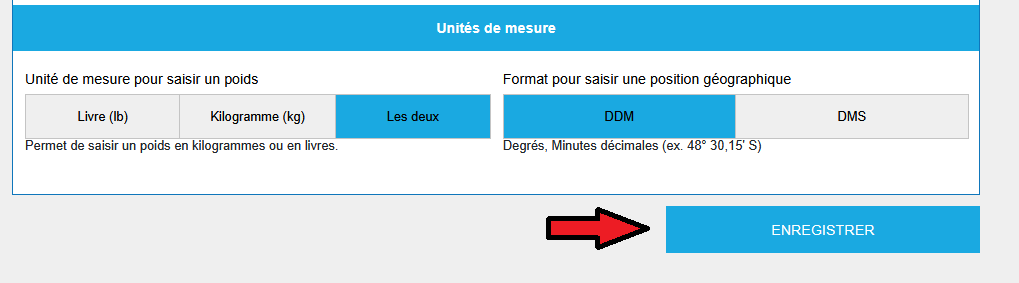
  • Units of measurement – Choose pounds, kilograms, or both.

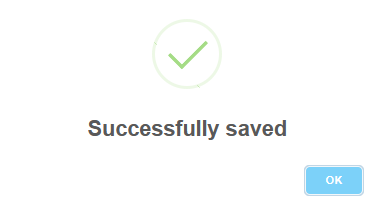
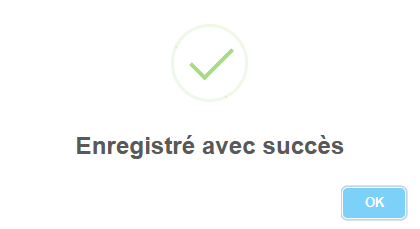
Once you have completed your settings, click the "SAVE" button at the bottom of the page. Missing fields turn red; otherwise you will receive a success message.

See our visual guide to complete the settings by going to jobel.ca/guides.

Fishing gear details (shrimp and crab module)

ATTENTION!
Gear details only apply to the Pacific Region Crab and Shrimp subtypes.

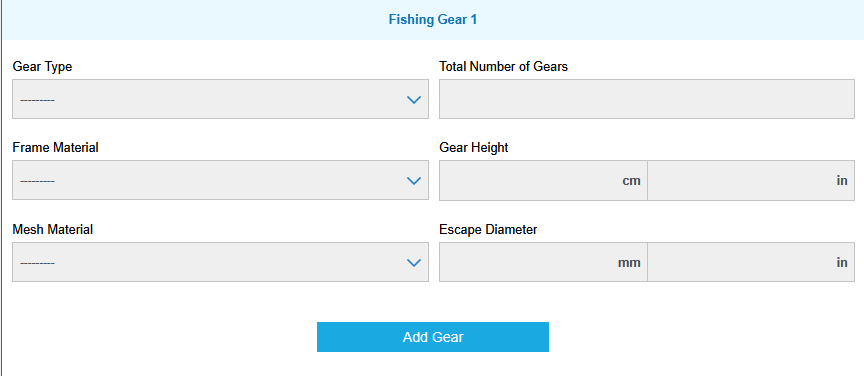
Fill out the fishing gear details fields on your settings page. This information is only requested once a year, or if you change gear types during the season.

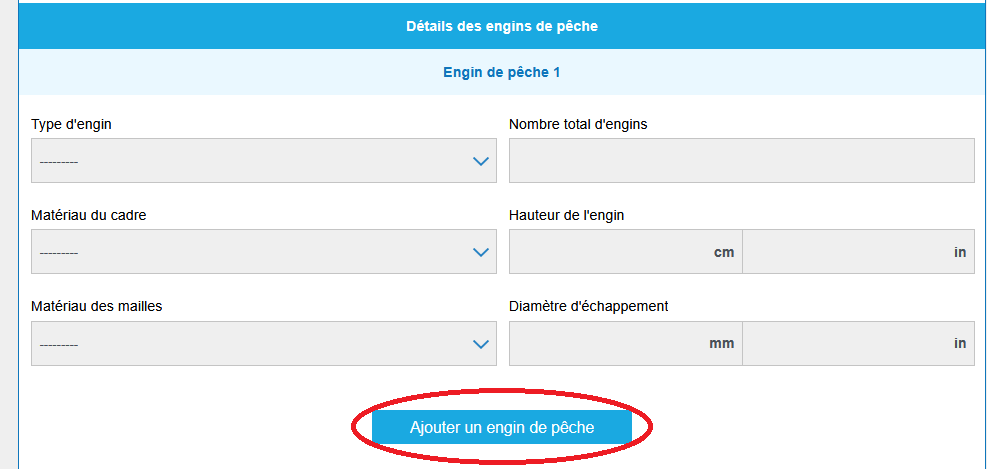
  • Click the blue "Add Fishing Gear" button to add fishing gear to your trip.
  • Vehicle type (displayed by module) – Select the vehicle type.
  • Number of tunnels (displayed by module)
  • Total number of vehicles – Indicate the total number of vehicles associated with your permit.
  • Frame material – Select the frame material.
  • Mesh material – Select the mesh material.
  • Upper/lower diameter and exhaust – Enter measurements in cm or inches; JOBEL will convert them.
  • Length and width – Enter measurements in cm or inches; JOBEL will convert them.
  • Trap subtype (displayed according to module) – Select the trap subtype.
  • Vehicle height – Enter measurements in cm or inches; JOBEL will convert them.

Open a new trip

  • A fishing trip consists of 5 pages, to which may be added the declaration pages for marine mammal interactions, endangered species interactions, lost/found gear, and inactivity reports (refer to the conditions of your license).
  • Depending on your fishing module and your region, you will need to complete a certain amount of information during your fishing trip.

Page 1 – General information

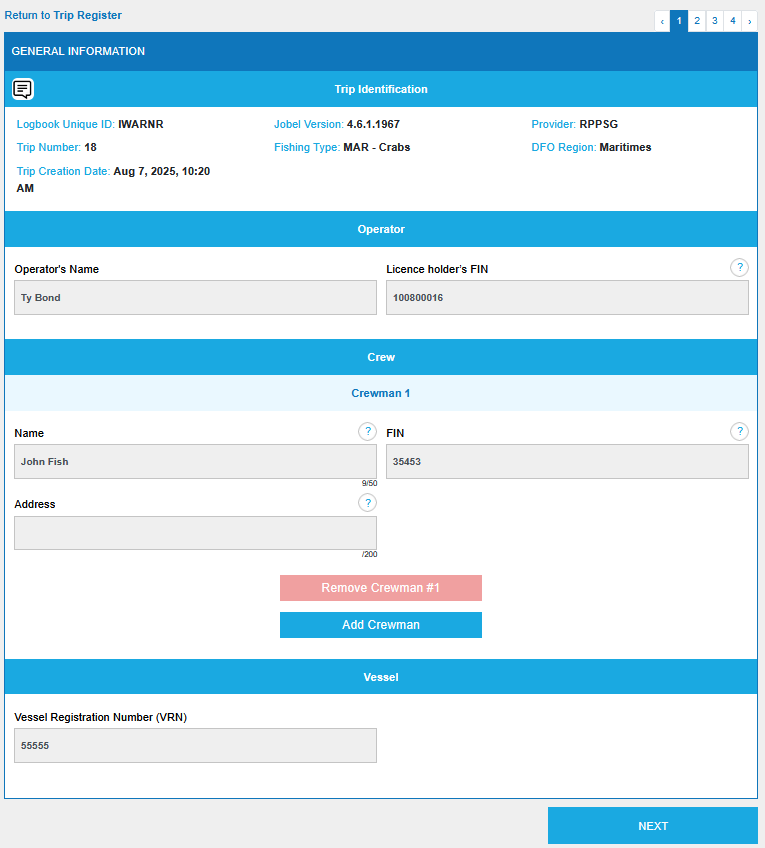
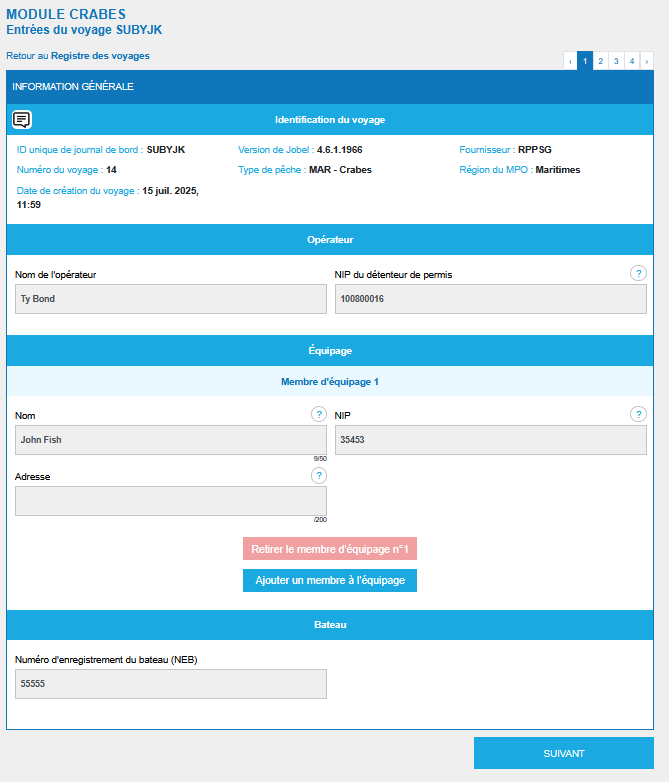
Page 1 is dedicated to general trip information: automatic identifiers (software version, trip number, unique logbook ID, creation date/time), settings data you can adjust within the trip, and crew information.

  • Observer on board: Indicate if you have an observer on your trip.
  • If fishing in a transfer area, indicate whether you are using a carrier for this trip.
  • To remove an absent crew member for this trip only, click the red "Remove this crew member" button.
  • To add a crew member for this trip only, click the blue "Add a crew member" button.
  • Click "Next" to proceed.

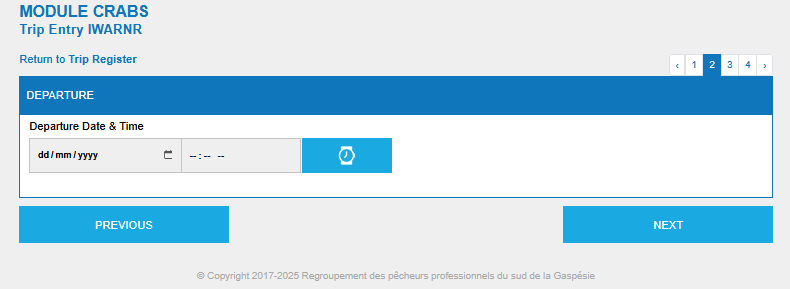
Page 2 – Departure

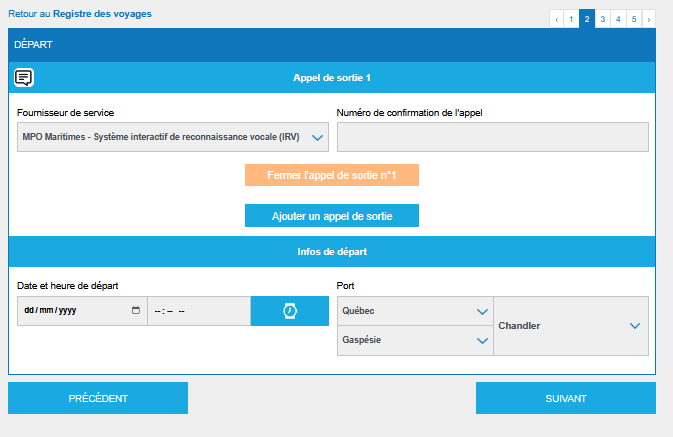
This page covers your fishing departure time.

  • Out-of-Sea Calls – Service provider (auto-filled from settings, modifiable) and call confirmation number.
  • Departure information – Departure date/time, port (auto-filled, modifiable), and departure dock (depending on module).

Once all fields are correctly completed, click the blue "Next" button.

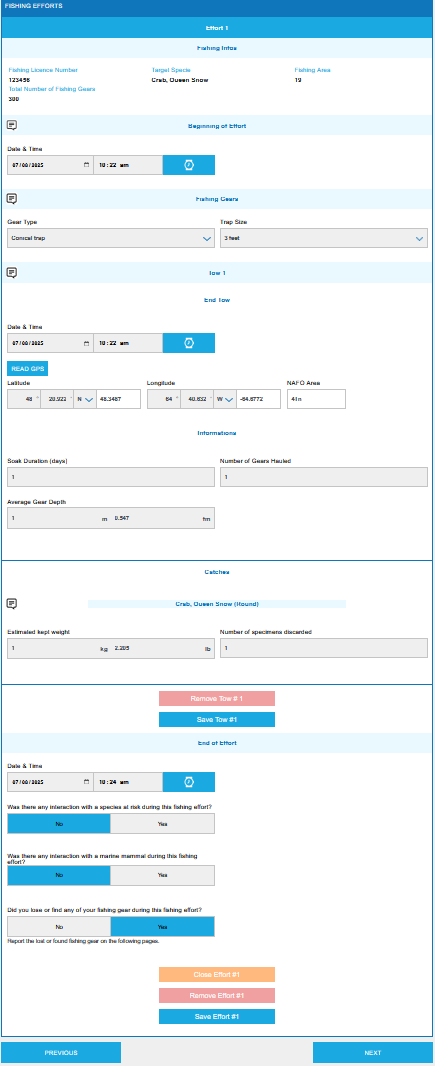
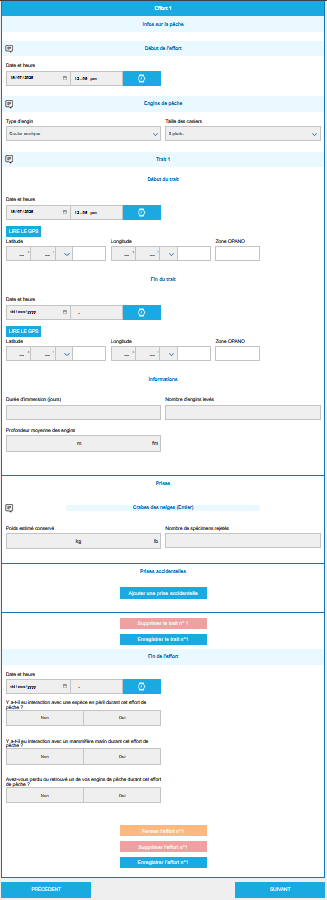
Page 3 – Fishing effort

⚠ You can close your fishing effort before completing your trip. Once closed, you will no longer be able to modify your fishing effort data. To modify it, call DFO at the number listed in your licence conditions.

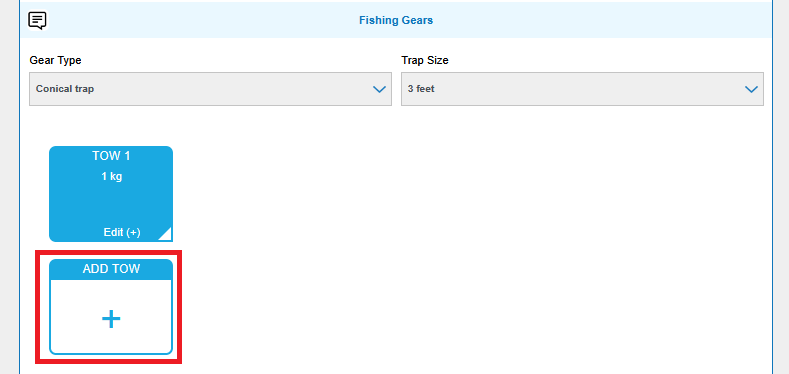
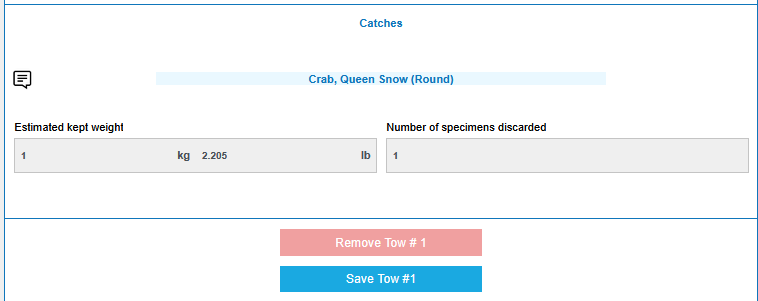
This page covers all your fishing efforts. You can add as many efforts as needed, each containing as many hauls as necessary. Required fields are displayed based on your module and fishing region.

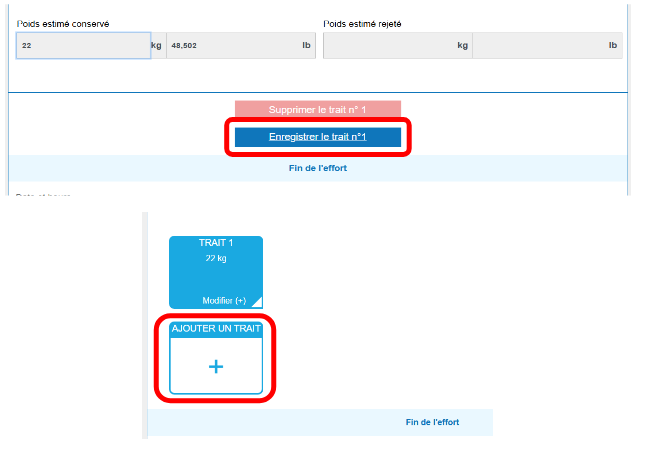
  • To add a second haul, click "Save Line 1" then click the "Add Line" box and enter data.
  • To delete a haul added by mistake, click the red "Delete Last Tow" button.
  • Depending on module and region, click "Add a catch" for additional catches.
  • Depending on your region, special fields may appear: number of V-notch females caught, number of V-notch females marked, number of large lobsters (< 145 mm) caught.
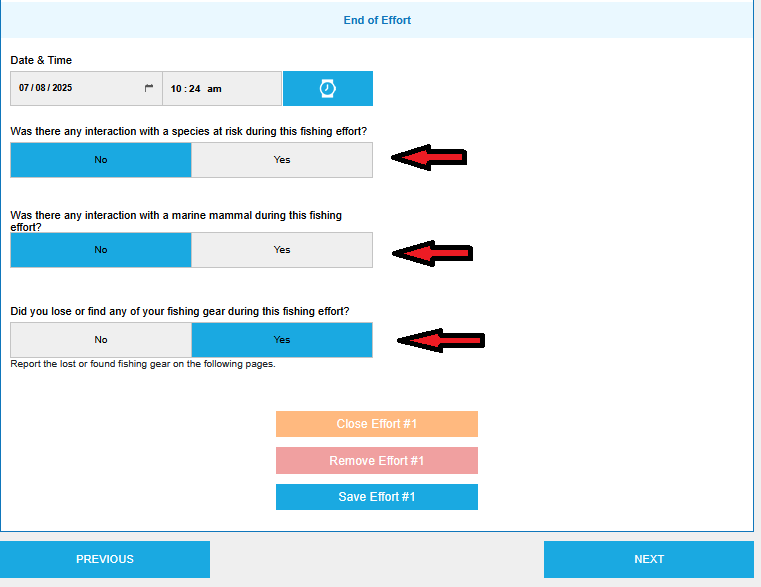
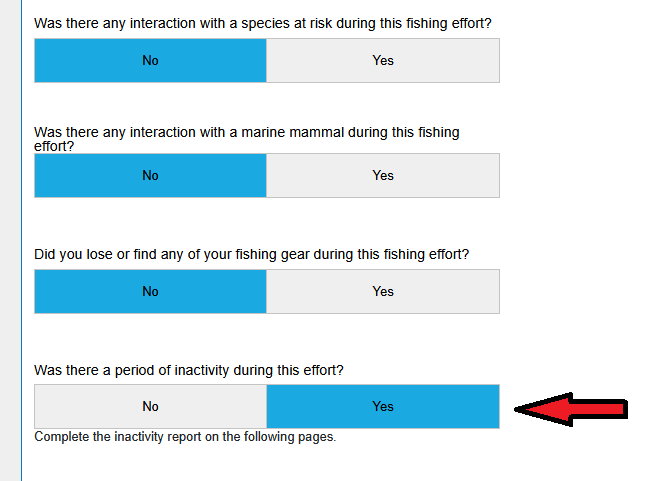
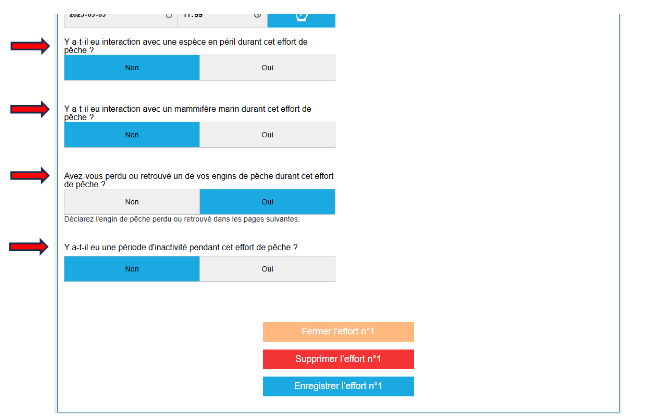
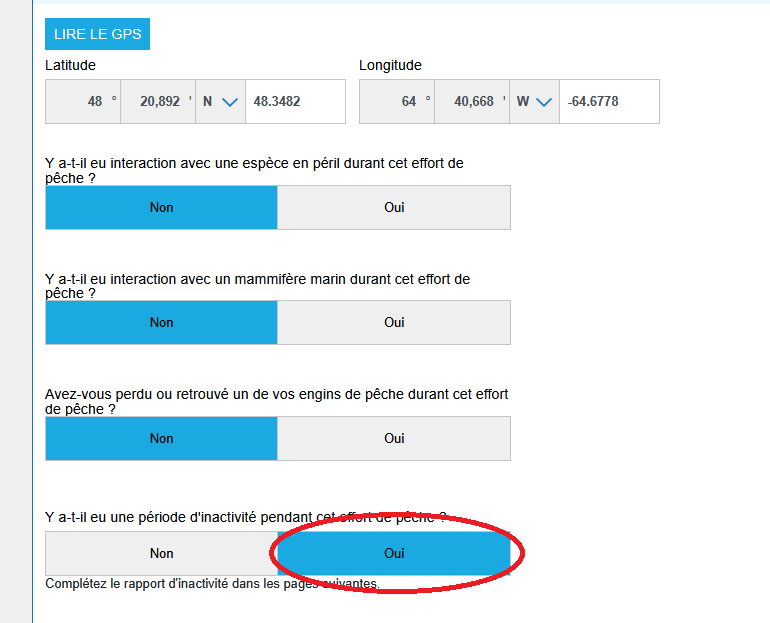
  • Indicators – At the end of each effort, indicate whether you had an interaction with a species at risk, a marine mammal interaction, lost or found fishing gear, or a period of inactivity. Answer all four questions "YES" or "NO." If "YES," the appropriate forms will appear on the following pages.
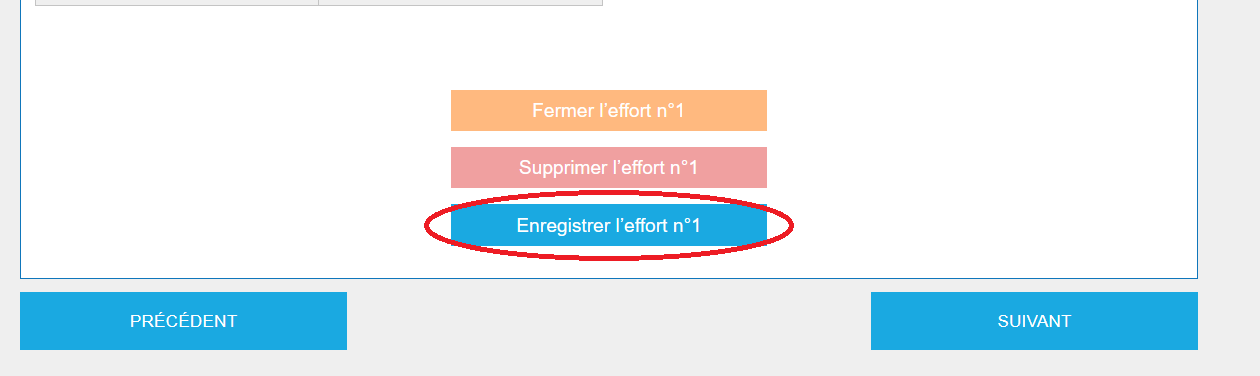
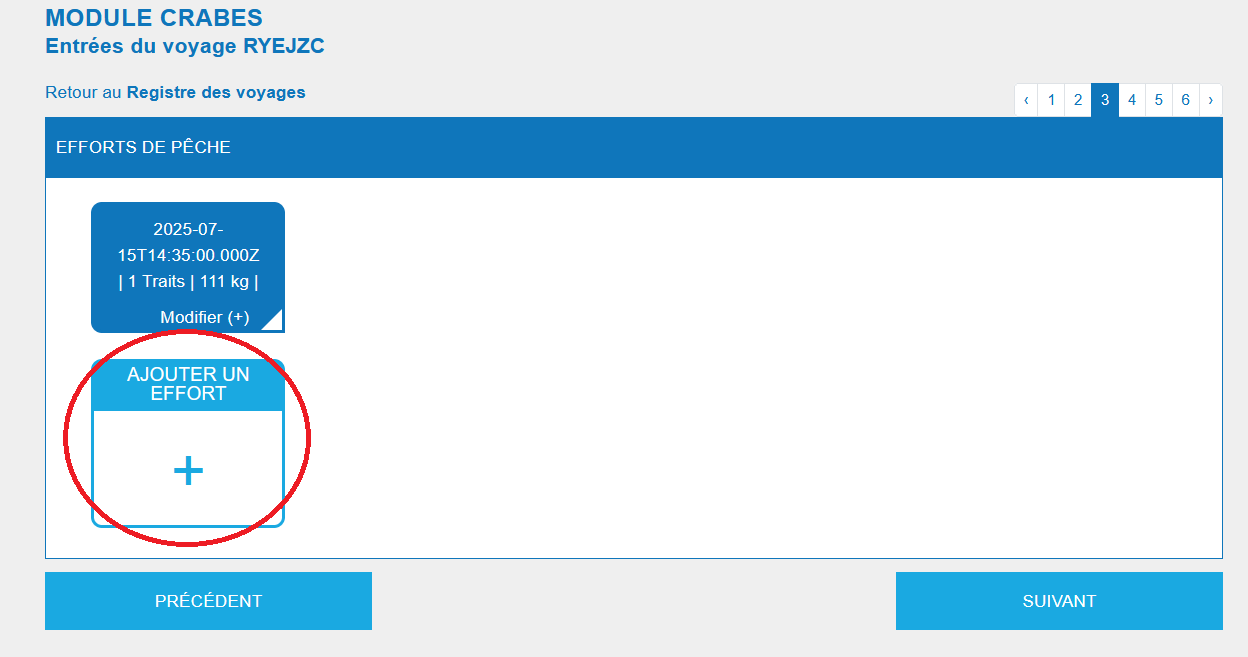
  • To add a second effort, click "Save Effort 1" then click "Add Effort" and enter data.
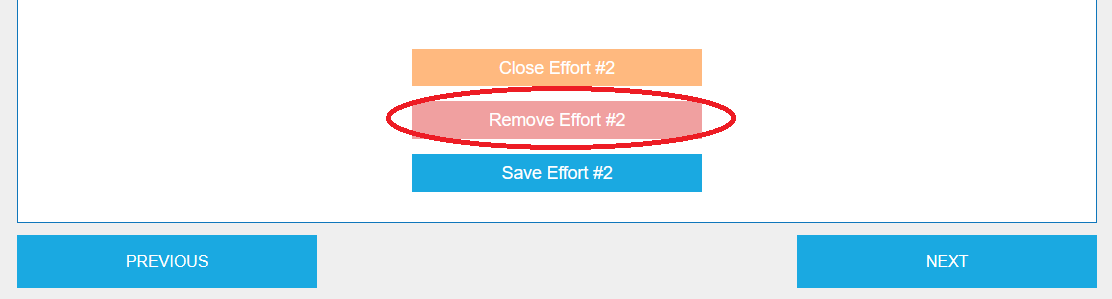
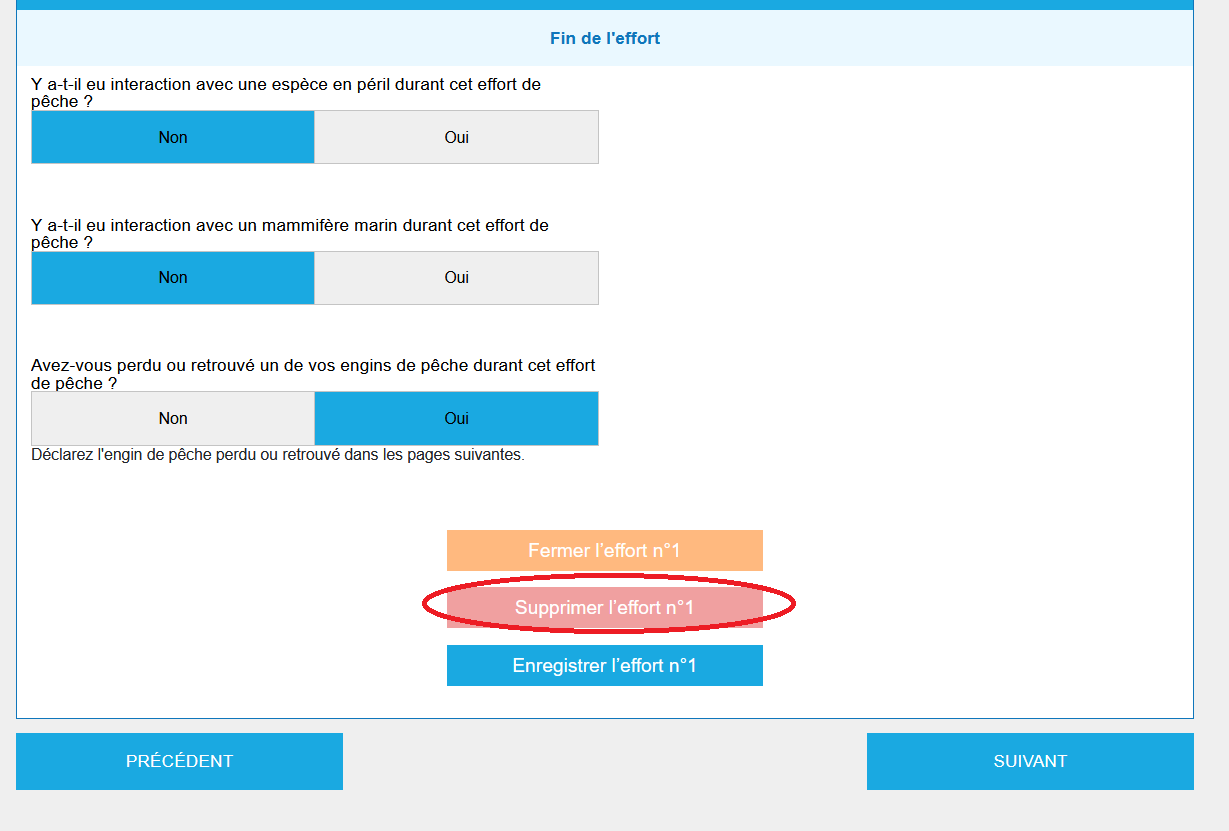
  • To delete a second effort added by mistake, click the red "Delete Effort #2" button.

Page 4 – Bait / Tags

Page 4 is dedicated to bait information.

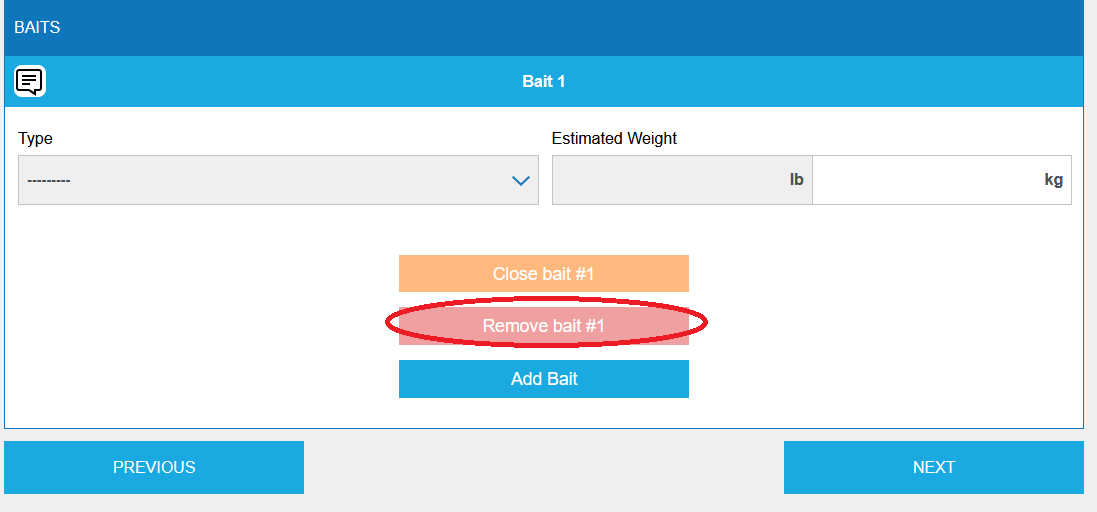
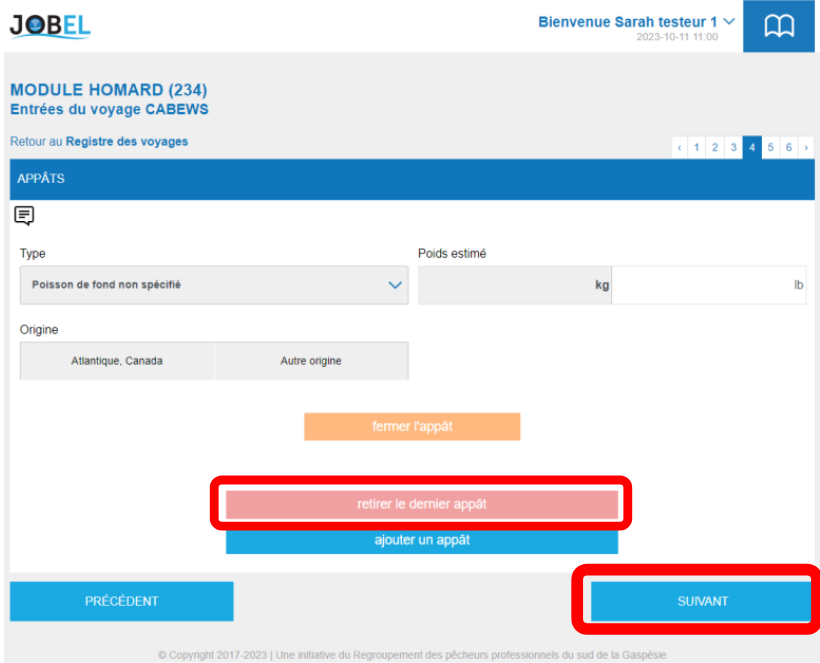
  • Bait used – Depending on your region, enter the bait used during your trip. To remove a bait, click "Remove Last Bait".
  • Bait caught – In the Tuna and Swordfish module, depending on the region, complete information about bait caught for possible use as bait.
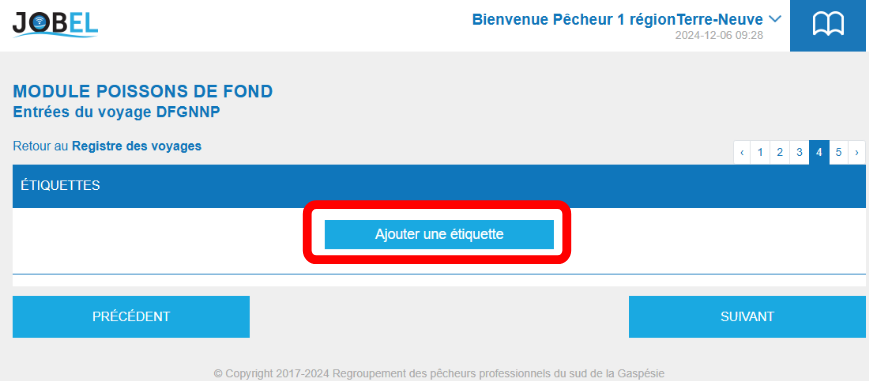
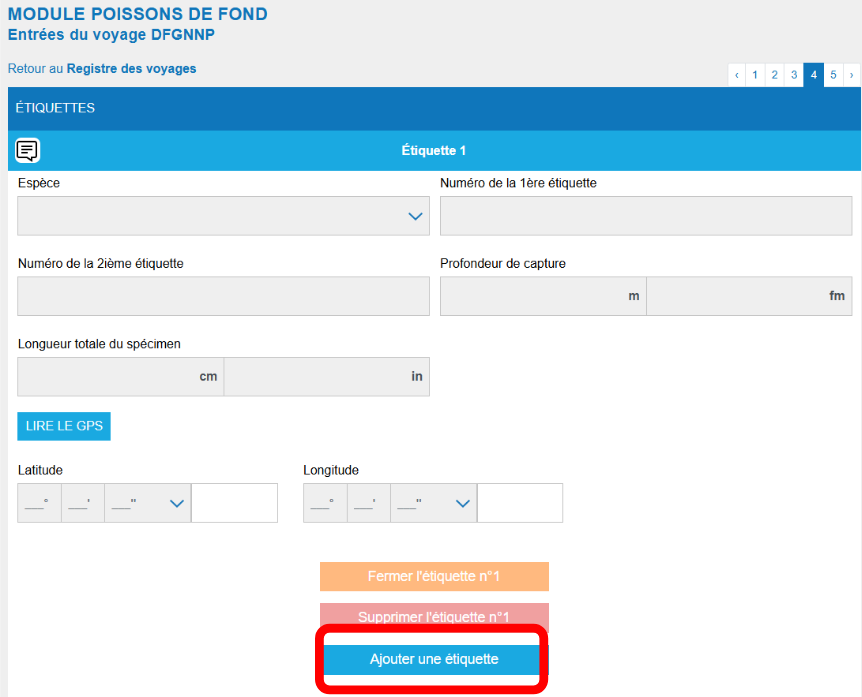
  • Tags – In the Groundfish module (Newfoundland and Pacific region), page 4 is dedicated to the tags section. Click "Add a Tag" and complete the required fields.

Page 5 – Additional pages

Lost/Found Gear Report – If you answered "YES" to the lost/found gear question on page 3:

  • Select the gear status in the Gear Status field.
  • Some information is automatically populated from your fishing trip data.
  • Add loss events for each type of lost device.
  • You can optionally enter tag numbers of lost devices.

Declaration of an interaction with a species at risk – If you answered "YES" on page 3:

  • All fields are mandatory unless otherwise indicated.
  • Click the blue "Next" button when all fields are completed.

Declaration of an interaction with a marine mammal – If you answered "YES" on page 3:

  • This form must be completed immediately after any accidental contact between a marine mammal and a vessel or fishing gear, as required by the Fisheries Act.
  • This page is partially auto-completed from your fishing effort data.
  • Click the blue "Next" button when all fields are completed.

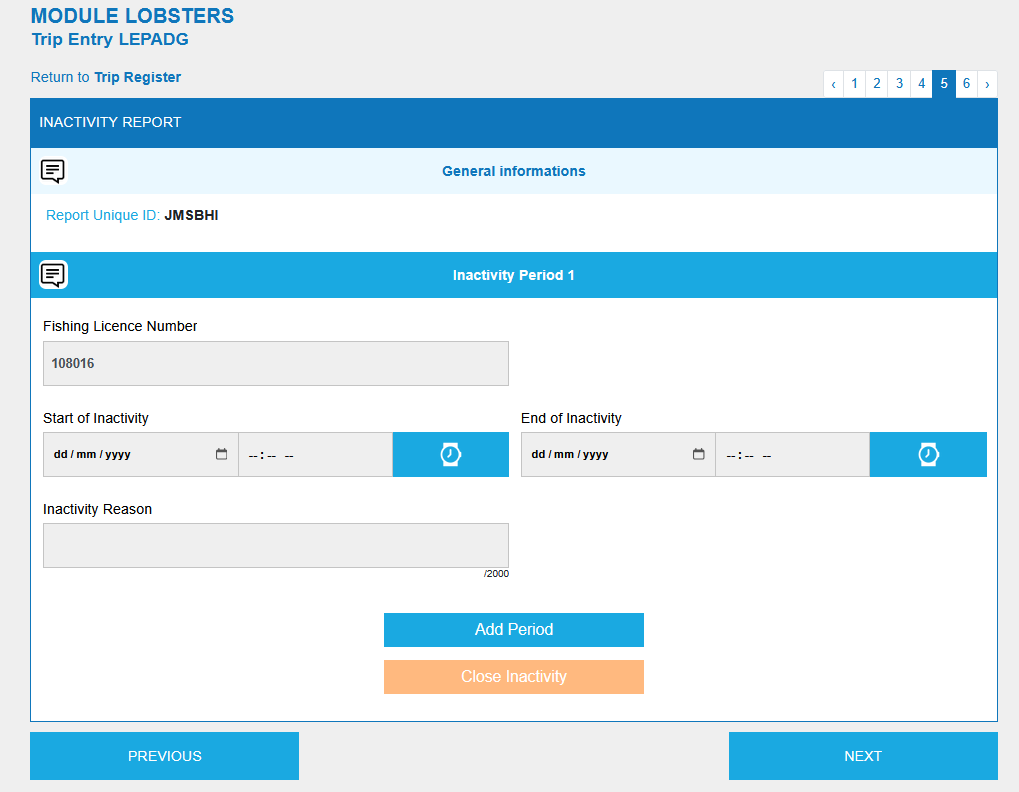
Declaration of a period of inactivity – If you answered "YES" on page 3:

  • Click "Add a Period" and complete the inactivity declaration information.
  • The fishing license number is pre-filled but can be changed.

Transfers / Personal use / Arrival

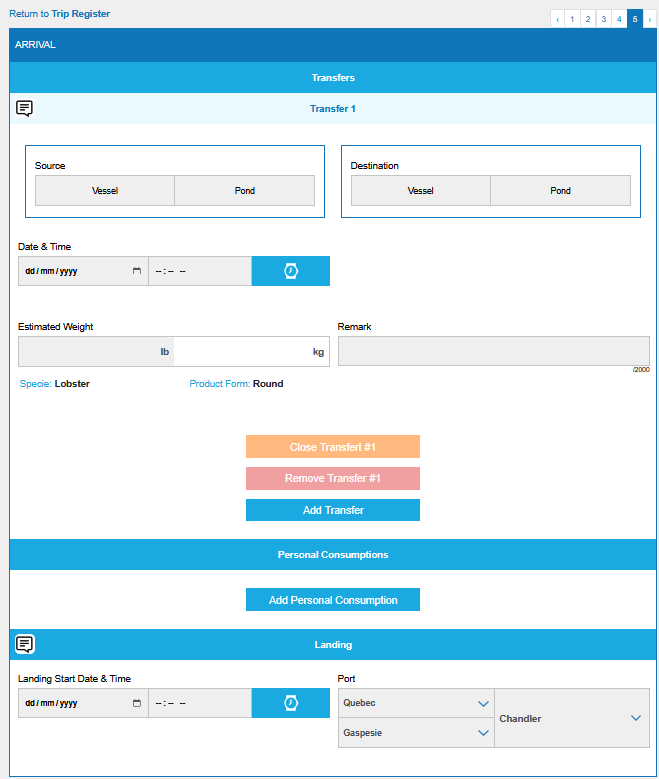
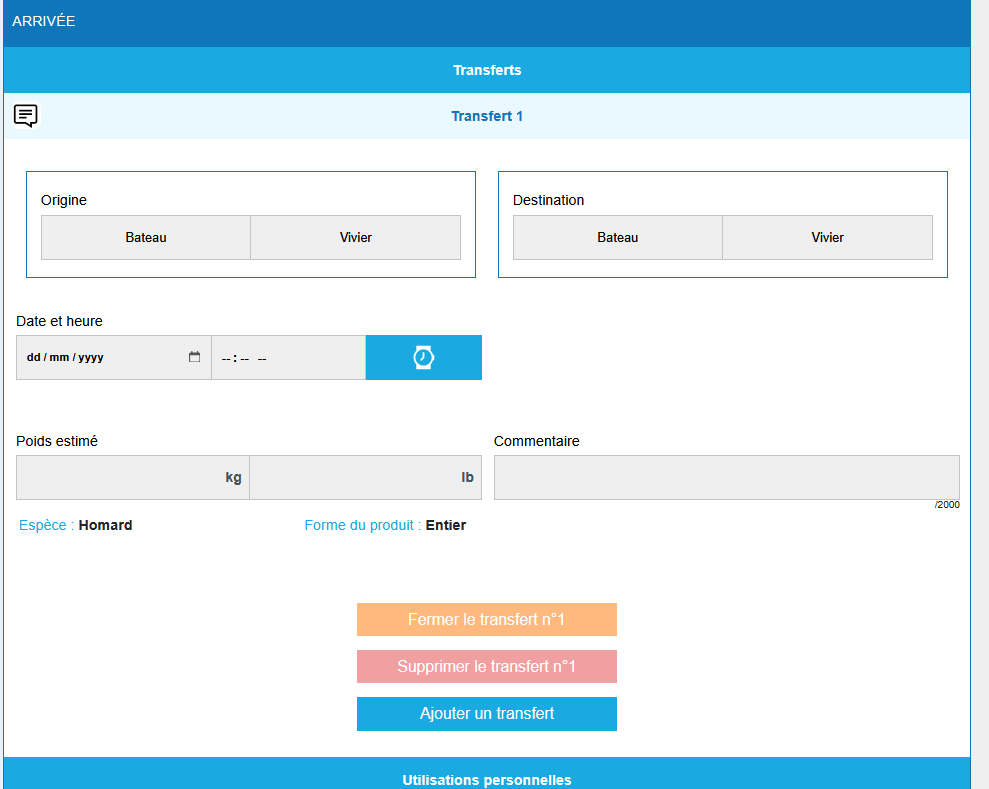
  • Transfers (only if available for your fishing area) – Click "Add a Transfer" and enter transfer information. Several fields are pre-filled from your settings.
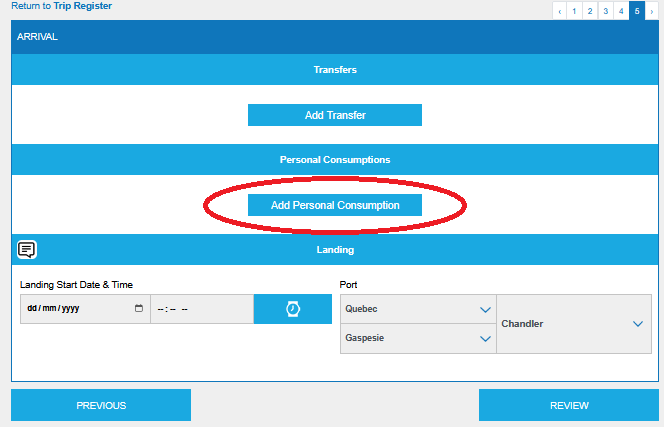
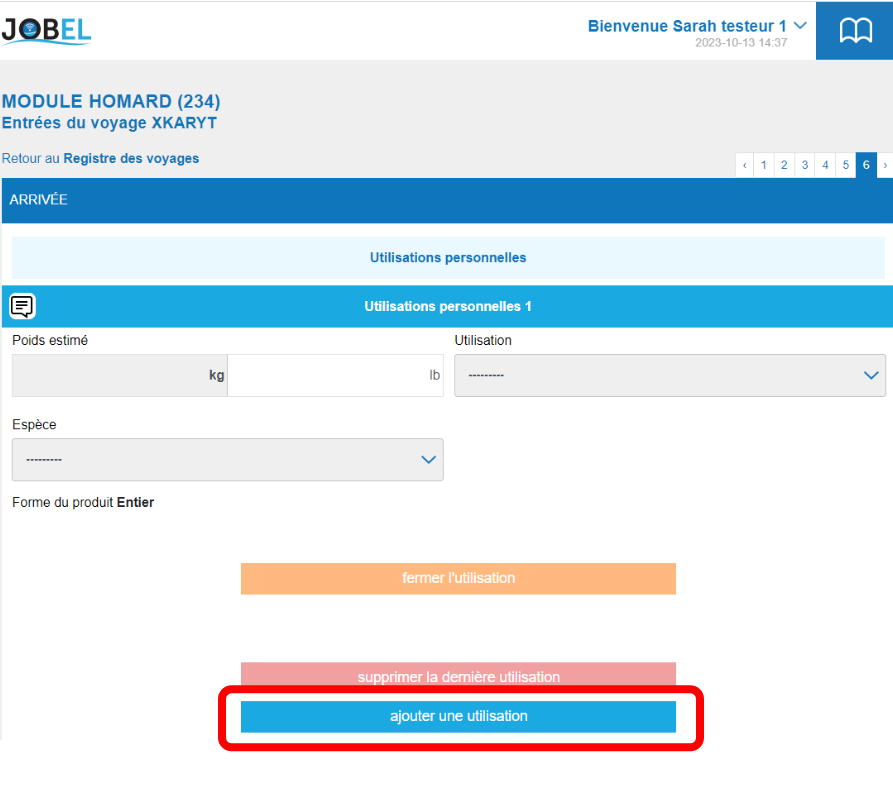
  • Personal use – Click "Add Use" for additional personal uses. Enter total weight stored per use type, and select intended use type and product size as required by your region.
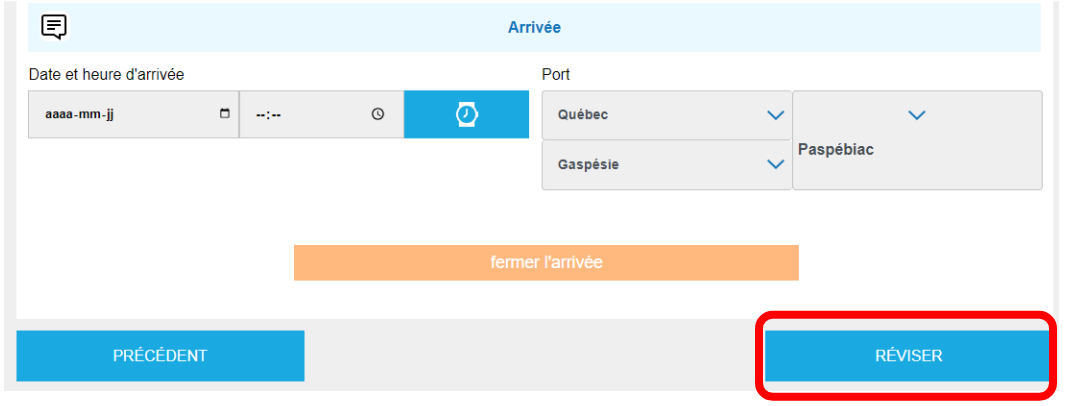
  • Arrival – Enter arrival date/time and confirm your arrival port. Click the blue "Review" button when all fields are completed.

Review page

The review page displays all data entered in your JOBEL electronic logbook. It is your responsibility to verify all data entered. Once reviewed, you have four options:

  • 1. Edit trip – Redirects you to page 1 so you can find and correct any error, then review again.
  • 2. Delete trip – Cancels the trip with all its data. An alert will ask you to confirm; click "Cancel" to keep the data.
  • 3. Close the trip – Permanently closes the trip; trip data can no longer be modified by you.
  • Return to trip log – Returns you to the trip log with the trip in the open trips area. You can return to your trip by clicking the "Edit Trip" link.

Disembarkation

This is the action to take before sending your trip to the DFO.

Click the blue "Disembarkation" button. The "Disembarkation" table appears at the bottom of the page of your already closed trip. You must enter all the requested information in this table.

You can change the port of arrival, which was automatically entered from your settings.

Once you have entered your disembarkation information, click "Close Disembarkation." Once the disembarkation is closed, your disembarkation data can no longer be changed.

Check out our visual guide on how to submit a trip to DFO by going to jobel.ca/guides.

Sending a trip to DFO

ATTENTION!
You must be connected to the internet and using a reliable connection to send your trip to DFO. You do not need to send from the wharf — you have 72 hours after arriving at the wharf to send your trip.

From the trip log screen, click the "Send" button for the closed trip you wish to send. You will be taken to the trip details page. Click the blue "Send Trip to DFO" button at the bottom.

Once sent, your trip will appear in the "Sent Trips" table.

  • The green check mark confirms the trip was received by DFO.
  • If an "X" appears, check your Transmission Log by clicking "View Trip".

Transmission log

  • Click "VIEW TRIP" to view the details of your sent trip.
  • The Transmission Log table at the bottom shows the details of the transmission to DFO: a green check mark means success; a black "X" means DFO is still analyzing the trip.
  • If you completed a Marine Mammal Interaction Form (Form 222) or Lost/Found Gear (Form 223), the transmission table will display the corresponding XML data file.
  • You can download the XML files for each form sent to DFO using the links in the transmission log.
  • If you attempted to send a trip unsuccessfully and it is still in the Closed Trips table, the sending attempts will be recorded in your transmission log with an error message. Check the reasons and your internet connection, then click "Send Trip to DFO" again.
  • If your log is still not sent despite a good internet connection, contact JOBEL immediately.
  • You can print the crew log by clicking the blue "Print Crew Log" button.

Visual Guides

Each guide below walks you through a specific setup task step by step, directly within this document. Guides marked Coming soon are currently being prepared.

Enabling geolocation

Geolocation must be enabled on your device for JOBEL to automatically capture your fishing position. Select the guide that matches your device.

 Apple devices

Enable geolocation on iPhone
Safari · iOS
Coming soon
Enable geolocation on iPad
Safari · iPadOS
Coming soon
Enable geolocation on Mac
Safari or Chrome · macOS
Coming soon

 Android devices

Enable geolocation on Android phone
Chrome · Android
Coming soon
Enable geolocation on Android tablet
Chrome · Android
Coming soon

 Windows PC

Enable geolocation on Windows
Chrome or Firefox · Windows 10 / 11 + USB GPS receiver
Coming soon

Other guides

Submit a non-fishing inactivity report
Step-by-step guide for all devices
Coming soon
Connect a USB GPS receiver to a computer
Windows PC setup
Coming soon
Retrieve your JBE ELOG key
All devices
Coming soon